
Custom Integration
If your software isn't directly supported by FiscoBridge, you can use a Custom Integration to get API credentials and integrate directly. This lets your system call the FiscoBridge API to create, retrieve, and manage fiscal invoices.
Setting Up a Custom Integration
Go to Integrations → Integrations in the sidebar
Click Create Integration
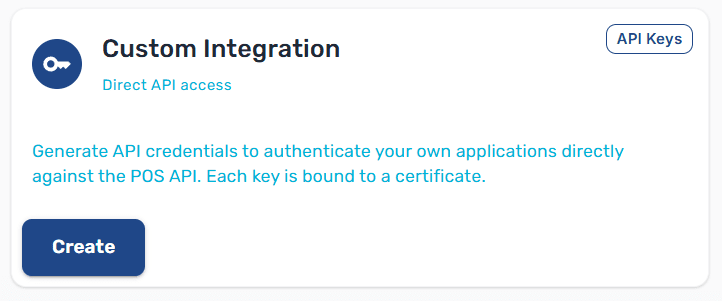
Select the Custom Integration card (marked with an API Keys badge)
An Upload Certificate dialog opens — select your PFX certificate file and enter its password, then click Upload
After the certificate is uploaded, the Custom Integration dialog opens
Complete the setup — the integration is created and linked to the uploaded certificate
The integration appears in your integrations list with status Active.
Managing API Keys
In the Integrations list, find your Custom Integration
Click the API Keys button
You'll be taken to the API Keys page for that integration
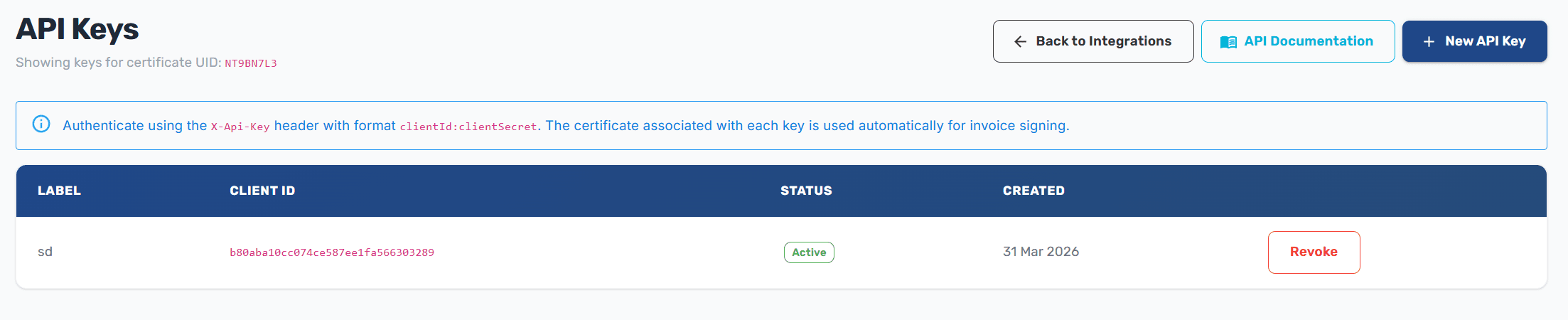
Creating a key:
Click Create API Key
Enter a label/name for the key
The system generates a Client ID and Client Secret
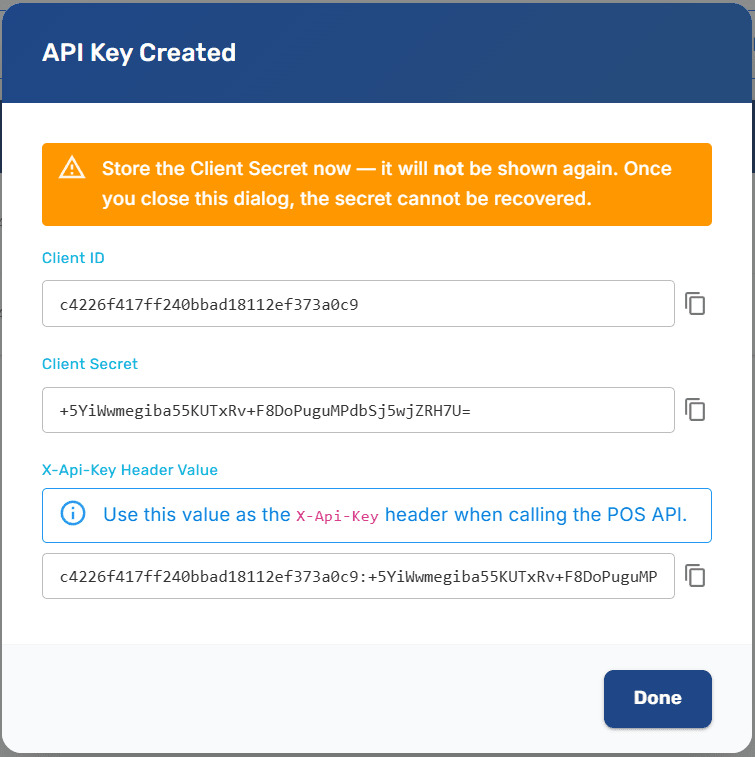
Important: The client secret is shown only once. Copy and store it securely — you cannot retrieve it later.
Using the API
Authenticate your requests with the X-Api-Key header:
The API key is bound to a specific certificate, which is used automatically for invoice signing.
Revoking an API Key
Go to the API Keys page for your integration
Click Revoke next to the key
Confirm the action
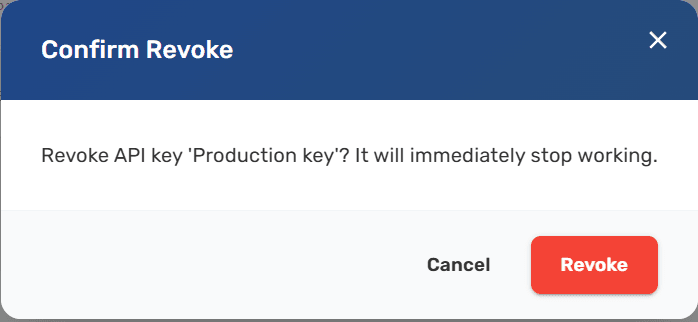
Revoked keys immediately stop working. Create a new key if you need to restore access.
Requirements
An active integration license
At least one PFX certificate (uploaded during integration setup)
Next Steps
Manage integrations — View and manage all your connections
Integrations Overview — Learn about other supported platforms