
Subscriptions
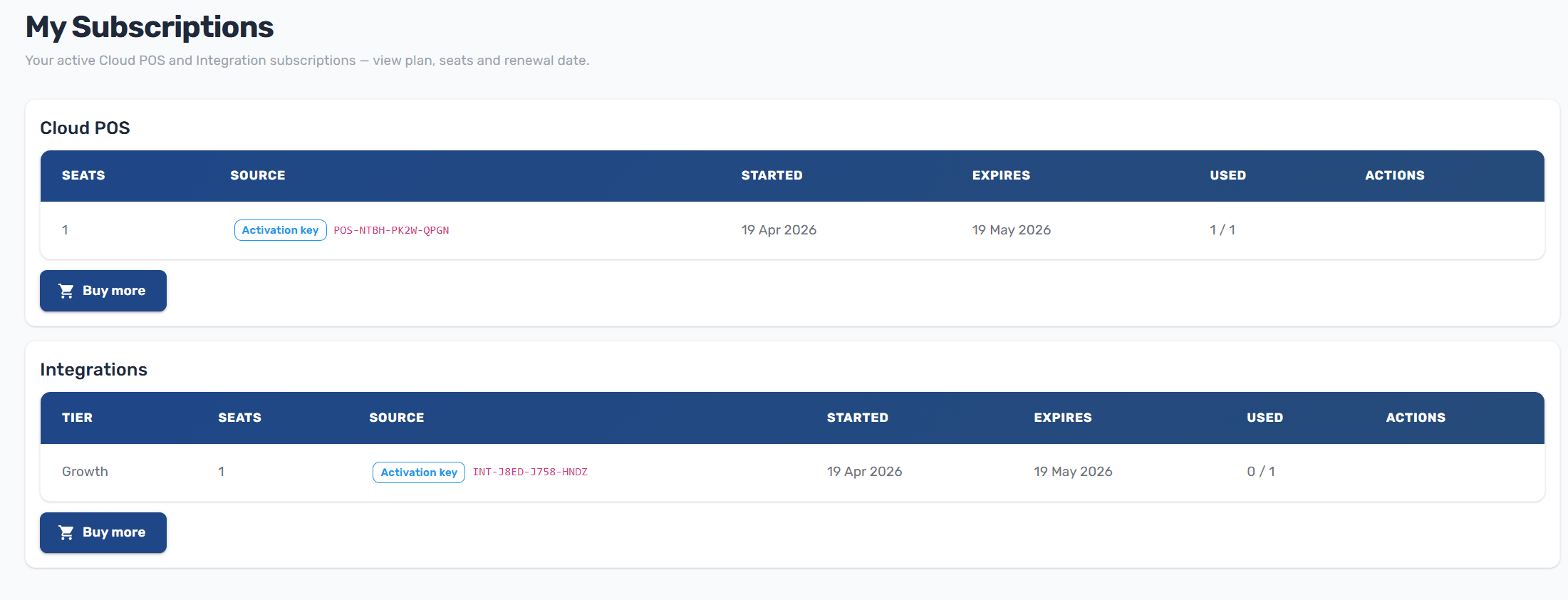
The Subscriptions page gives you a single view of every active plan on your account. It lists your Web Invoicing seats and your Integration allocations side by side, regardless of whether they came from a Stripe subscription or a prepaid reseller activation key.
Opening the Page
Log in to the Client Portal
In the sidebar, under Billing, click Subscriptions
The page loads two panels: Web Invoicing on top and Integrations below.
Web Invoicing Panel
Each row represents one active Web Invoicing subscription.
Column | Description |
|---|---|
Seats | Total number of POS certificate seats the subscription provides |
Source | Where the subscription came from — Stripe (a paid subscription) or Activation key (a redeemed |
Started | The date the subscription became active |
Expires | The date the subscription renews or ends |
Used | How many seats are currently occupied by uploaded certificates, shown as |
Actions | For Stripe subscriptions, a Manage in Stripe button that opens the Stripe Customer Portal |
Below the table, the Buy more button takes you to the Web Invoicing purchase flow so you can add another subscription or expand capacity.
Empty State
If you don't have any active Web Invoicing subscription, the panel shows a prompt with a Buy Web Invoicing Plan call-to-action that sends you to the purchase page.
Integrations Panel
Each Integration subscription can include seats across multiple tiers (Business, Professional). The table expands these into one row per non-empty tier, so a single subscription that covers both Business and Professional will appear as two rows.
Column | Description |
|---|---|
Tier | Business or Professional |
Seats | Seats allocated to that tier |
Source | Stripe or Activation key (shows the masked |
Started | Subscription start date |
Expires | Subscription end or renewal date |
Used | Connections currently using that tier, shown as |
Actions | Manage in Stripe for Stripe subscriptions |
The Buy more button below the table opens the Integrations purchase flow.
Empty State
If you haven't purchased any integration subscription, the panel shows a Buy Integration Plan call-to-action.
Managing a Stripe Subscription
Clicking Manage in Stripe on a Stripe-sourced row opens the Stripe Customer Portal, where you can:
Update your payment method
Download Stripe-issued receipts
Change or cancel the subscription
Review billing history
The portal opens as a redirect. When you're done, Stripe returns you to the Subscriptions page automatically.
Note: Activation-key subscriptions are prepaid and handled by your reseller — they don't have a Stripe portal action. To extend or upgrade a reseller key, contact the partner who issued it.
Understanding "Used" vs "Seats"
For Web Invoicing, "Used" is the number of active certificates uploaded on the Invoicing Manager page. You can't exceed your seat count — remove a certificate before adding a new one if you're at the limit.
For Integrations, "Used" is the number of active connections consuming that tier. Each integration you create occupies one seat at its tier.
Next Steps
Managing Your POS Subscription — Add or remove POS seats
Managing Integrations — Review your active connections
Invoices — Download receipts for subscription payments