
SDC Overview
The Sales Data Controller (SDC) is a desktop application that connects your existing POS system to the FiscoBridge fiscal compliance platform. It runs on your device and handles invoice signing, fiscal reporting, and data synchronization automatically.
What Does the SDC Do?
When your POS system creates an invoice, the SDC:
- Signs the invoice using your tax authority-issued digital certificate
- Generates a fiscal receipt with a verification URL and QR code
- Reports the invoice to the tax authority
- Stores it locally so it can sync later if you're offline
Your POS system communicates with the SDC through a simple REST API running on your local device.
Key Features
- Accredited — Officially certified for Fiji (VMS v3), Vanuatu (VSMS) and Eswatini (ERS.EIS)
- Cross-platform — Available for Windows and macOS
- Offline support — Collects invoices offline and syncs automatically when connectivity is restored
- Automatic reporting — Daily, weekly, and monthly fiscal reports are generated and submitted
- Audit trail — Full invoice tracking and history
- No hardware lock-in — Works on standard computers, no special hardware needed
How It Works
- Install the SDC on your device
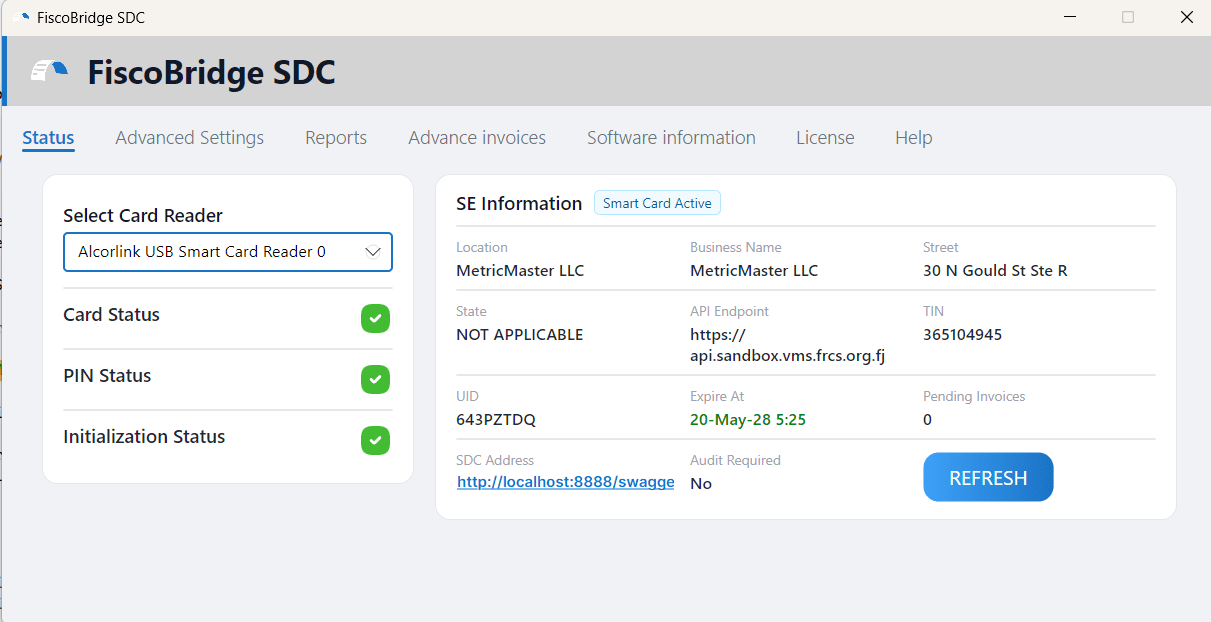
- Initialize — connect your smart card reader, insert your card, and verify your PIN
- Apply your license using an activation key from the Customer Portal
- Connect your POS — your POS system sends invoices to the SDC via its local REST API
- Go live — the SDC handles signing, reporting, and compliance from that point on
Lite vs. Pro
| Feature | Lite | Pro |
|---|---|---|
| Invoice signing & reporting | Yes | Yes |
| Offline support | Yes | Yes |
| Support | 24/7 Priority | |
| Multi-location | No | Yes |
| Advanced daily reporting | No | Yes |
| Comprehensive analytics | No | Yes |
| Early access updates | No | Yes |
Supported Platforms
| Platform | Status |
|---|---|
| Windows | Available |
| macOS | Available |
| Linux | Coming soon |
| Android | Coming soon |
| iOS | Coming soon |
Next Steps
- Install the SDC — Prerequisites and step-by-step installation
- Initialize the SDC — Connect your smart card and start working
- Apply a license — Activate with your license key
- User interface guide — Learn your way around the application
- Manage your licences — View and filter your activation keys in the portal
- Activate a device — Use your activation key to set up a device remotely
- Download your certificate — Get the PFX file for your device
- Export logs — Send diagnostic logs to support
- API reference — Every endpoint your POS can call, with request and response models