
Printing an Invoice
After creating a fiscal invoice, you can print a formatted receipt directly from the Client Portal. The printed receipt includes all the fiscal details required for compliance.
Printing from the Invoice List
Go to Web Invoicing → Invoices in the sidebar
Find the invoice you want to print
Click the actions menu on that row
Select Print Receipt

Your browser's print dialog will open with a formatted receipt
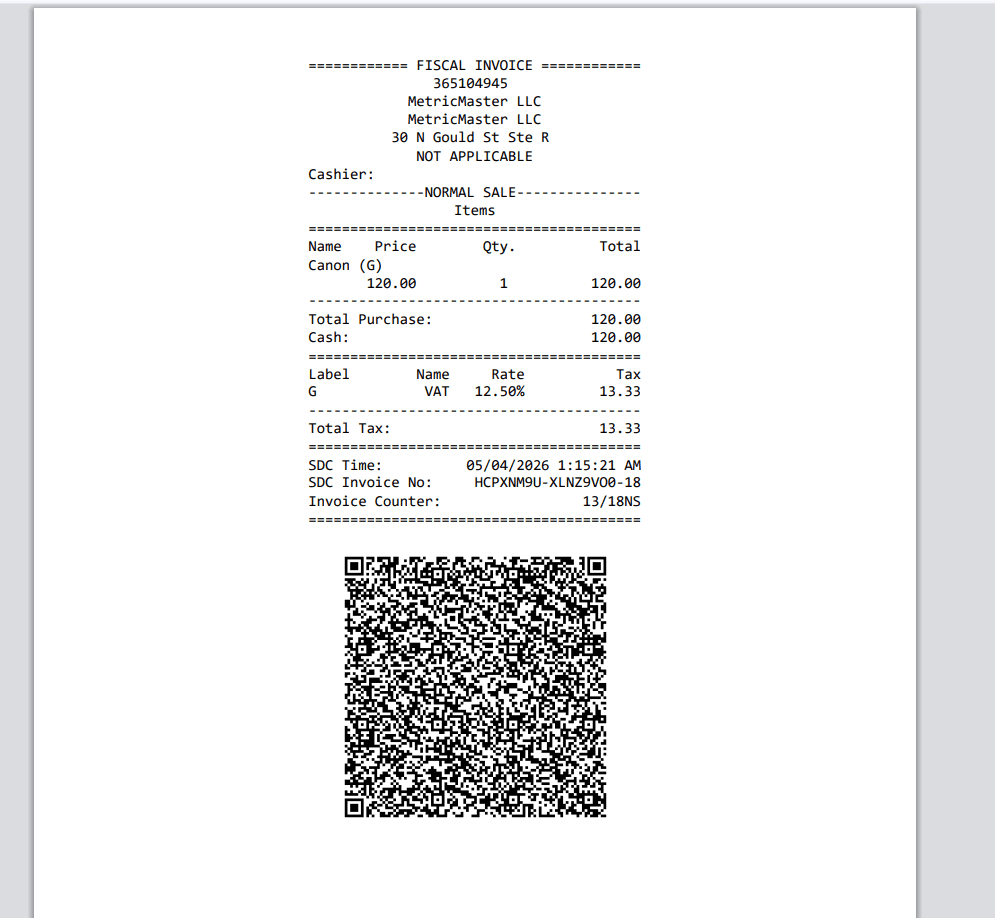
Printing After Creating an Invoice
Immediately after fiscalizing an invoice, the success dialog includes a Print option. Click it to print the receipt right away without navigating to the invoice list.
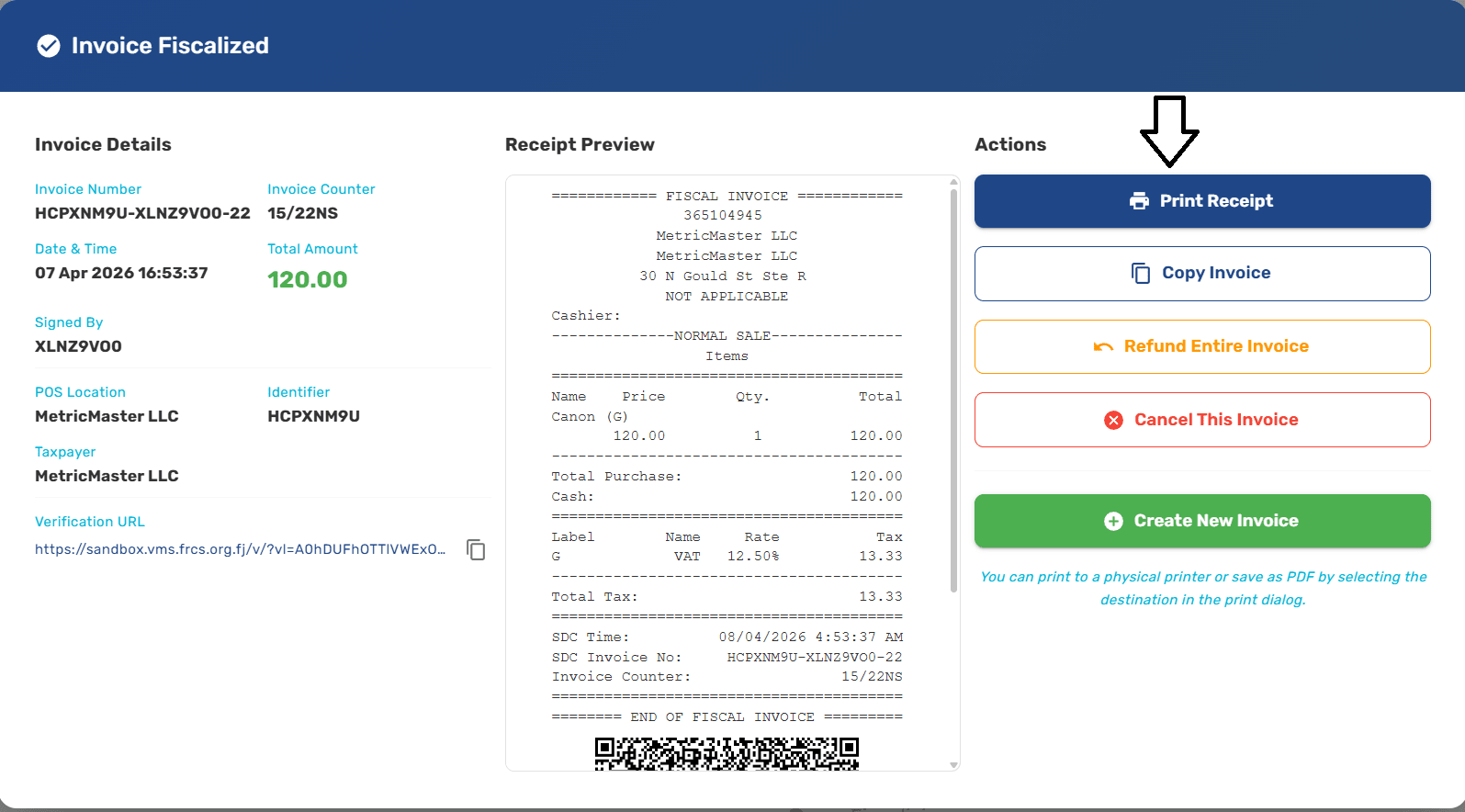
Invoice Distribution
Web Invoicing supports invoice distribution on paper via printing. The receipt can be printed immediately after fiscalization or at any time from the invoice list.
For a digital copy, use your browser's Save as PDF option in the print dialog to generate a PDF file that can be stored or shared.
Fiscal Invoice Format
Every printed fiscal invoice follows the structure defined in the Technical Instructions for EFD Suppliers. The receipt contains the following sections in order:
Title Line
The receipt begins with a title line that marks the start of the fiscal part of the invoice.
Header Data
The header contains the issuer identification data provided by the V-SDC during fiscalization. This includes the taxpayer name, address, TIN, and location information. All header data returned by the SDC is displayed without omission.
Cashier Identification
If a Cashier ID or Name was entered when creating the invoice, it appears on the receipt. This field uniquely identifies the operator who processed the sale.
Buyer Information
For B2B transactions, the Buyer's TIN (Tax Identification Number) is printed on the invoice. This field is mandatory for B2B sales and optional for B2C transactions.
POS Number
The invoice displays the POS Number, which represents the accreditation number and product version of the accredited POS. This appears on all invoice and transaction types.
Invoice and Transaction Type
The receipt clearly displays the invoice type (Normal, Advance, Proforma, Copy, Training) and the transaction type (Sale, Refund).
Reference Number
For Refund and Copy invoice types, the Reference Number is displayed on the receipt. The Reference Number contains the SDC Invoice Number of the original referenced invoice, in the format RequestedBy-SignedBy-OrdinalNumber (e.g., 7AF4D923-E3B30A31-234).
For other invoice types (e.g., a Normal Sale referencing a Proforma), the Reference Number is optional.
Items
The item list shows each product or service with:
Item name and tax category label
Item quantity
Unit price
Total price for the item (Quantity x Unit Price)
Total Purchase, Tax Items, and Total Tax
The totals section includes:
Total purchase amount — sum of all item totals
Tax breakdown — each tax category with its label, rate, taxable amount, and tax amount
Total tax — sum of all tax amounts
Payment method — Cash, Card, Check, Wire Transfer, Voucher, Mobile Money, or Other
These values are calculated by the V-SDC during fiscalization and displayed exactly as returned.
SDC Fiscal Metadata
The following metadata is added by the V-SDC during fiscalization:
SDC Invoice Number — a system-wide unique identifier in format RequestedBy-SignedBy-OrdinalNumber (e.g., 7AF4D923-E3B30A31-234)
SDC Time — the official date and time relevant to tax calculation and reporting
Invoice Counter — a sequential counter generated by the V-SDC
QR Code
Every fiscal invoice includes a scannable QR Code that contains the invoice verification URL. The QR Code allows customers to verify the invoice immediately after purchase by scanning it with any smartphone.
The minimum QR Code size is 42x42mm as required by regulation.
If the invoice is delivered as an electronic document (e.g., PDF saved from the print dialog), the QR Code is accompanied by a clickable verification URL hyperlink.
"THIS IS NOT A FISCAL INVOICE"
For invoice types Refund, Copy, and Training, the receipt includes the message "THIS IS NOT A FISCAL INVOICE" displayed prominently. This message is generated by the V-SDC and printed in a font size at least twice the size used for the rest of the invoice, as required by regulation.
Ending Title Line
The receipt ends with a title line that marks the end of the fiscal invoice. Anything printed after this line is not considered part of the invoice.
Supported Paper Sizes
Web Invoicing supports printing on various paper sizes since it uses the browser's print system:
Paper Size | Supported | Notes |
|---|---|---|
Paper roll up to 57mm | Yes | Common for small thermal printers |
Paper roll 57mm – 80mm | Yes | Standard receipt printer size |
A4 | Yes | Standard office paper |
Other (envelopes, labels, etc.) | Yes | Any size the host browser's print dialog can target |
The receipt layout automatically adapts to the selected paper size.
Supported Printers
Since Web Invoicing is a browser-based application, it works with any printer accessible from your device:
Printer Type | Supported | Notes |
|---|---|---|
External printer connected to the device | Yes | USB, network, or Bluetooth printers |
Built-in printer (e.g., tablet with printer) | Yes | Via the device's browser print function |
Other (network/cloud/virtual printers, PDF "printers", etc.) | Yes | Any printer accessible to the host OS and browser |
Any printer that your operating system and browser can access will work with Web Invoicing.
Print Tips
Use a receipt printer — The receipt is formatted to work well with standard thermal receipt printers (80mm width)
Regular printers work too — If you're using a standard printer, the receipt will print on a regular page
Check your browser settings — Make sure pop-ups are not blocked, as the print function opens a print-ready view
Reprint anytime — You can print any invoice as many times as needed from the Invoices page
Next Steps
Copy, refund, or cancel — Other actions you can take on invoices
Manage invoices — Return to your invoice history
Invoice types — Understanding different invoice type formats