
Invoices
The Invoices page in the Customer Portal shows all your FiscoBridge payment invoices — every license purchase and subscription renewal.
Viewing Your Invoices
- Log in to the Customer Portal
- In the sidebar, under Billing, click Invoices
- You'll see a table of all your payment invoices
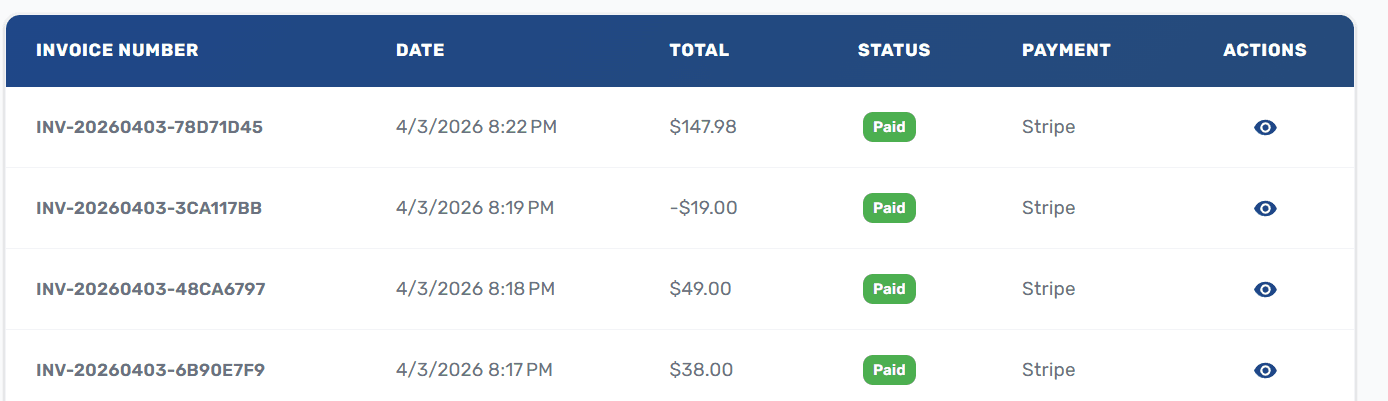
Each row shows:
| Column | Description |
|---|---|
| Invoice Number | Unique identifier for the payment |
| Date | When the invoice was created |
| Total Amount | The amount charged |
| Status | Paid (green) or Unpaid (yellow) |
| Payment Method | How the payment was processed |
Searching and Filtering
- Search — Type to search across all invoice fields
- Status filter — Show only Paid or Unpaid invoices
- Refresh — Click the refresh button to reload the latest data

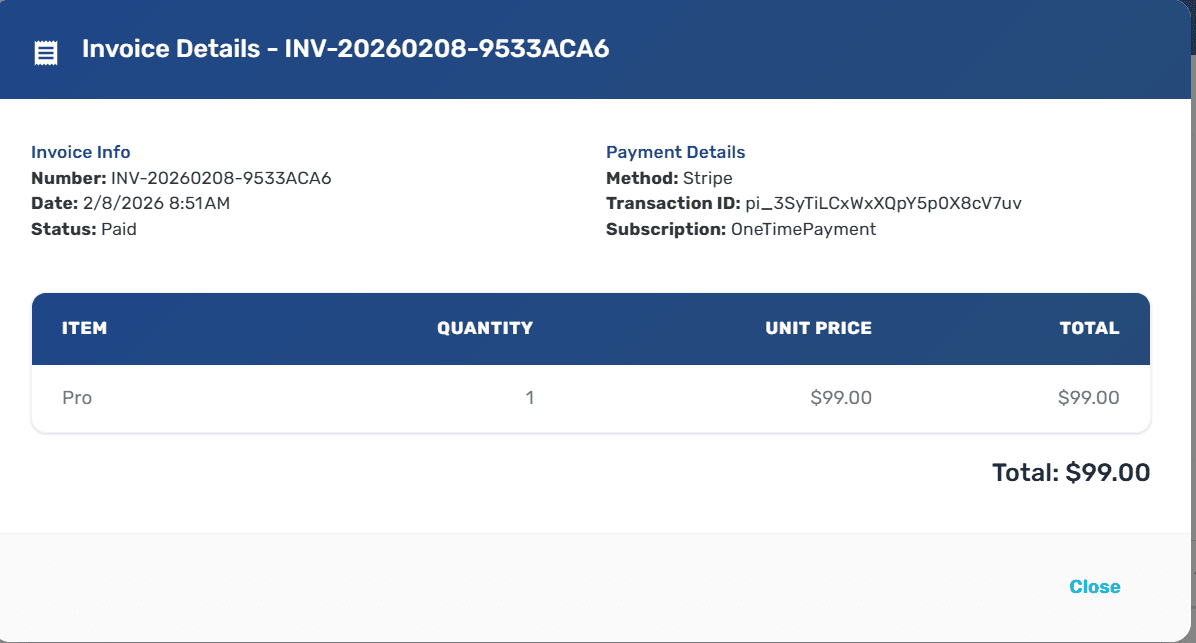
Previewing an Invoice
Click the preview button on any invoice row to open a detailed view showing the full breakdown of the charge.
Payment Methods
All payments are processed securely through Stripe. Your payment details are never stored on FiscoBridge servers.
Confirmation Emails
After every successful payment, a confirmation email is sent to your registered email address with the invoice details.
Tip: If you don't see a recent purchase in the invoices list, click the refresh button. It may take a moment for new payments to appear.
Need Help with Billing?
If you have questions about a charge or need a custom invoice, contact support at contact@fiscobridge.com. Mark your email with "BILLING" in the subject line for faster handling.
Next Steps
- Subscriptions — Review what you're currently paying for
- Billing Overview — Learn how billing works in the portal