
Custom Integration
If your software isn't directly supported by FiscoBridge, you can use a Custom Integration to get API credentials and integrate directly. This lets your system call the FiscoBridge API to create, retrieve, and manage fiscal invoices.
Setting Up a Custom Integration
- Go to Integrations → Integrations in the sidebar
- Click Create Integration
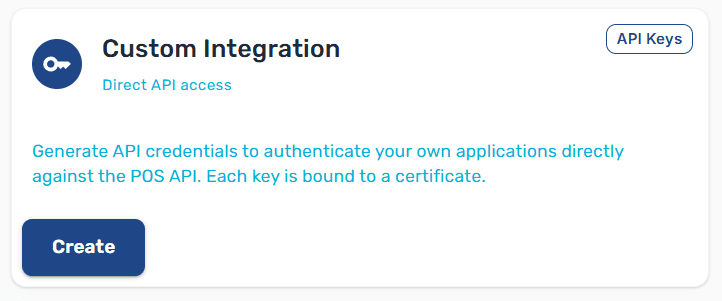
- Select the Custom Integration card (marked with an API Keys badge)
- An Upload Certificate dialog opens — select your PFX certificate file and enter its password, then click Upload
- After the certificate is uploaded, the Custom Integration dialog opens
- Complete the setup — the integration is created and linked to the uploaded certificate
The integration appears in your integrations list with status Active.
Managing API Keys
- In the Integrations list, find your Custom Integration
- Click the API Keys button
- You'll be taken to the API Keys page for that integration
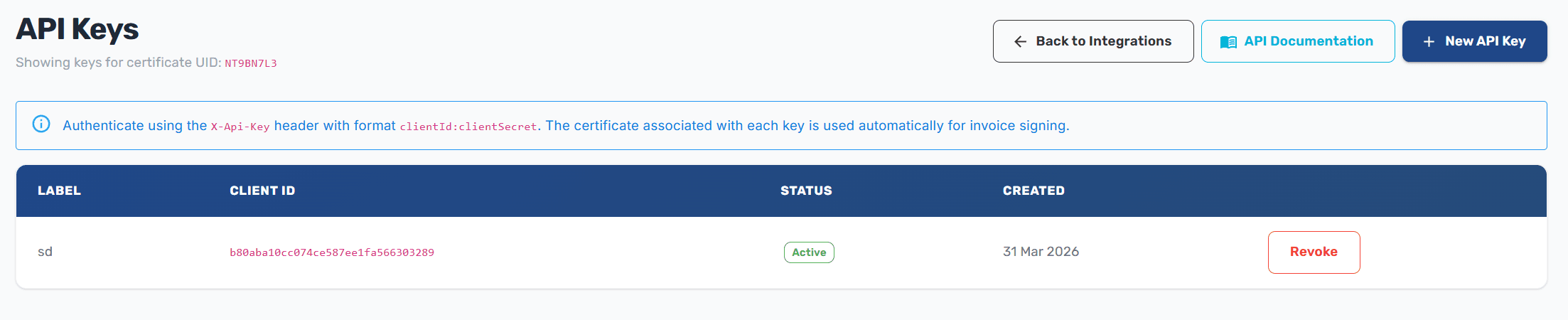
Creating a key:
- Click Create API Key
- Enter a label/name for the key
- The system generates a Client ID and Client Secret
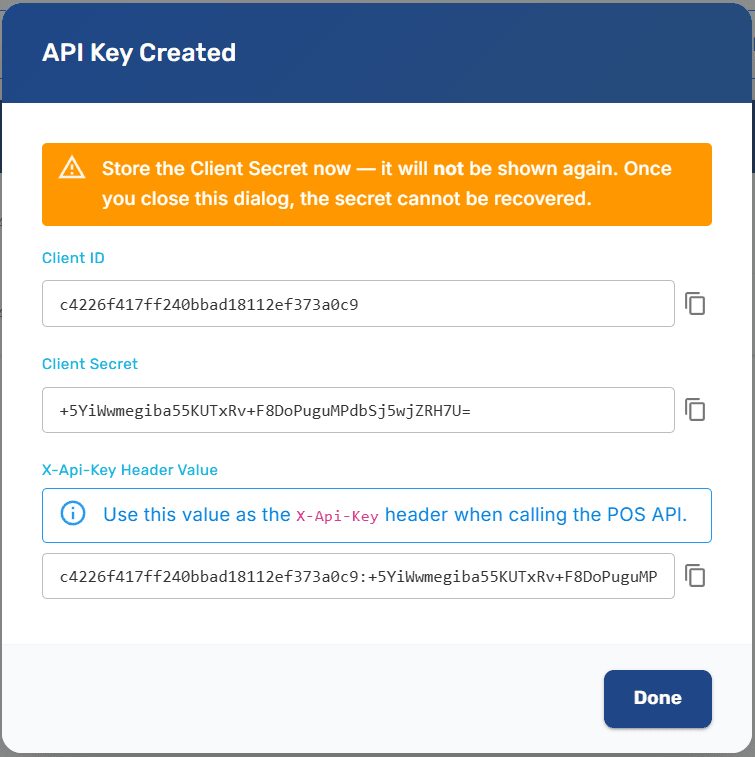
Important: The client secret is shown only once. Copy and store it securely — you cannot retrieve it later.
Using the API
Authenticate your requests with the X-Api-Key header:
X-Api-Key: {clientId}:{clientSecret}
The API key is bound to a specific certificate, which is used automatically for invoice signing.
The full endpoint reference lives right here in the help center:
- API Reference — endpoints, request fields, example payloads, and response schemas
- API Errors and Error Codes — HTTP statuses and all tax authority validation codes
An interactive version, including tax rates per country, is also available in the POS API Documentation in the Customer Portal.
Revoking an API Key
- Go to the API Keys page for your integration
- Click Revoke next to the key
- Confirm the action
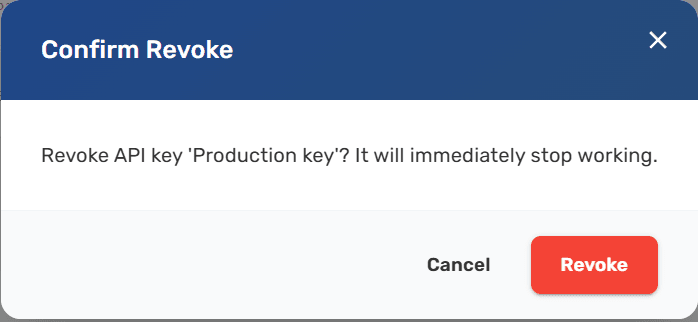
Revoked keys immediately stop working. Create a new key if you need to restore access.
Requirements
- An active integration license
- At least one PFX certificate (uploaded during integration setup)
Next Steps
- API Reference — Full endpoint and schema reference
- API Errors and Error Codes — Error handling for your integration
- Manage integrations — View and manage all your connections
- Integrations Overview — Learn about other supported platforms