
Copy, Refund, and Cancel
After an invoice has been fiscalized, you can perform three post-sale operations: create a fiscal copy, issue a refund, or cancel the invoice. Each action creates a new fiscal document that is reported to the tax authority.
Availability
These actions are only available on invoices with status Signed. Once an invoice has been refunded or cancelled, it cannot be modified further.
| Action | When to Use | Creates New Fiscal Document? |
|---|---|---|
| Copy | Customer needs a duplicate receipt | Yes |
| Refund | Customer returns goods or overpayment | Yes |
| Cancel | Invoice was created in error | Yes |
Creating a Copy
A fiscal copy is an official duplicate of the original invoice. Use this when a customer needs another receipt.
- Go to Web Invoicing → Invoices
- Find the signed invoice
- Click the actions menu and select Copy Invoice

- Confirm the action
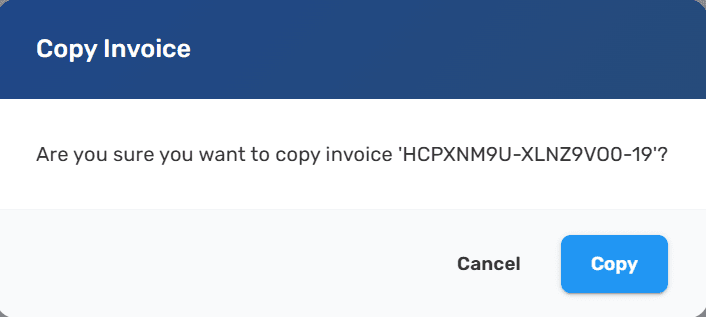
- A new fiscal copy is created, signed, and reported
The copy gets its own invoice number and appears in your invoice history with the type Copy.
Issuing a Refund
Use a refund when a customer returns goods or when a correction is needed.
- Go to Web Invoicing → Invoices
- Find the signed invoice you want to refund
- Click the actions menu and select Refund Invoice
- Confirm the action
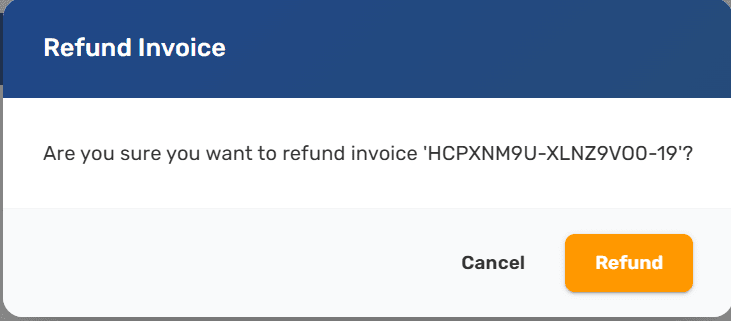
- A refund fiscal document is created and reported
After the refund is processed:
- The original invoice status changes to Refunded
- A new refund document appears in your invoice history
- The refund references the original invoice number
Note: Refunds create a full refund of the original invoice. The refund amount matches the original total.
Cancelling an Invoice
Cancel an invoice when it was created in error — for example, wrong items or wrong customer.
- Go to Web Invoicing → Invoices
- Find the signed invoice you want to cancel
- Click the actions menu and select Cancel Invoice
- Confirm the action
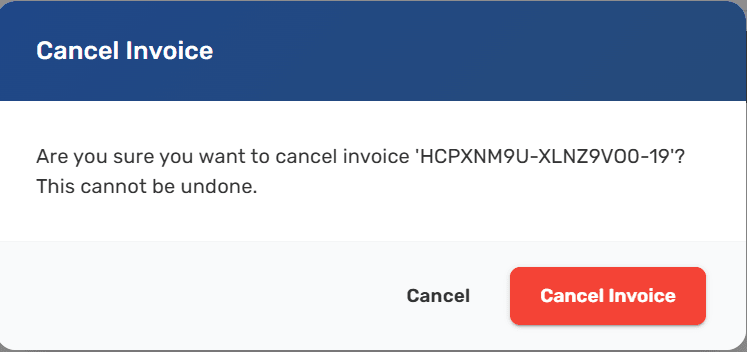
- A cancellation fiscal document is created and reported
After cancellation:
- The original invoice status changes to Cancelled
- A cancellation document is sent to the tax authority
- The cancelled invoice remains in your history for audit purposes
Important: Cancellation is irreversible. Make sure you want to void the entire invoice before confirming.
Checking Invoice Status
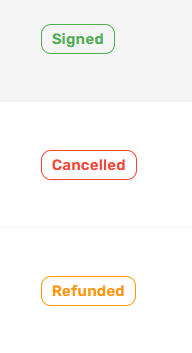
In the Invoices list, the status column is color-coded:
| Status | Color | Meaning |
|---|---|---|
| Signed | Green | Active, valid invoice |
| Refunded | Orange | Invoice has been refunded |
| Cancelled | Red | Invoice has been cancelled |
Next Steps
- Print an invoice — Print a receipt for any invoice
- Manage invoices — View and filter your full invoice history