
Managing Integrations
The Integrations page in the Client Portal shows all your active connections and lets you configure, reconnect, or remove them.
Have a reseller key instead? If a FiscoBridge partner gave you a prepaid
INT-XXXX-XXXX-XXXXkey, redeem it from the Upgrade Plan button on this page. See Activating an Integration Key.
Need a certificate? Every integration requires a digital fiscal certificate (
.pfx). If you don't have one yet, see Requesting a Digital Certificate.
Connection Usage
At the top of the page, you'll see your current connection usage:
Connection usage — How many active integrations you have vs. your limit
Subscription expiration — When your integration license expires
If you're on the free trial, it shows your trial allowance (1 connection, limited invoices)
Viewing Your Integrations
Go to Integrations → Integrations in the sidebar
You'll see a table of all your connected platforms
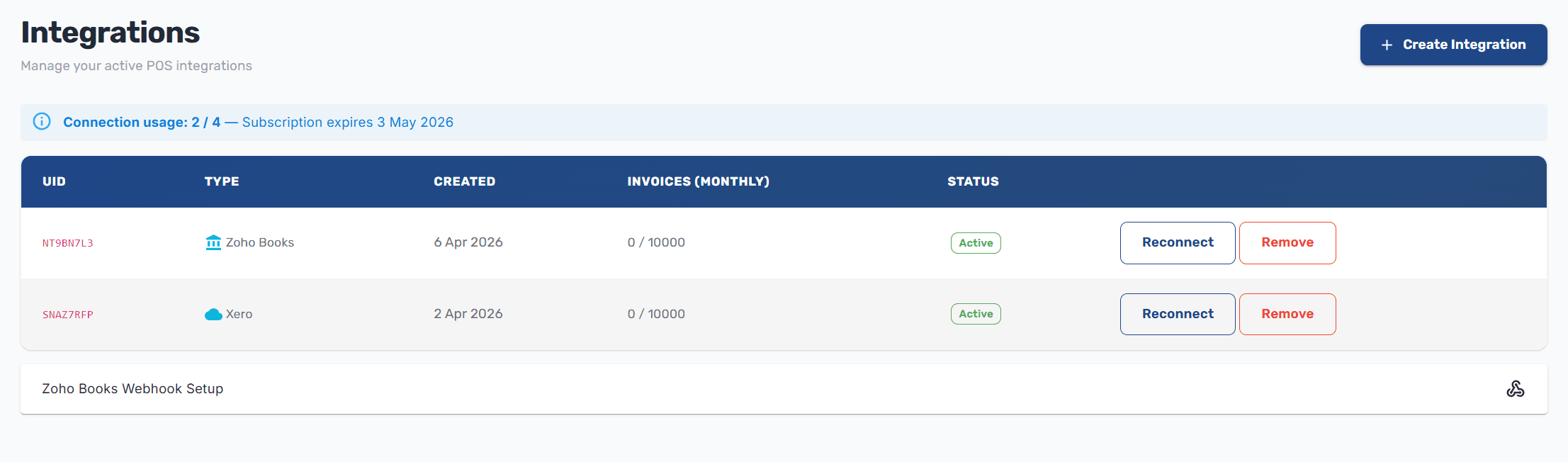
Each integration shows:
Column | Description |
|---|---|
UID | Unique identifier for the integration |
Type | The platform (Xero, Zoho Books, Custom Integration) with its icon |
Created | When the integration was set up |
Invoices (monthly) | Number of invoices processed this month, shown against your plan limit if applicable |
Status | Active (green) or Inactive (gray). Trial integrations show a usage badge (e.g., "Trial 5/50") |
Pending Integrations
If you started setting up an integration but didn't complete it (e.g., uploaded a certificate but didn't finish the OAuth flow), it appears in a Pending section above the main table. Click Resume to pick up where you left off.
Available Actions by Type
Integration Type | Actions |
|---|---|
Xero | Reconnect, Remove |
Zoho Books | Reconnect, Remove |
Custom Integration | API Keys, Remove |
Reconnecting (Xero / Zoho Books)
Xero and Zoho Books use OAuth tokens that can expire. If an integration becomes inactive:
Click Reconnect on the integration
Complete the OAuth authorization flow
The integration returns to Active status
Managing API Keys (Custom Integration)
For custom API integrations:
Click API Keys on the integration
You'll be taken to the API Keys management page
From there you can create new keys or revoke existing ones
See Custom Integration for details.
Removing an Integration
Click Remove on the integration you want to disconnect
Confirm the action in the dialog
Note: Removing an integration stops all syncing and revokes all associated API keys. Previously fiscalized invoices remain in your history and are not affected.
Zoho Books Webhook Setup
When you have an active Zoho Books integration, an expandable Zoho Books Webhook Setup panel appears below the integrations table. It provides the webhook URL and step-by-step instructions for configuring real-time invoice notifications in your Zoho Books account. See Connecting Zoho Books for full details.
Empty State
If you haven't set up any integrations yet, you'll see a prompt to create your first one. Click Create Integration to get started.
Troubleshooting
Integration shows as Inactive?
For Xero or Zoho Books: click Reconnect to refresh the OAuth token
Check that your integration license is active
Not seeing expected invoices?
Verify the integration status is Active
Check your integration tier — sync frequency depends on your plan (Business uses near real-time, Professional uses real-time)
Make sure you haven't exceeded your monthly invoice limit
Connection limit reached?
When you click Create Integration and you've hit your limit, a dialog will prompt you to purchase an integration license for more connections
Next Steps
Requesting a Digital Certificate — Get the
.pfxcertificate every integration needsIntegrations Overview — Review all supported platforms
Connect Xero — Set up a new Xero connection
Connect Zoho Books — Set up a Zoho Books connection
Custom Integration — Get API credentials