
Initializing the SDC
Each time you start FiscoBridge SDC, you need to initialize it before it can process invoices. Initialization connects the application to your smart card and verifies your identity through PIN entry.
Before You Start
Make sure:
- Your smart card reader is connected to a USB port
- Your fiscal smart card is inserted in the reader
- FiscoBridge SDC is installed and running
Step-by-Step Initialization
Step 1: Open the Application
Launch FiscoBridge SDC. The application opens on the Status tab. On the left side, you'll see the hardware status fields.
At this point, the status will show:
- Selected Card Reader — your connected reader
- Card Status — whether the smart card is detected
- PIN Status — Not Verified
- Initialization Status — Not Initialized
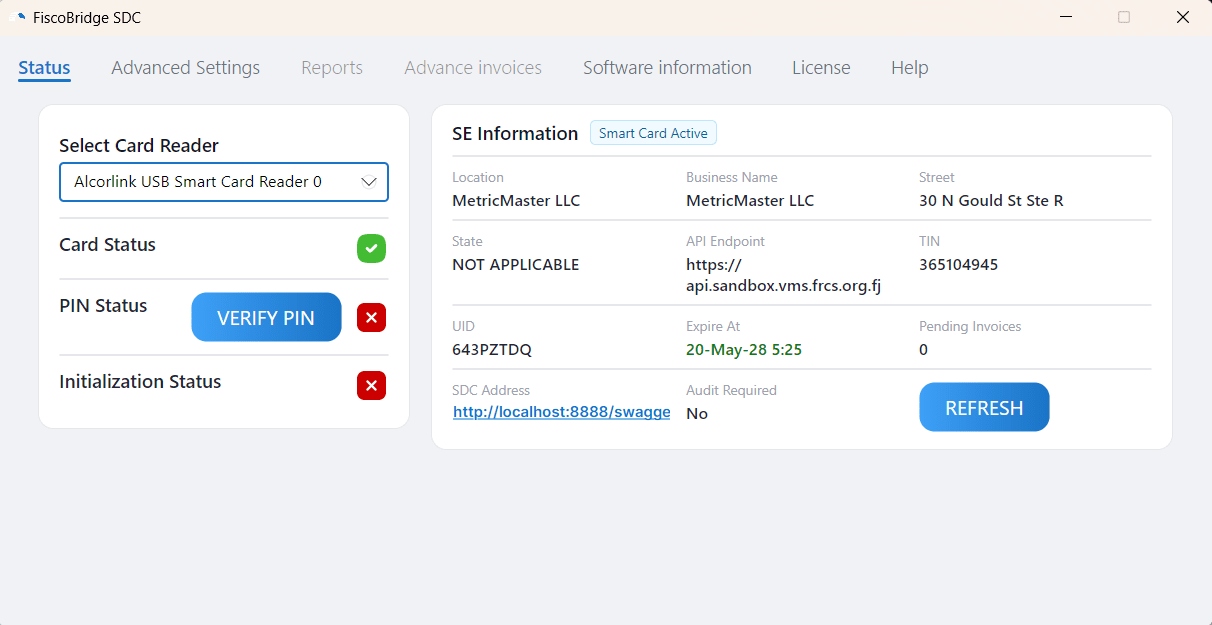
Step 2: Verify Your PIN
Click the Verify PIN button. A dialog appears asking for your smart card PIN.
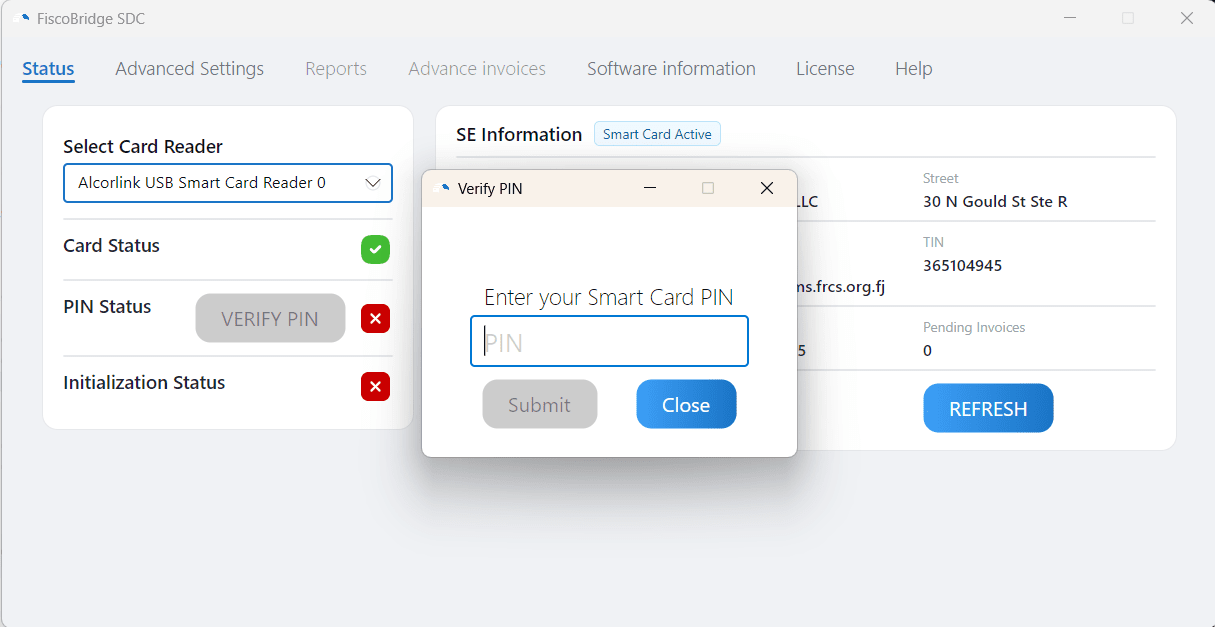
Enter the PIN that was provided with your fiscal smart card and click Verify.
Note: If you enter the wrong PIN multiple times, the smart card may lock. Contact your tax authority if your card becomes locked.
Step 3: Confirm Initialization
After successful PIN verification, the system reads the certificates and business information from your smart card. The Status tab updates to show:
- PIN Status — Verified
- Initialization Status — Initialized
- All Secure Element Information fields on the right side populated (Business Name, TIN, UID, etc.)
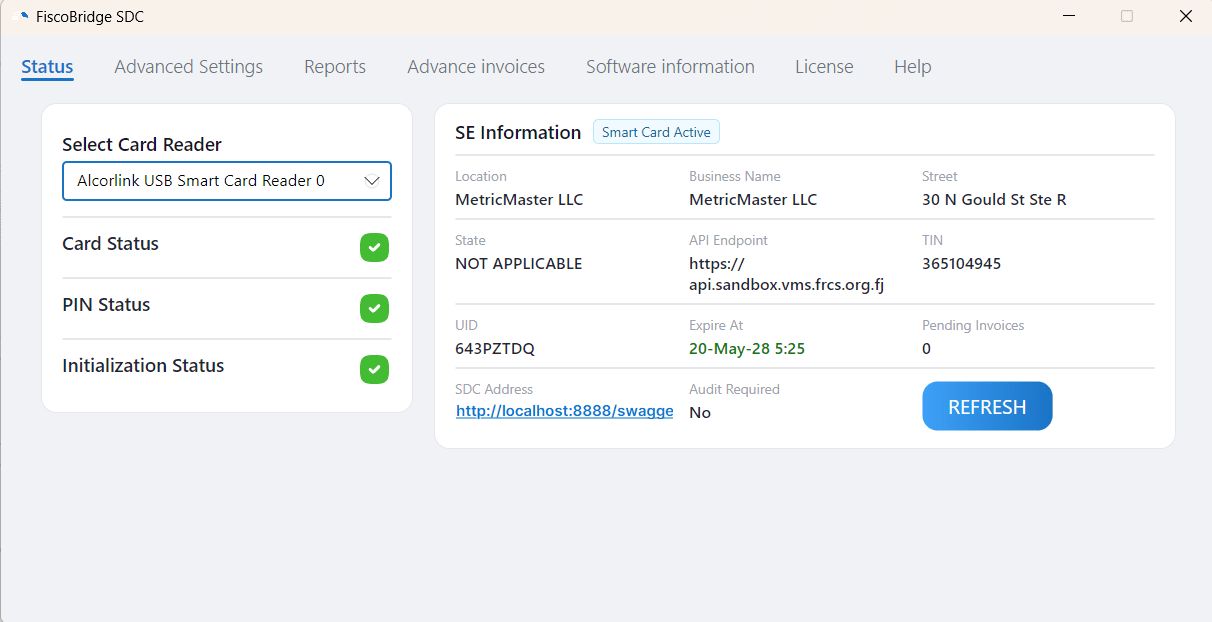
The SDC is now ready to receive and process invoices from your POS system.
Troubleshooting
Card not detected?
- Make sure the smart card is fully inserted in the reader
- Try unplugging and reconnecting the USB card reader
- Check that the card reader appears in your system's device list
PIN verification failed?
- Double-check that you're entering the correct PIN
- Be careful with the number of attempts — too many wrong entries will lock the card
- If the card is locked, contact your tax authority for a PIN reset
Initialization fails after PIN is verified?
- Check your internet connection — the SDC needs to communicate with TaxCore.API
- Make sure outbound HTTPS (port 443) is not blocked by your firewall
- Try restarting the application and initializing again
Next Steps
- Apply a license — Activate your SDC if you haven't already
- User interface guide — Learn about all the tabs and features
- SDC Overview — General information about how the SDC works