
Managing SDC Licences
The Licences page in the Customer Portal shows all your SDC activation keys. From here you can view key details, track activation status, and manage descriptions.
Viewing Your Licences
- Log in to the Customer Portal
- In the sidebar, under SDC, click Licences
- You'll see a table listing all your activation keys
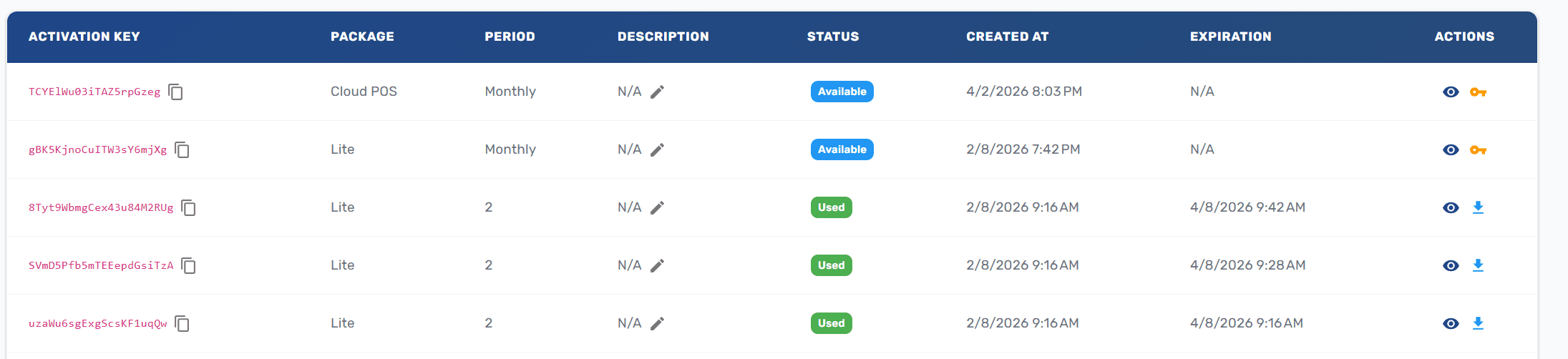
Each row shows:
| Column | Description |
|---|---|
| Activation Key | Your unique key (click the copy icon to copy it) |
| Package | Lite or Pro |
| Period | Monthly or Yearly |
| Description | A custom label you can set |
| Status | Used/Available and Active/Inactive |
| Created | When the key was issued |
| Expiration | When the key expires |
Filtering and Searching
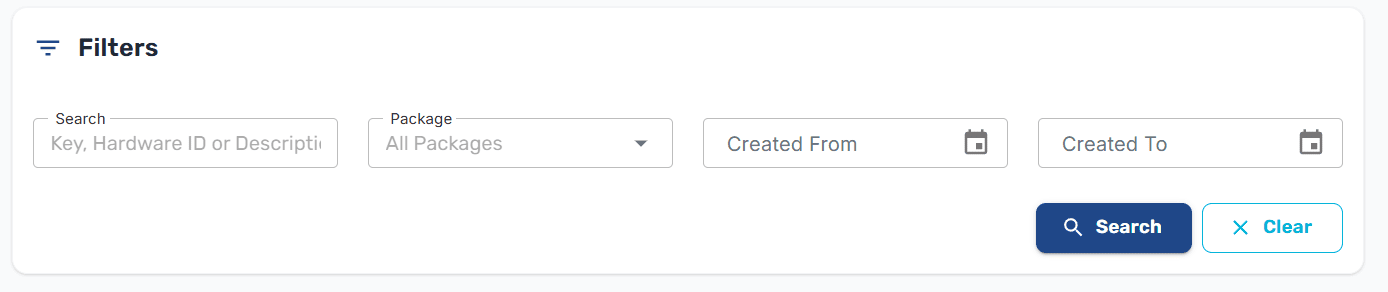
Use the filters at the top of the page to narrow down your list:
- Search — Type to search by activation key, hardware ID, or description
- Package — Filter by Lite or Pro
- Date range — Filter by creation date (From / To)
- Status — Show only active or inactive keys
Tip: If you have many keys, use the description field to label them by device or location for easier identification.
Editing a Description
To add or change a label on a key:
- Click the actions menu on the key's row
- Select Edit Description
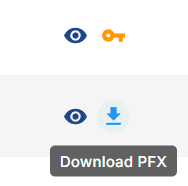
- Enter a meaningful description (e.g., "Main Register - Suva Store")
- Save your changes
Viewing Key Details
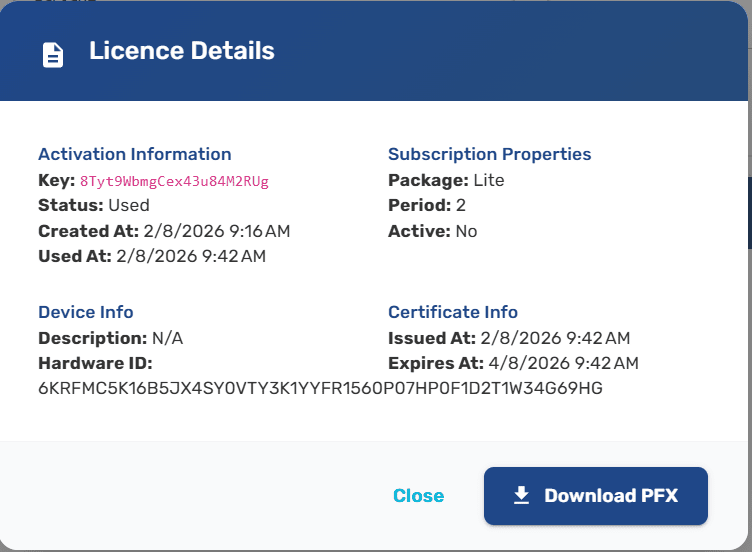
Click the actions menu on any key and select View Details to see the full information for that activation key, including hardware ID and activation history.
Key Statuses
| Status | Meaning |
|---|---|
| Available | The key hasn't been used to activate a device yet |
| Used | The key has been used to activate a device |
| Active | The license is currently active and valid |
| Inactive | The license has expired or been deactivated |
Next Steps
- Activate a device — Use an available key to activate your SDC
- Download your certificate — Get the PFX file after activation