
Buying a License
FiscoBridge offers separate licenses for each product. You can purchase them from the website or directly from the Client Portal.
Choosing a Product
Product | Best For |
|---|---|
SDC | Businesses with an existing POS system |
Desktop POS | Businesses that want an installed, offline-capable till for Windows, macOS, or Linux |
Web Invoicing | Businesses that need a simple browser-based POS |
Integrations | Businesses using Xero, MYOB, Zoho, or other accounting software |
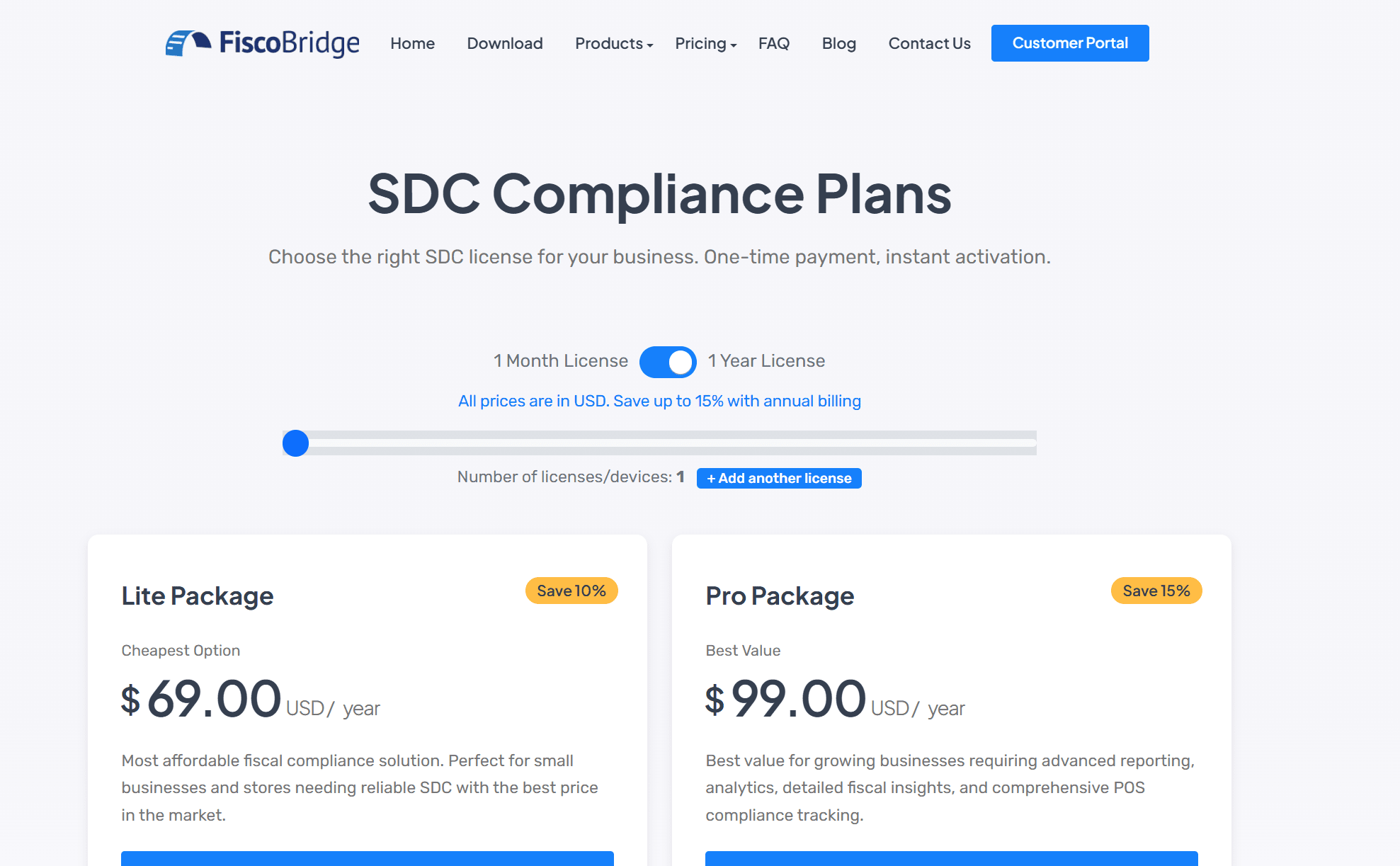
Pricing varies by country — select your product on the Pricing page to see exact rates for your region.
Already have a reseller key? Web Invoicing and Integrations can also be activated using a prepaid key from a FiscoBridge partner — no Stripe subscription required. See Activating a Web Invoicing Key or Activating an Integration Key. Desktop POS reseller keys are entered the same way as any other key — see Desktop POS Licensing.
Purchasing from the Website
Visit fiscobridge.com
Click Pricing in the navigation and select the product you want
Choose your plan:
SDC: Lite or Pro package
Desktop POS: Lite or Pro package
Web Invoicing: Single plan with seat quantity
Integrations: Business, Professional, or Enterprise tier
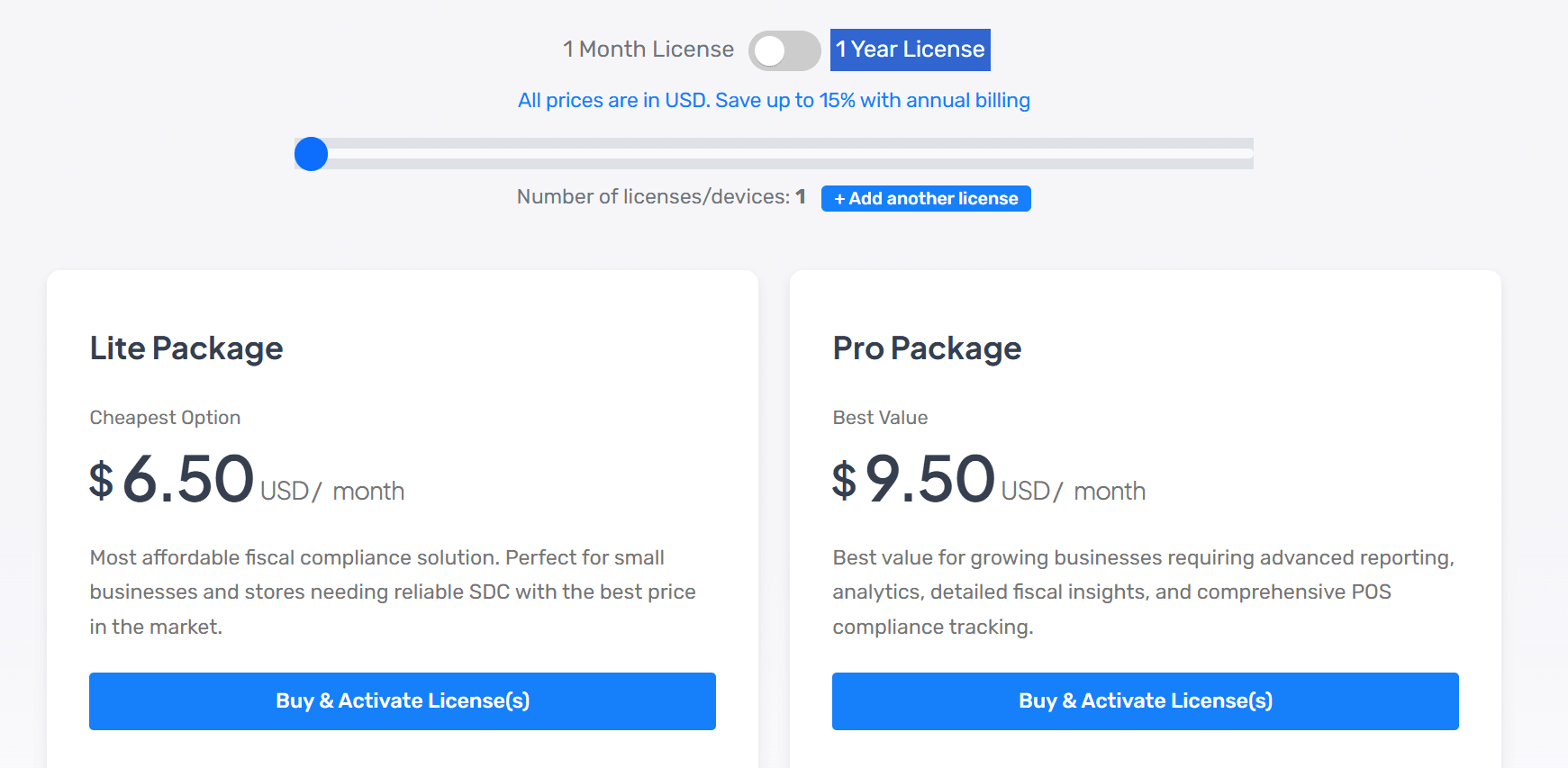
Select Monthly or Yearly billing (yearly saves 10–17%)
Set the number of licenses, seats, or devices you need
Click Buy & Activate or Subscribe and Activate
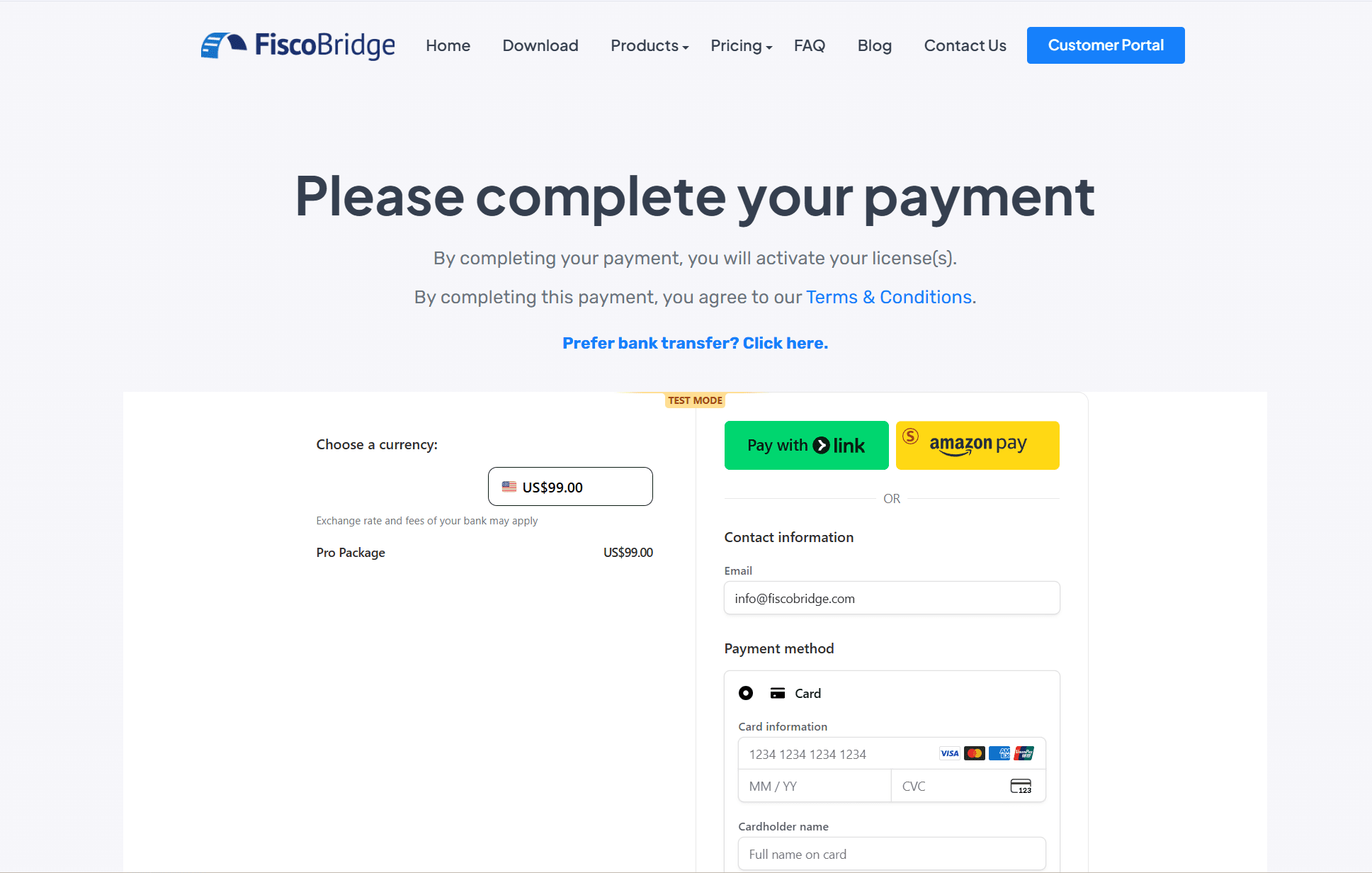
Review your order on the confirmation page
Complete payment through the secure Stripe checkout
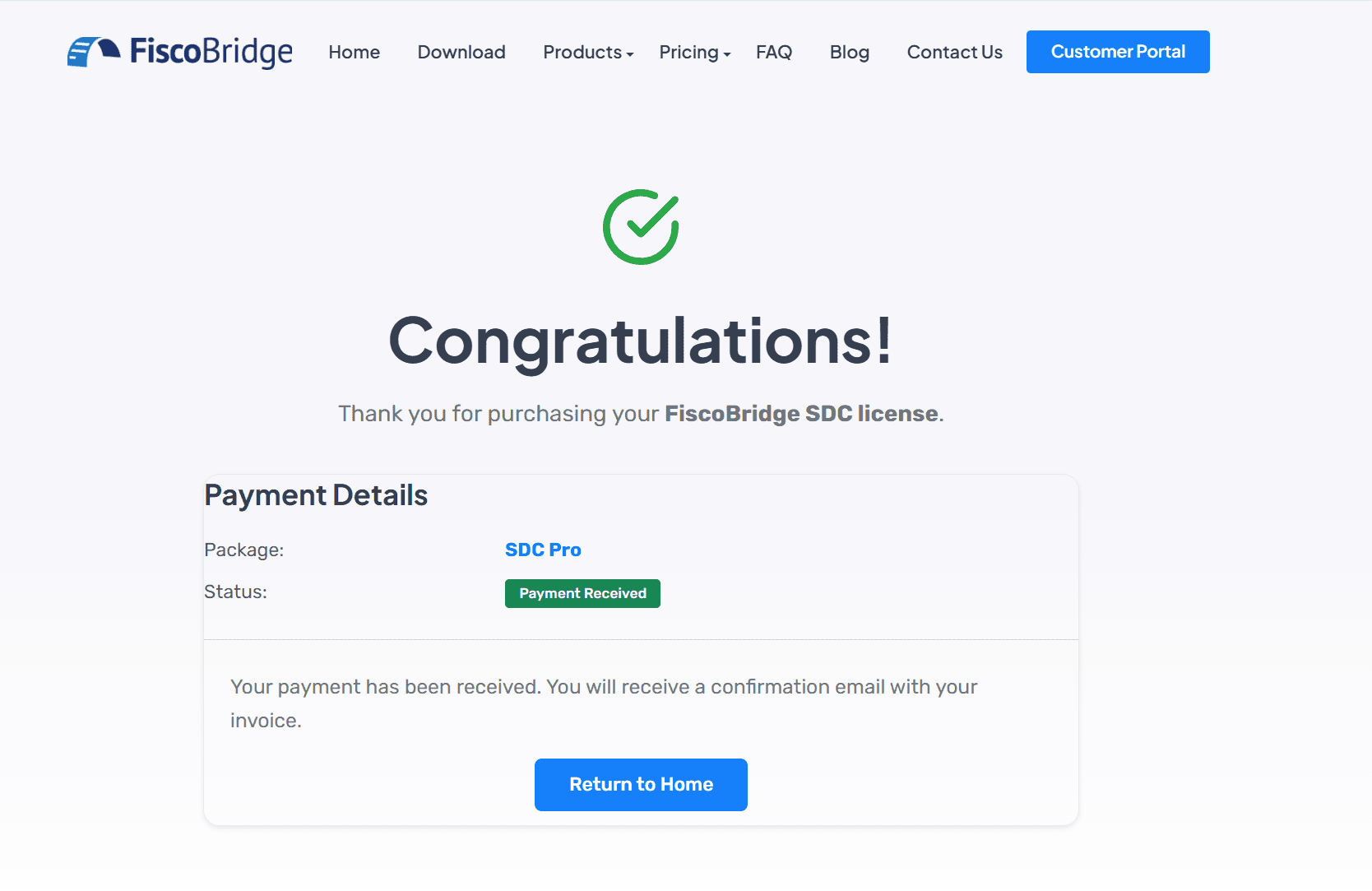
You'll see a success page confirming your purchase
Tip: Save money by choosing yearly billing — you get up to 17% off depending on the product.
Purchasing from the Client Portal
Once logged in, you can also purchase directly from the portal sidebar:
Buy SDC Licence — under the SDC section
Buy POS Licence — under the Desktop POS section
Buy Plan — under the Web Invoicing section
Buy Integration Plan — under the Integrations section
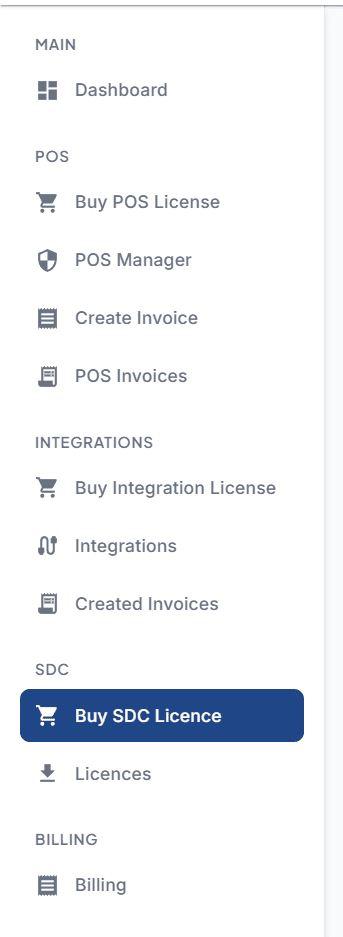
The purchase flow is the same: select your plan, set quantity, and complete payment.
After Purchase
SDC: Activation keys appear in the Licences page. Download the SDC software and activate your device.
Desktop POS: Activation keys appear in the Desktop POS Licences page. Install the app, then enter your key in Settings → License to activate it.
Web Invoicing: Upload your PFX certificate in the Certificates page and start creating invoices.
Integrations: Go to Integrations and connect your accounting platform.
A confirmation email with your invoice will be sent to your registered email address.
SDC Package Comparison
Feature | Lite | Pro |
|---|---|---|
Device activation | Standard | Advanced |
Support | 24/7 Priority | |
Updates | Regular | Early access |
Multi-location | No | Yes |
Advanced daily reporting | No | Yes |
Comprehensive analytics | No | Yes |
Desktop POS Package Comparison
Feature | Lite | Pro |
|---|---|---|
Point of sale, shifts, promotions & receipts | Yes | Yes |
Reports & audit log | Yes | Yes |
Restaurant / table management | No | Yes |
Customer database & advance billing | No | Yes |
Inventory, purchasing & supplier management | No | Yes |
Support & updates | Standard | Priority |
Both packages are billed per device. See Desktop POS overview for full feature details.
Next Steps
Navigate the portal to find your licenses and get started