
Applying a License
Activate FiscoBridge SDC online with an activation key, or offline with a .pfx license file when the computer has no internet connection.
You apply the license on the License tab of the SDC, after installing and initializing it. Both methods are described below.
Which method to use
| Online activation | Offline activation | |
|---|---|---|
| Use it when | The SDC computer has internet access | The SDC computer has no internet access |
| What you need | An activation key | An activation key, the Hardware ID of the SDC computer, and a second device with internet access |
| What you apply in the SDC | The activation key | A license file (.pfx) issued for that computer |
Both methods give you exactly the same license. Online activation is quicker, so use it whenever the computer can reach the internet, even temporarily.
Before you start
You need an SDC activation key. You get one in either of two places:
- From the Customer Portal. Log in at client.fiscobridge.com, go to SDC → Licences, find a key with status Available, and click the copy icon next to it.
- From your POS seller. If a FiscoBridge partner supplied your SDC, they send you the key.

Tip: If you have no available keys, purchase an SDC license first. See Buying a License.
One key licenses one computer. The license period starts on the day you activate, not on the day you buy the key.
The License tab
Open FiscoBridge SDC and go to the License tab. Until a license is applied, the SDC runs on the Free plan and shows No license installed.

The Free plan is for testing. You can issue Training invoices and work with a sandbox smart card without entering any payment details. Fiscalizing real invoices with a production smart card requires a Lite or Pro license.
Online activation
- On the License tab, paste your activation key into the Activation key field
- Click Activate
The SDC contacts FiscoBridge, downloads a license issued for this computer, and shows License activated. The status at the top changes from Free plan to your package (Lite or Pro) with its expiry date.

Offline activation
Use this when the SDC computer cannot reach the internet. The license file is issued on another device and carried across, for example on a USB drive.
Step 1: Copy the Hardware ID
- On the License tab, click No internet on this device? Activate offline
- Click Copy next to the Hardware ID
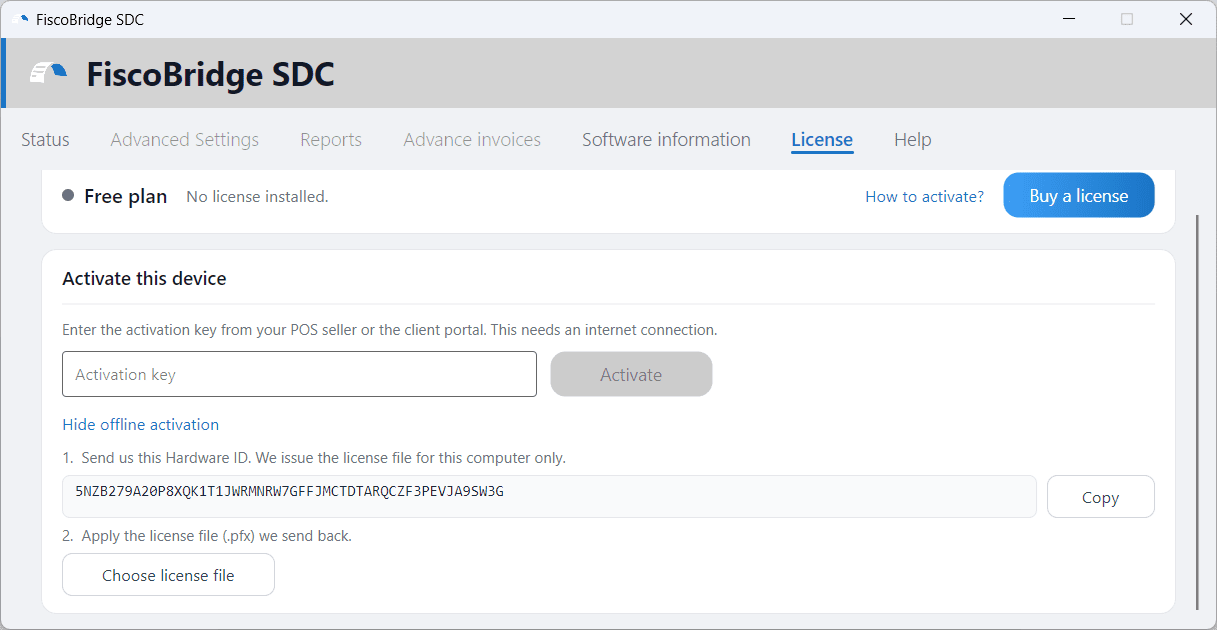
The Hardware ID is a long code that identifies this specific computer. Copy it rather than retyping it, then move it to a device with internet access (save it to a text file on a USB drive, for example).
Step 2: Get the license file
How you get the file depends on where your activation key came from.
If the key is in your Customer Portal account:
- On a device with internet access, log in to the Customer Portal and go to SDC → Licences
- Find the key (status Available) and click the Activate Offline key icon in the Actions column

- Paste the Hardware ID and click Activate
- Confirm the activation. The license file downloads to your device, named after the activation key (for example
SDC-XXXX-XXXX-XXXX.pfx)
If the key came from your POS seller: send them the Hardware ID. They issue the license file for your computer and send it back to you.
Important: Offline activation permanently ties the key to the Hardware ID you enter, and it cannot be undone. Check the ID before you confirm.
Step 3: Apply the license file
- Copy the
.pfxfile to the SDC computer - On the License tab, under offline activation, click Choose license file
- Select the
.pfxfile
The SDC shows License applied, and the status changes to your package and expiry date, exactly as with online activation.
If you lose the file before applying it, you do not need a new key. Download it again from the Licences page using the Download PFX icon on that key's row, or ask your POS seller to send it again.
After activation
- The key's status in the Customer Portal changes from Available to Used
- The SDC accepts invoices from your POS system for fiscalization with your production smart card
- With a Pro license, the Reports and Advance invoices tabs become available
- The License tab shows your package, the expiry date, and the Hardware ID the license is tied to
License status
The top of the License tab always shows the current state:
| What you see | Meaning |
|---|---|
| Free plan No license installed. | No license on this computer. Testing only. |
| Lite or Pro Expires 11-Dec-27 | The license is active until that date. |
| Lite or Pro Expires 11-Dec-26 (30 days left) | The license ends within 30 days. Renew it before that date. |
| Lite or Pro Expired on 11-Dec-26 | The license has ended. Real invoices are rejected until you apply a new one. |
| Free plan This license is no longer valid on this device. | The license was revoked, usually because a replacement was issued for another computer. |
Renewing a license
A license is not extended automatically on the device. Each renewal, including one paid through an auto-renewing subscription, gives you a new activation key that has to be applied in the SDC.
- Get the new key from SDC → Licences in the Customer Portal, or from your POS seller. The Renew button on the License tab opens the purchase page if you still need to buy one
- On the License tab, click Replace license
- Apply the new key online, or offline with a new license file, following the steps above
The new license replaces the previous one. Apply it before the old one expires to avoid any interruption.
Moving the SDC to another computer
A license is tied to the computer it was activated on, so the license file from one computer does not work on another. If you reinstall the SDC on the same computer, activate again with the same key and you get the same license back. If you replace the computer, contact support at contact@fiscobridge.com to have the license moved.
Troubleshooting
"That key is not valid for this computer, or the licensing server could not be reached."
- Check that the computer has a working internet connection, or use offline activation
- Check that you copied the full key without extra spaces
- Check the key's status in the Customer Portal. A key that is already Used on a different computer cannot be activated on this one
"This license file is not valid for this computer, or it has expired."
- The file was issued for a different Hardware ID. Compare the Hardware ID on the License tab with the one on the key (click the View Details icon on the Licences page)
- If the ID that was entered is wrong, the key is already tied to it. Contact support at contact@fiscobridge.com
The license expired.
- The SDC shows Expired on in red and rejects real invoices issued with a production smart card. Training invoices still work
- Apply a new key as described in Renewing a license
Next Steps
- User interface guide — Explore the full SDC interface
- Manage your licences — View and manage all your keys in the Customer Portal
- Billing and invoices — Check your payment history