
User Interface
FiscoBridge SDC has a straightforward interface organized into tabs. This guide explains what you'll find on each screen.
Status Tab
The Status tab is your main dashboard — it shows the current state of the system at a glance. The screen is divided into two sections.
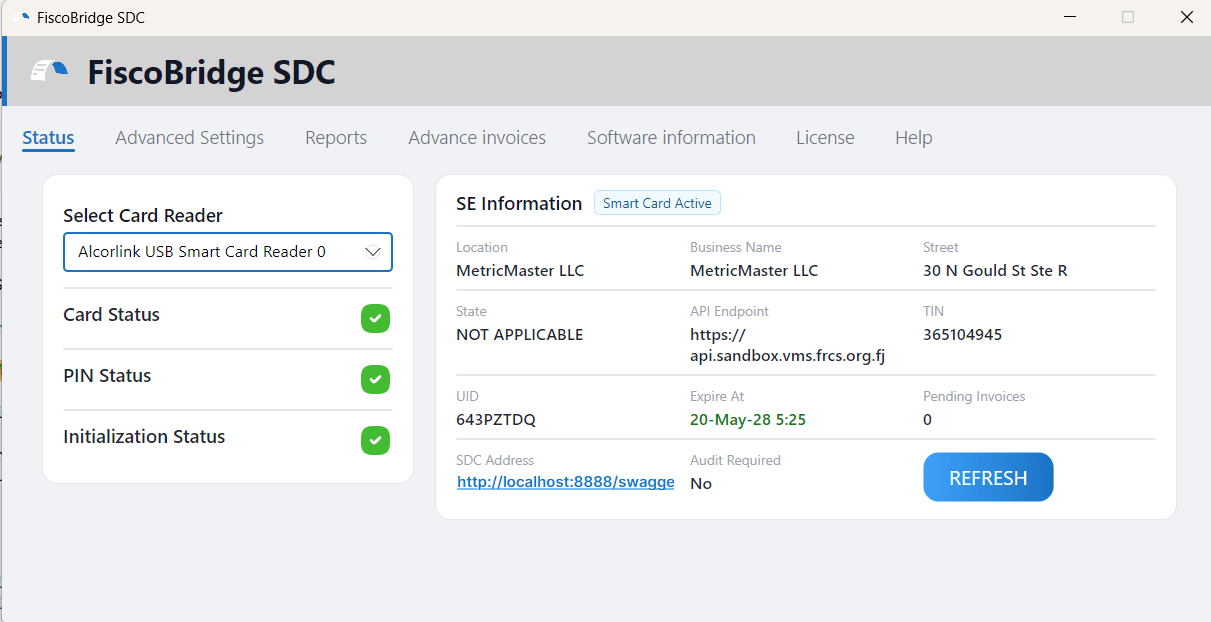
Left side — Hardware Status:
| Field | Description |
|---|---|
| Selected Card Reader | The smart card reader currently in use |
| Card Status | Whether a smart card is inserted and recognized |
| PIN Status | Whether the PIN has been verified for the current session |
| Initialization Status | Whether the system is initialized and ready to process invoices |
Right side — Secure Element Information:
| Field | Description |
|---|---|
| Location | Your registered business location |
| Business Name | The business name from your smart card |
| Street | Business street address |
| State | State or region |
| API Endpoint | The TaxCore.API endpoint the SDC communicates with |
| TIN | Your Taxpayer Identification Number |
| UID | Unique Identifier of your smart card |
| Expiration Date | When your certificate expires |
| Pending Invoices | Number of invoices waiting to be sent to the tax authority |
| SDC Address | The local network address where the SDC listens for POS requests |
| Is Audit Required | Whether FRCS is requesting an audit submission |
Tip: Check this tab regularly to make sure your card is recognized, the PIN is verified, and the system shows as initialized.
Software Information Tab
This tab shows details about the SDC software itself.
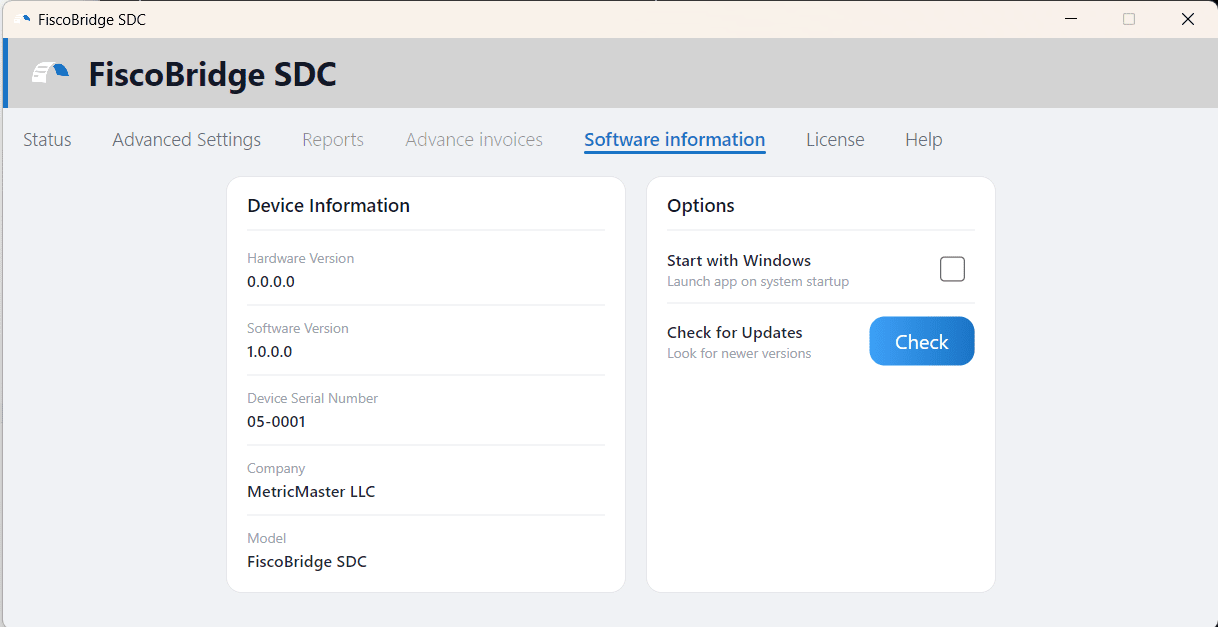
Key information displayed:
- Software version and build number
- License type (Lite or Pro) and status
- System identification — serial numbers and installation fingerprint
- Certificate details from the connected smart card
This information is useful for support requests and verifying that you're running the latest version.
License Tab
The License tab shows your current license status and lets you activate or replace your license.
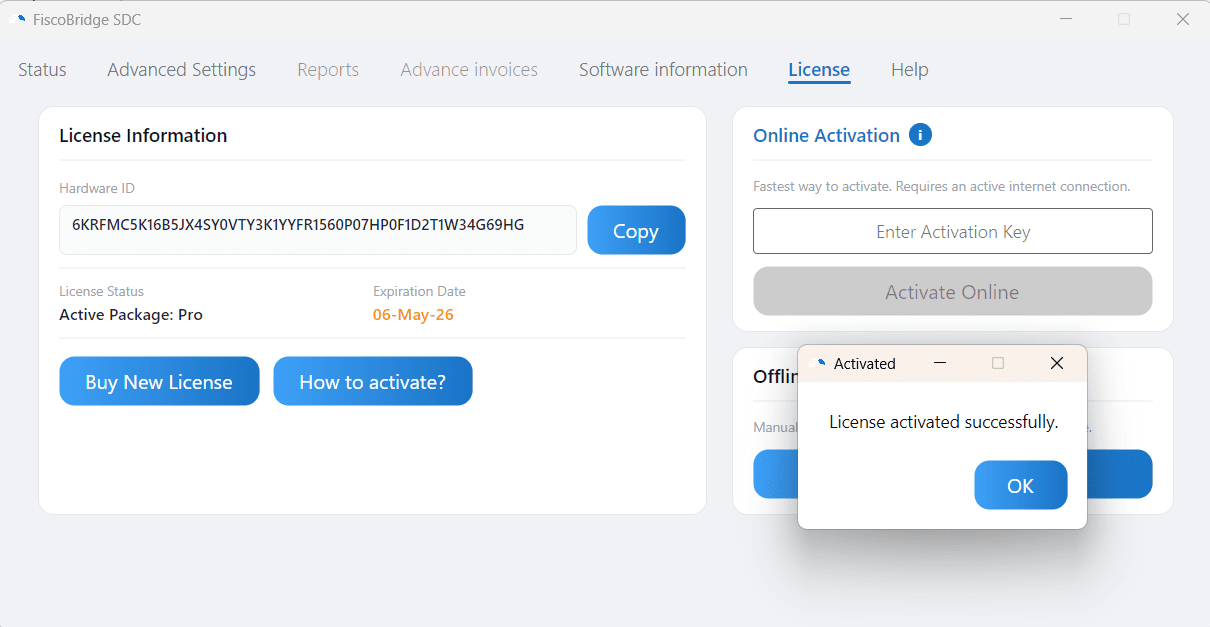
From this tab you can:
- View your current plan (Free, Lite or Pro) and expiration date
- Activate online with an activation key, or offline with a license file (
.pfx) - Copy the Hardware ID needed for offline activation
- Replace the license with a new one when you renew
For step-by-step activation instructions, see Applying a License.
Reports (Pro License)
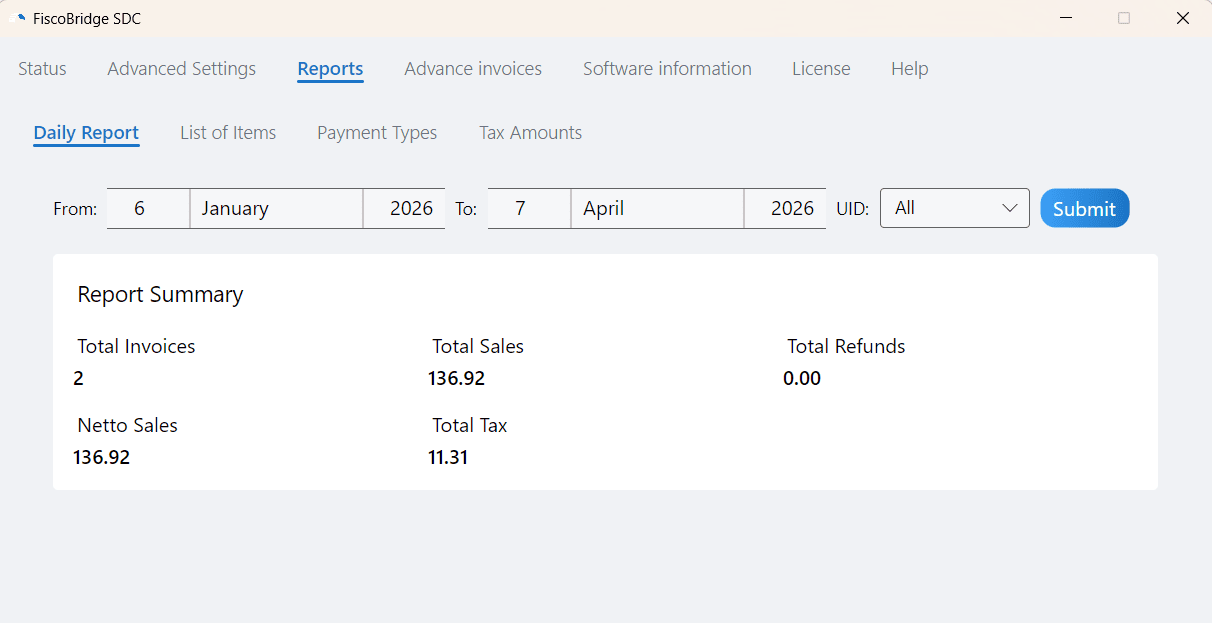
The Reports section is available with a Pro license and includes four reporting modules. Each report lets you select a date range and view data for that period.
Daily Report
A summary of business activity for the selected period:
- Total invoices processed
- Total sales and refunds
- Total taxes collected
- Net sales amount
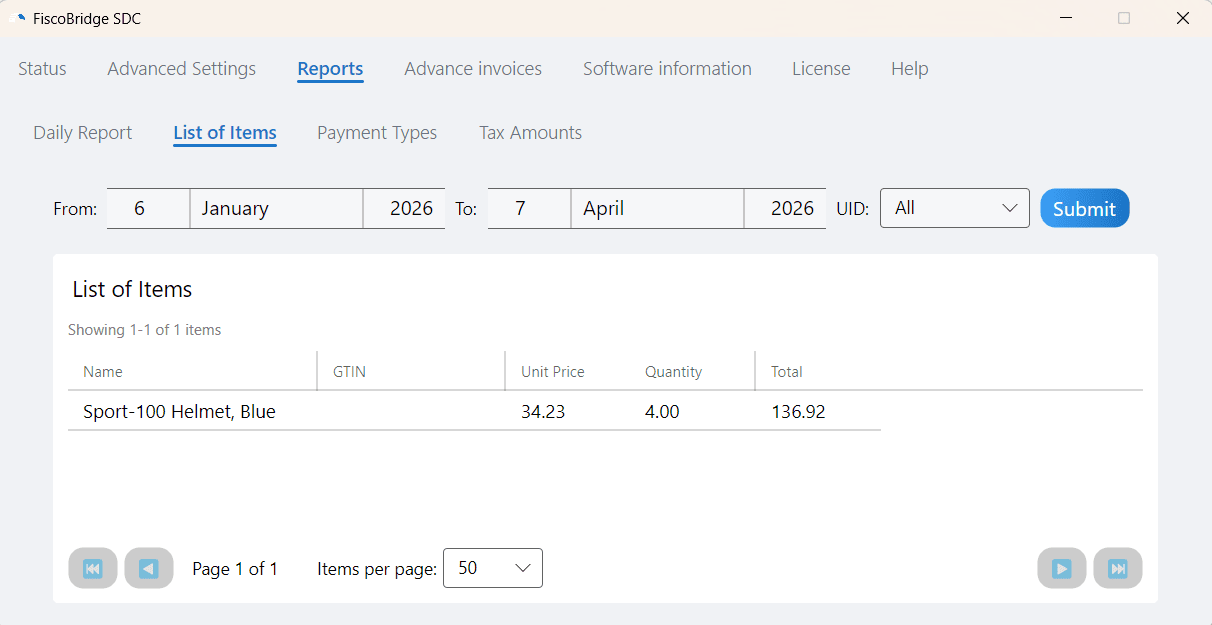
List of Sold Items
Detailed breakdown of every item sold:
- Item name and GTIN
- Unit price and quantity
- Total per item
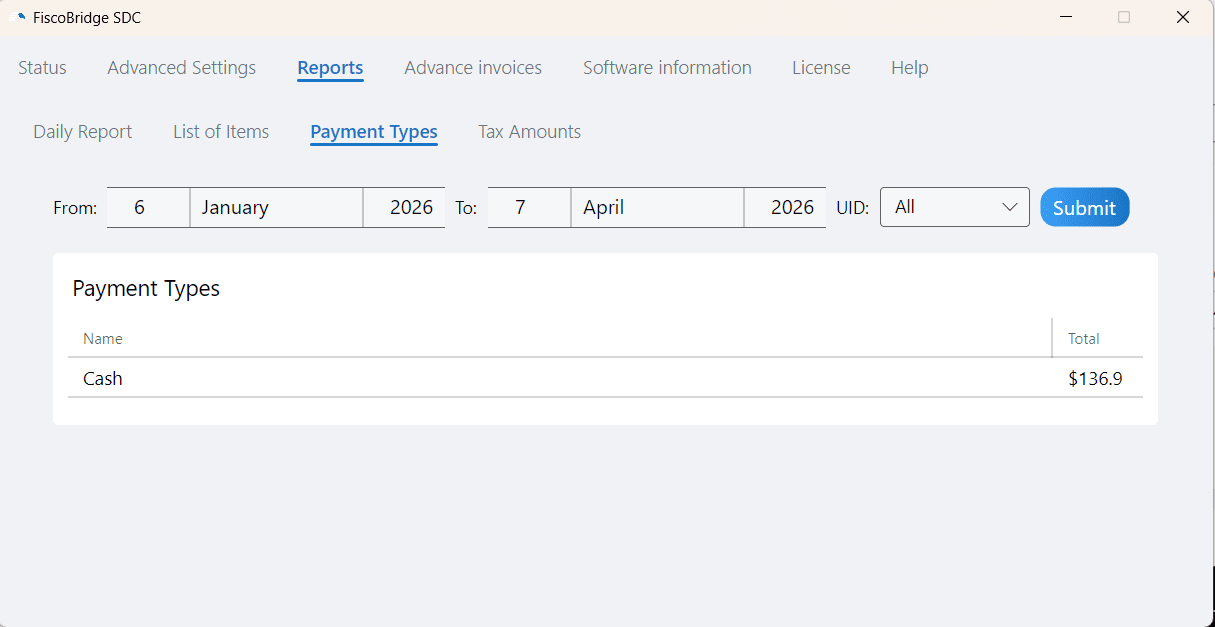
Payment Types
Breakdown by payment method:
- Cash, card, voucher, wire transfer, mobile money, and other payment types
- Amount collected for each type
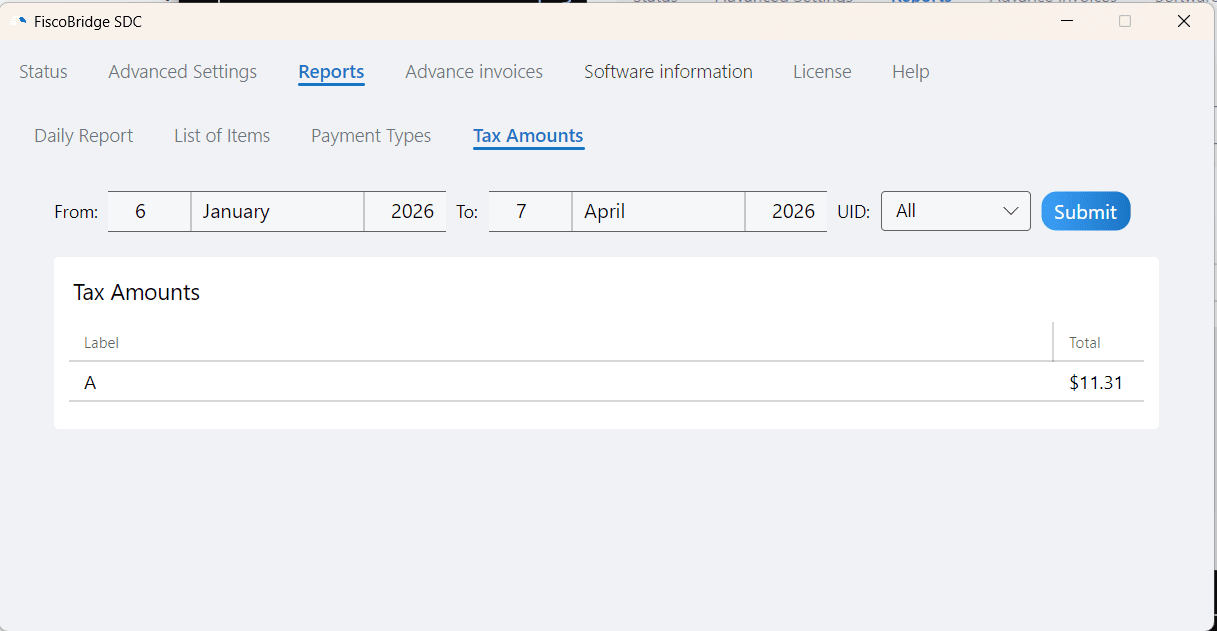
Tax Amounts
Tax collection summary:
- Tax rate labels
- Total tax collected per rate
Note: Reports are only available with a Pro license. If you have a Lite license, all other features work normally — only these four report modules are restricted.
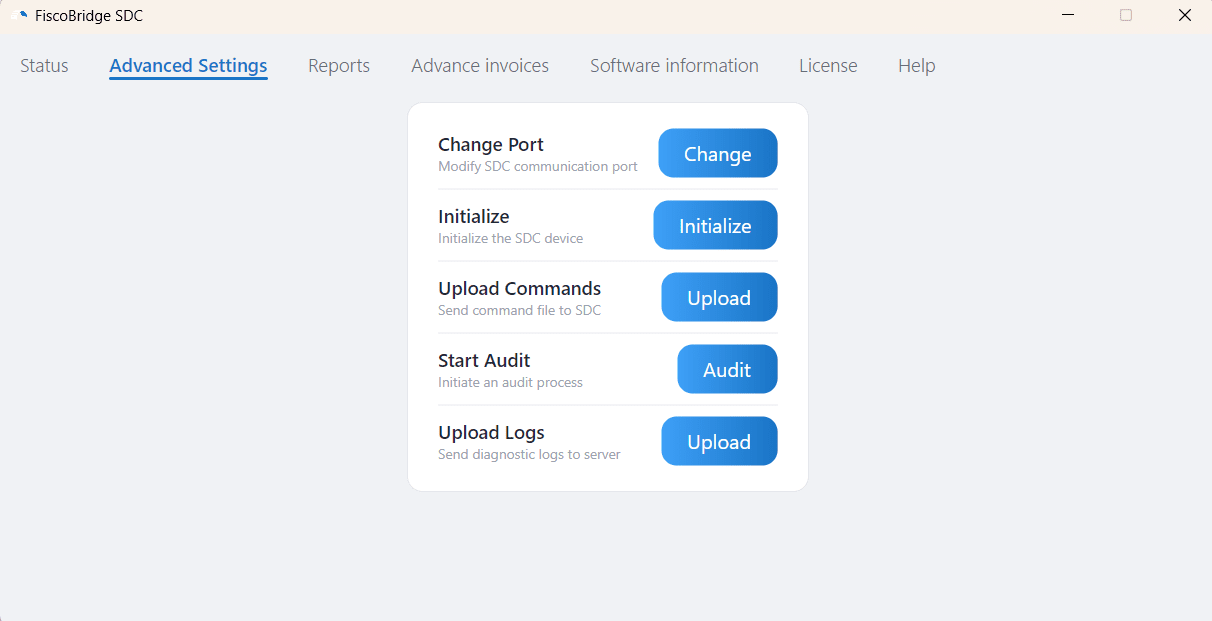
Advanced Settings Tab
The Advanced Settings tab provides configuration options for the Secure Element and system communication settings. Most users won't need to change anything here — the defaults work for standard setups.
Next Steps
- Initialize the SDC — First-time and daily startup procedure
- Apply a license — Activate your SDC license
- Export logs — Send diagnostic logs to support