
Managing Integration Invoices
The Integration Invoices page is your central view for all fiscal invoices created through your integrations. You can search, filter, view details, and perform actions on any invoice.
Viewing Your Invoices
- Go to Integrations → Integration Invoices in the sidebar
- You'll see a table with all your integration fiscal invoices, most recent first

Each row shows:
| Column | Description |
|---|---|
| Invoice # | The fiscal invoice number with counter |
| Type | Invoice type (Normal, Advance, Training, etc.) and transaction type (Sale, Refund) |
| Taxpayer | The business name from the certificate |
| Location | The business location |
| Total | The invoice amount |
| Status | Signed, Cancelled, or Refunded |
| Created | Date and time the invoice was created |
Filtering Invoices
Use the filters at the top to narrow down the list:
- Taxpayer — Select a specific business from the dropdown
- Location — Filter by a specific business location
- POS UID — Filter by a specific POS device
- Status — Filter by Signed, Cancelled, or Refunded
- Date range — Set a From and To date to see invoices from a specific period

Viewing Invoice Details
- Click the actions menu on any invoice
- Select View Details
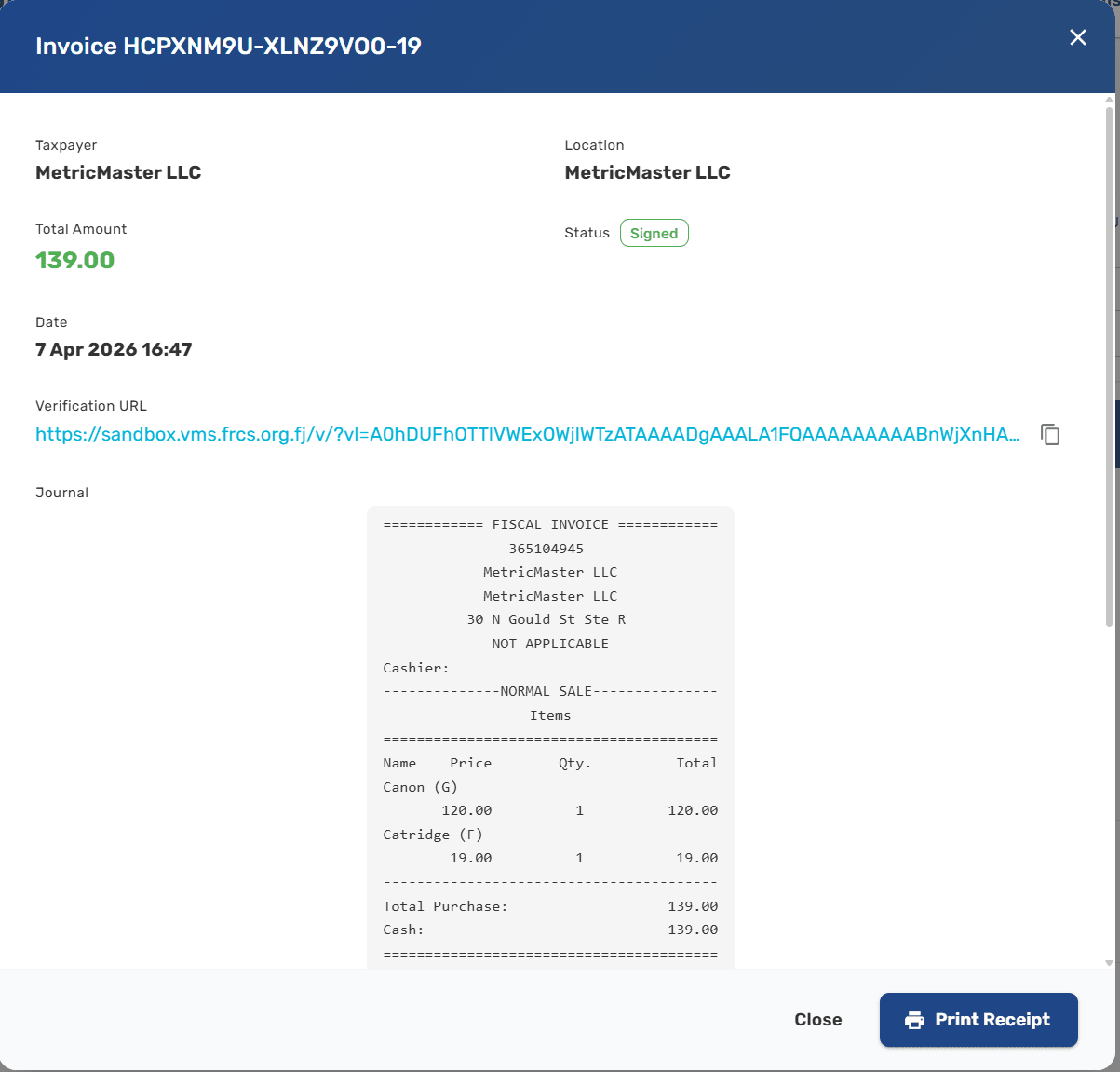
- A dialog opens with the full invoice information:
- Taxpayer and location
- Total amount and status
- Creation date and time
- Verification URL — click to verify, or use the copy button
- Journal — the formatted receipt content
- QR Code — scannable verification code
Tip: The verification URL can be shared with anyone. It links to a tax authority page where the invoice can be independently verified.
Available Actions
The actions available depend on the invoice status:
| Action | Signed | Cancelled | Refunded |
|---|---|---|---|
| View Details | Yes | Yes | Yes |
| Print Receipt | Yes | Yes | Yes |
| Copy Invoice | Yes | No | No |
| Refund Invoice | Yes | No | No |
| Cancel Invoice | Yes | No | No |
Next Steps
- Integration overview — Learn about available integrations
- Managing integrations — Configure your integration connections