
Activating an Integration Key
There are two ways to activate an Integrations subscription: buy a plan directly in the Client Portal, or redeem a prepaid activation key you received from a FiscoBridge partner. This article covers the activation-key flow — how keys work, where to get one, and how to redeem it.
Buy or Activate?
Both options unlock the same Integration tiers (Business, Professional) with identical features. Only the payment and renewal paths differ.
Buy Online | Activate a Key | |
|---|---|---|
Where to pay | Stripe checkout in the Client Portal | Paid separately, through your reseller |
Billing | Recurring subscription on your card | Prepaid, one-time |
Renewal | Automatic each month or year | New key required after expiration |
Invoices & receipts | Issued by FiscoBridge | Issued by your reseller |
Best for | Customers who want auto-renewal and self-service billing | Customers working with a local partner, or those who prefer prepaid licensing |
Getting a Key
Activation keys are issued by FiscoBridge partners and resellers. Contact your reseller to purchase a key — they'll send you a code in the following format:
The INT- prefix identifies it as an Integrations key. Each key carries:
A tier — Business or Professional (determines monthly invoice volume and sync frequency)
A number of connections (seats) — how many integrations you can run in parallel
A validity period in months — how long the subscription runs from the moment you activate
Note: Keys starting with
WEB-are for Web Invoicing, not Integrations. See Activating a Web Invoicing Key.
Activating Your Key
Log in to the Client Portal and go to Integrations → Integrations in the sidebar
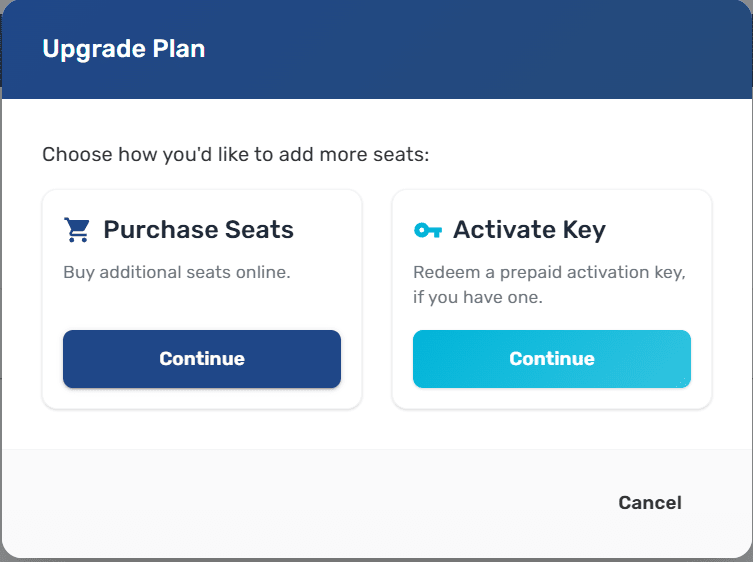
Click the Upgrade Plan button at the top of the page
In the dialog, choose the Activate Key card
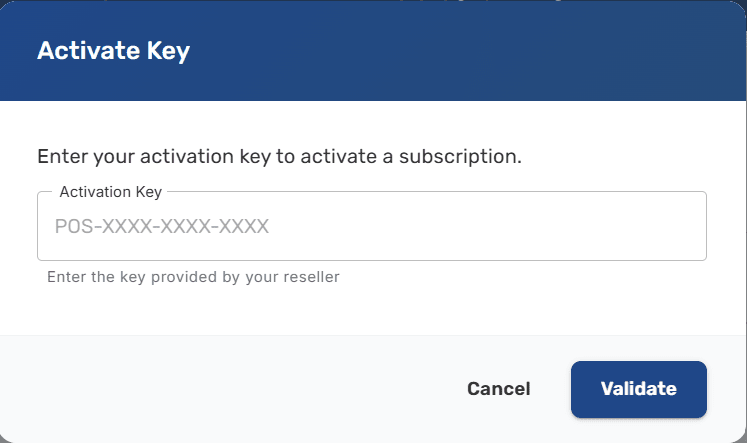
Enter your activation key and click Validate
Review the package details — product, seats, and period — then click Activate
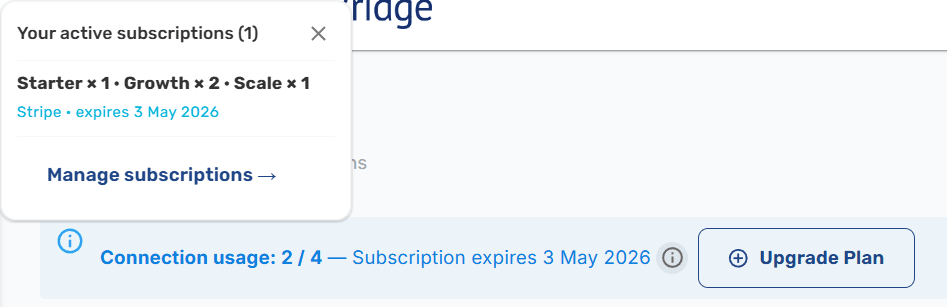
Your Integrations subscription starts immediately. You can create connections up to the seat count right away.
Integration Tiers
The tier encoded in your key determines both invoice volume and the features available. At a glance:
Tier | Invoices / Month | Sync |
|---|---|---|
Business | Up to 3,000 | Near real-time + auto retry |
Professional | Up to 10,000 | Real-time + multi-location |
See the Integrations Overview for the full feature comparison. If you need a different tier later, ask your reseller for a new key at that tier, or buy directly from the Client Portal.
After Activation
The subscription is active from the moment you redeem the key
It runs for the number of months encoded in the key (for example, 12 months)
You can create integrations up to the connection count at the key's tier
The key is marked as Activated and cannot be redeemed again on any account
Your current subscription summary is shown on the Buy Integration License page
Renewing
Activation keys don't auto-renew. When the subscription period ends you have two options:
Get a new key from your reseller and activate it the same way
Buy directly from the Client Portal to switch to a recurring Stripe subscription
There's no lock-in either way — you can move between reseller keys and direct purchase whenever it suits you.
Troubleshooting
"Invalid key format"
Confirm the key is exactly
INT-XXXX-XXXX-XXXX— anINT-prefix followed by three groups of four charactersKeys use uppercase letters and digits 2–9 only (zero and one are never used, to avoid look-alike characters)
Trim any extra spaces if you copy-pasted the key from an email
"This activation key is not available"
The key has already been activated on another account, or it was revoked by the reseller before you could redeem it
Contact your reseller to confirm the key's status
"Too many failed attempts"
After 5 invalid attempts in one session, further tries are blocked
Close the dialog and try again later, or contact your reseller to verify the key
Wrong product prefix
INT-keys activate Integrations onlyWEB-keys activate Web InvoicingPOS-keys are for the Desktop POS applicationKeys are not interchangeable between products
Next Steps
Managing integrations — Create and manage connections using your new seats
Connect Xero — Set up your first integration
Buying a license — Compare with purchasing directly from the Client Portal