
Installing the SDC
This guide walks you through the prerequisites and installation process for FiscoBridge SDC on your Windows device.
Prerequisites
Before installing, make sure you have the following:
Hardware
| Item | Description |
|---|---|
| Smart card reader | A USB smart card reader compatible with your computer |
| Smart card | The fiscal smart card issued by your tax authority (e.g., FRCS in Fiji) |
| Computer | A Windows PC that meets the system requirements below |
System Requirements
| Requirement | Minimum | Recommended |
|---|---|---|
| Processor | Dual-core 2.0 GHz | Quad-core |
| RAM | 4 GB | 8 GB |
| Disk space | 50 GB | 100 GB |
| Operating system | Windows 10 | Windows 11 |
| Internet | 1 Mbps (for FRCS communication) | Broadband |
Note: Windows Server 2019 or later is also supported.
Network
- Outbound HTTPS access (port 443) is required for communication with FRCS and FiscoBridge servers
- If you use antivirus software, add an exclusion for the FiscoBridge SDC installation folder to prevent interference with fiscal operations
Step-by-Step Installation
Download the latest FiscoBridge SDC installer from the link provided by your distributor or from the Customer Portal.
Step 1: Launch the Installer
Run the downloaded installer. The setup wizard opens with a welcome screen.
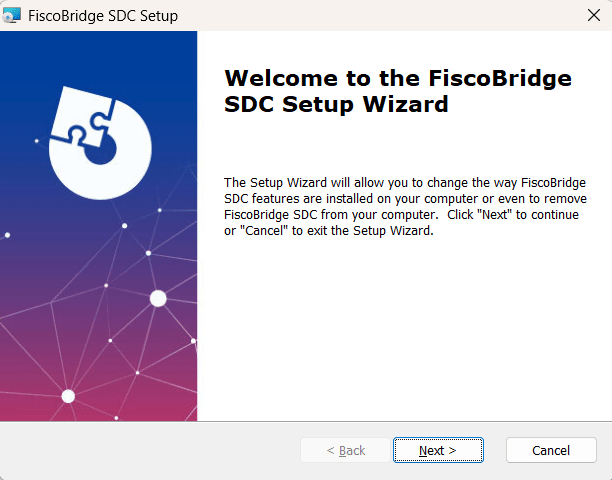
Click Next to continue.
Step 2: Accept the License Agreement
Read the End-User License Agreement and accept the terms to proceed.
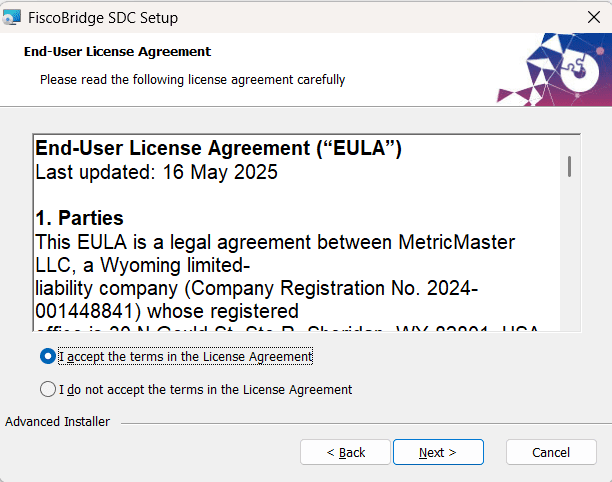
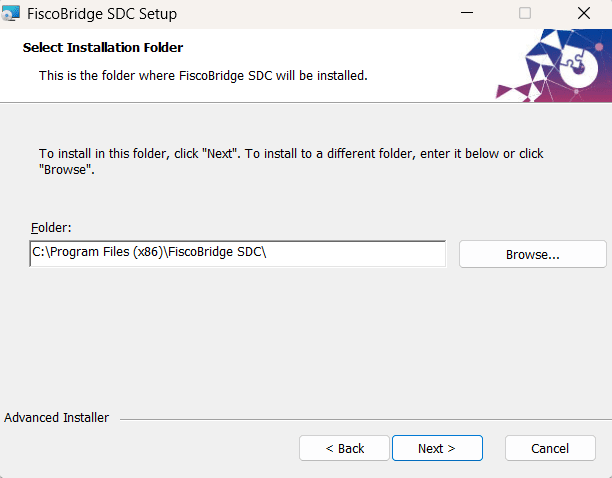
Step 3: Choose Installation Folder
Select where to install FiscoBridge SDC. The default location works for most setups.
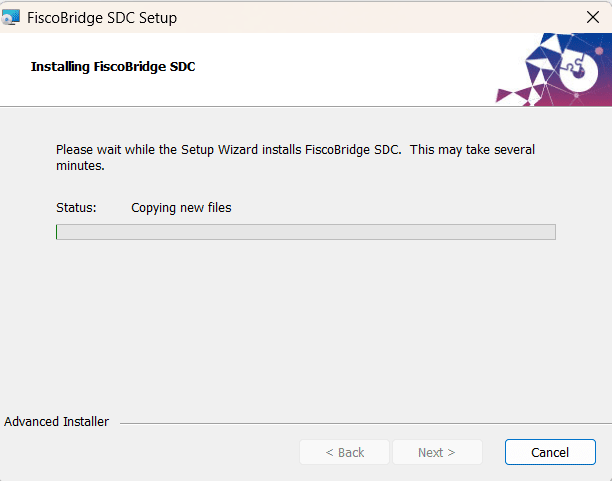
Step 4: Confirm and Install
Review your settings and click Install to begin the installation.
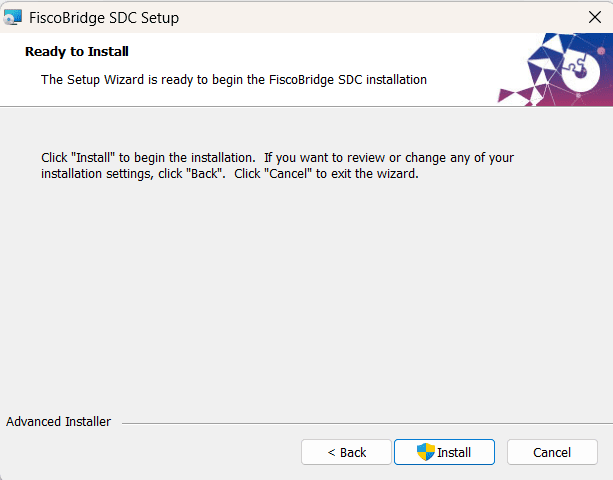
The installer copies files, sets up the database, and configures the system service.
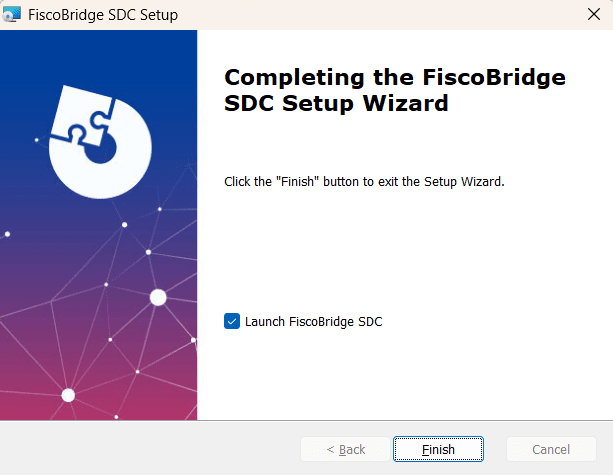
Step 5: Complete the Installation
Once the installation finishes, click Finish to close the wizard. You can choose to launch FiscoBridge SDC immediately.
After Installation
Once installed:
- Connect your smart card reader to a USB port
- Insert your fiscal smart card
- Open FiscoBridge SDC
- Initialize the system by verifying your PIN
- Apply your license to activate the software
Next Steps
- Initialize the SDC — Set up your smart card and start working
- Apply a license — Activate your SDC with a license key
- User interface guide — Learn your way around the SDC application