
Purchasing
Desktop POS lets you manage your suppliers and raise purchase orders, then record stock as it arrives to keep inventory counts accurate.
Suppliers
Suppliers are the businesses or individuals you purchase stock from. To add a supplier:
- Go to Catalog → Suppliers
- Tap + New Supplier
- Fill in the supplier details:
| Field | Description |
|---|---|
| Name | Supplier's trading name |
| Contact | Primary contact person's name |
| Phone | Contact phone number |
| Contact email address | |
| Address | Physical or postal address |
- Set the supplier's status to Active or Inactive
- Tap Save
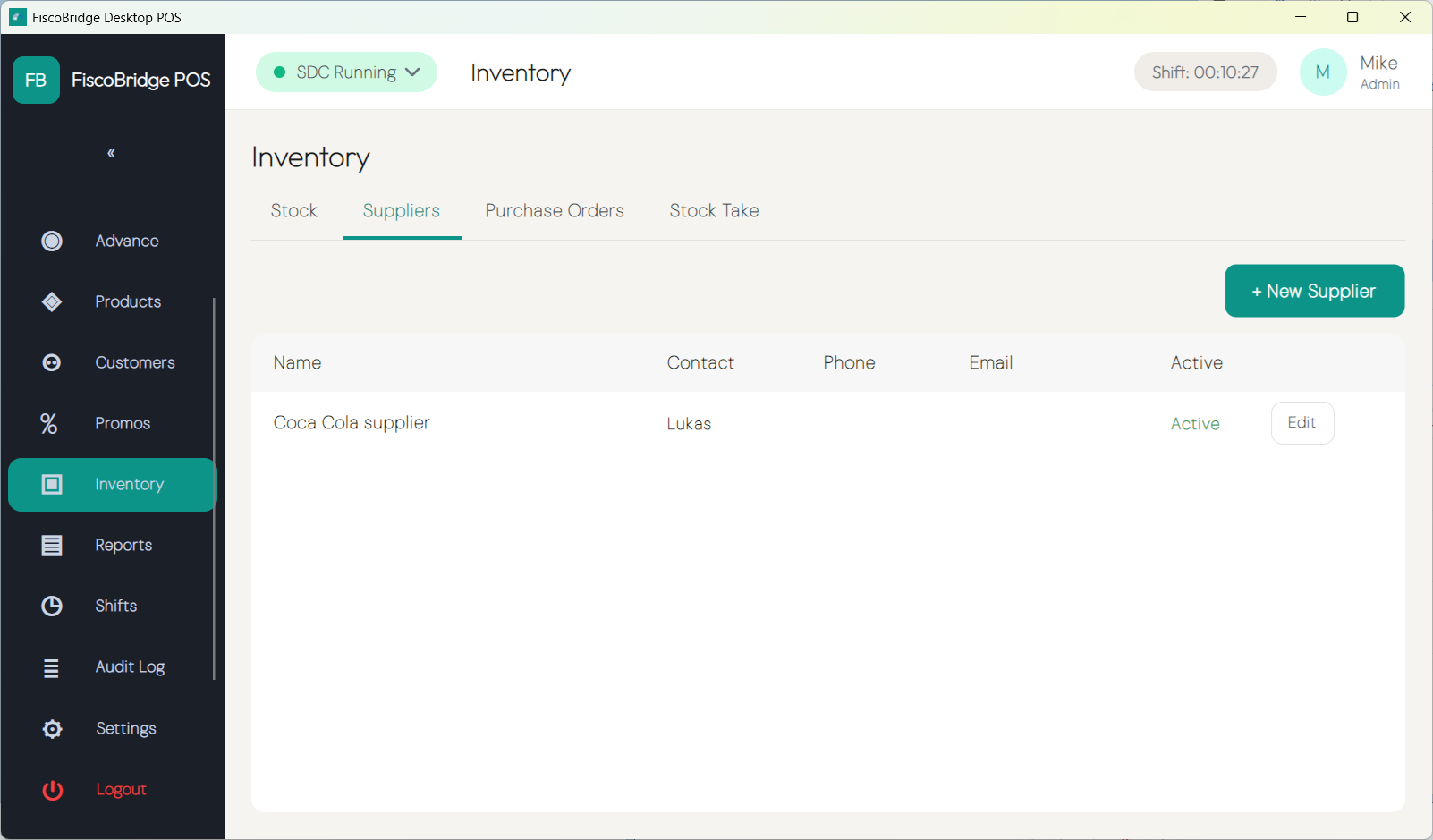
Inactive suppliers are hidden from the purchase order supplier picker but are retained in history for reference.
Tip: Mark a supplier Inactive rather than deleting it if you may use them again — their past purchase orders remain accessible.
Purchase Orders
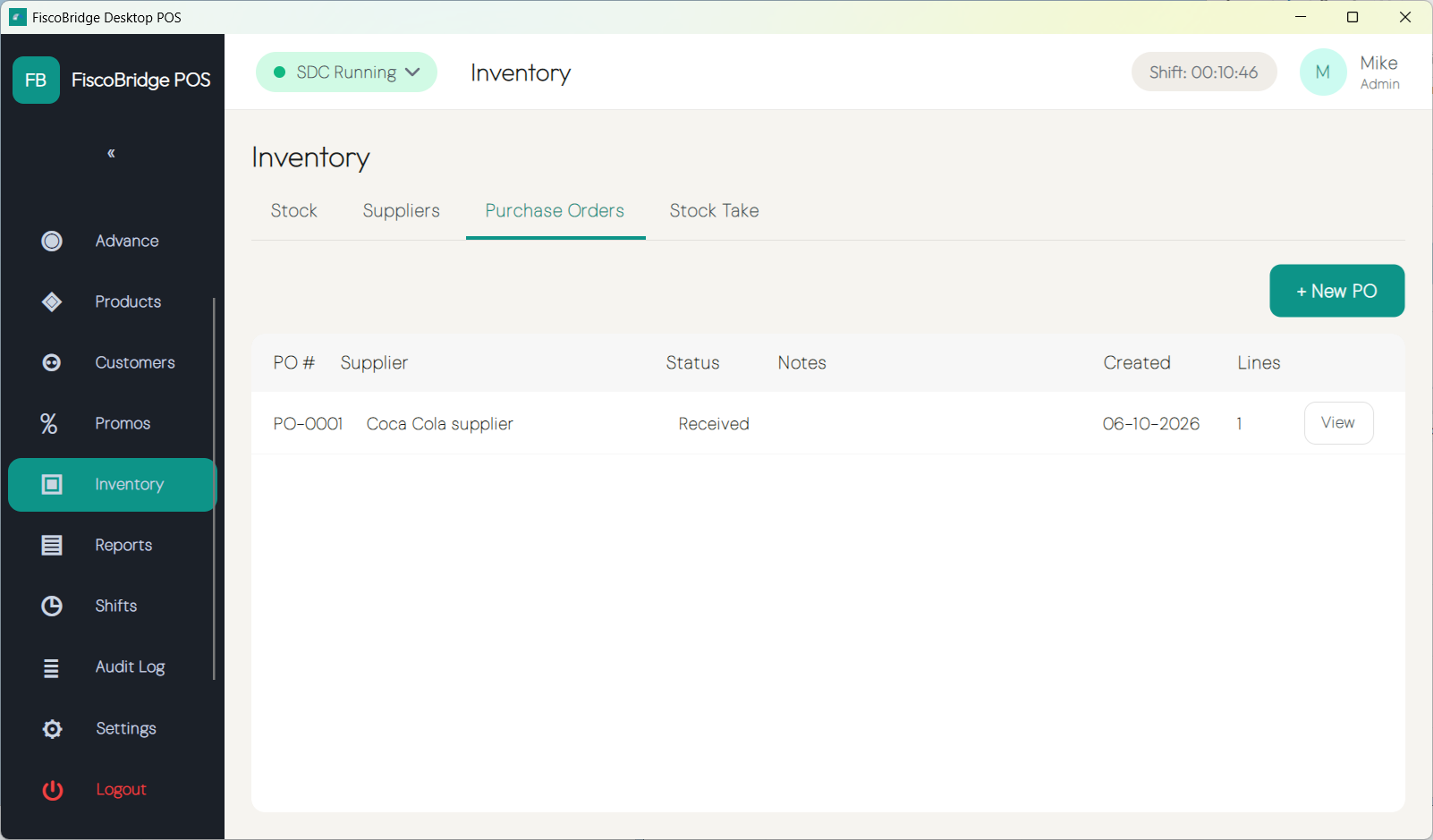
A purchase order (PO) records what you intend to buy from a supplier. Purchase orders move through the following statuses:
| Status | Meaning |
|---|---|
| Draft | Being prepared; not yet sent to the supplier |
| Sent | Sent to the supplier; awaiting delivery |
| Partially Received | Some — but not all — items have been received |
| Received | All items received; PO is complete |
| Cancelled | PO was cancelled before or during delivery |
Creating a Purchase Order
- Go to Catalog → Purchase Orders
- Tap + New Purchase Order
- Select the Supplier
- Add line items — search by product name or barcode, enter the expected Quantity and agreed Unit Cost for each
- Review the order and tap Save to keep it as Draft
- When ready to send, tap Mark as Sent
Note: You can edit a purchase order while it is in Draft status. Once marked Sent, line items are locked.
Receiving
When goods arrive, record the received quantities against the open purchase order:
- Open the purchase order (status Sent or Partially Received)
- Tap Receive
- For each line item, enter the Received Quantity
- Tap Confirm Receipt
Stock levels for received products are updated immediately. If some items are still outstanding, the PO status changes to Partially Received and you can record additional receipts later. Once all quantities are received, the PO moves to Received.
Note: Each receiving action creates a stock movement entry in the inventory log, so you have a complete audit trail from order to shelf.
Next Steps
- Products & inventory — manage the product catalog and stock levels
- Central catalog & inventory — manage purchasing centrally across multiple stores in the Backoffice