
Daily Report (Shift Report)
Desktop POS produces the daily fiscal totals through the shift workflow — open a shift at the start of the trading period, manage cash movements during the day, and close the shift with a full reconciled summary (the Z-report).
Note: Closing a shift requires a manager PIN and produces the daily fiscal totals (the Z-report).
Opening a Shift
Each trading period begins with an open shift. To open a shift:
- From the main menu, select Shift (or tap Open Shift on the home screen)
- Enter the opening float — the cash amount placed in the drawer before trading begins
- Confirm — the shift is now open, recording the cashier name, role, and start time
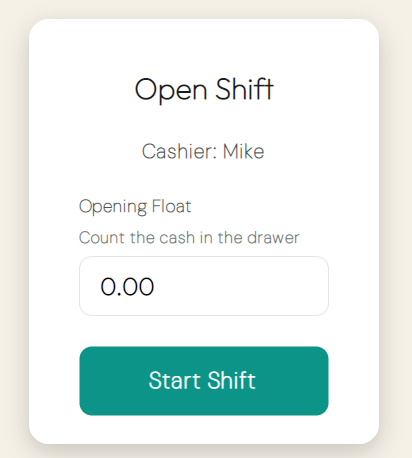
Only one shift can be open at a time on a device. Sales cannot be fiscalized until a shift is open.
During the Shift
While a shift is open, managers can record non-sale cash movements:
- Cash In — record cash added to the drawer (e.g., float top-up, petty cash received). Enter the amount and a required reason. Requires a manager PIN.
- Cash Out — record cash removed from the drawer (e.g., petty cash payment, safe drop). Enter the amount and a required reason. Requires a manager PIN.
All Cash In and Cash Out entries are included in the shift summary and affect the expected closing balance.
Shift Summary
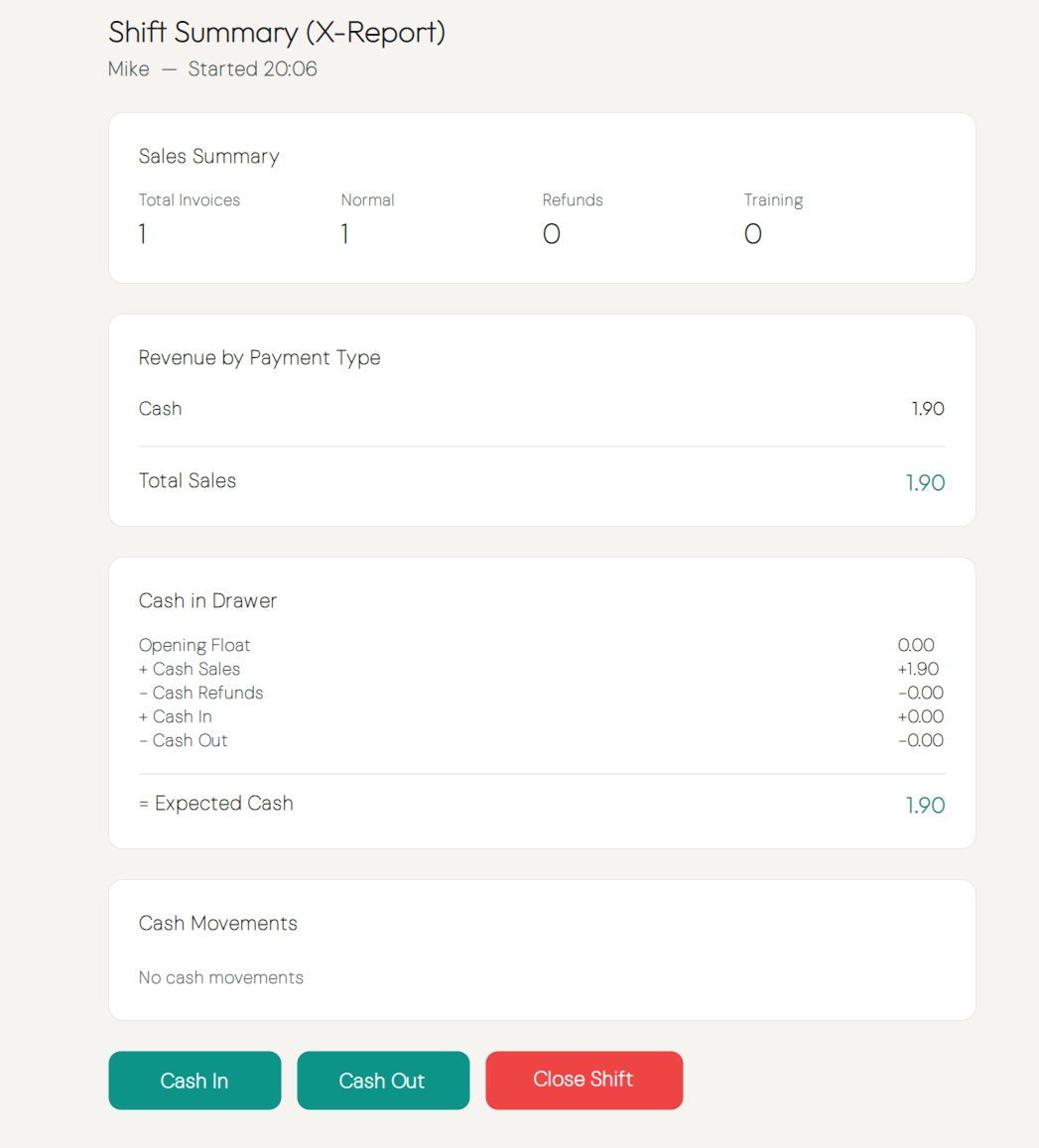
At any point during a shift, you can view the running shift summary. The summary includes:
| Field | Description |
|---|---|
| Cashier | Name and role of the cashier who opened the shift |
| Start Time | Date and time the shift was opened |
| Normal Sales | Count of Normal invoice / Sale transactions |
| Refund Invoices | Count of Normal invoice / Refund transactions |
| Cancellations | Count of cancelled invoices |
| Copies | Count of Copy invoice transactions |
| Training Invoices | Count of Training (non-fiscal) transactions |
| Total Sales | Total sale amount across Normal and Advance sale invoices |
| Total Refunds | Total refund amount across Normal and Advance refund invoices |
| Payments by Type | Breakdown of totals per payment method (Cash, Card, etc.) |
| Opening Float | The cash amount entered when the shift was opened |
| Cash Sales | Total amount received in cash for sales |
| Cash Refunds | Total cash returned for refunds |
| Cash In | Total of all Cash In entries |
| Cash Out | Total of all Cash Out entries |
| Expected Cash | Calculated closing balance: Opening Float + Cash Sales − Cash Refunds + Cash In − Cash Out |
Closing a Shift (Z-Report)
Closing the shift finalizes the daily fiscal totals and produces the Z-report.
Note: You can't close a shift while carts are parked. Recall or clear all parked carts first.
- Open the Shift screen and tap Close Shift
- Enter the manager PIN to proceed
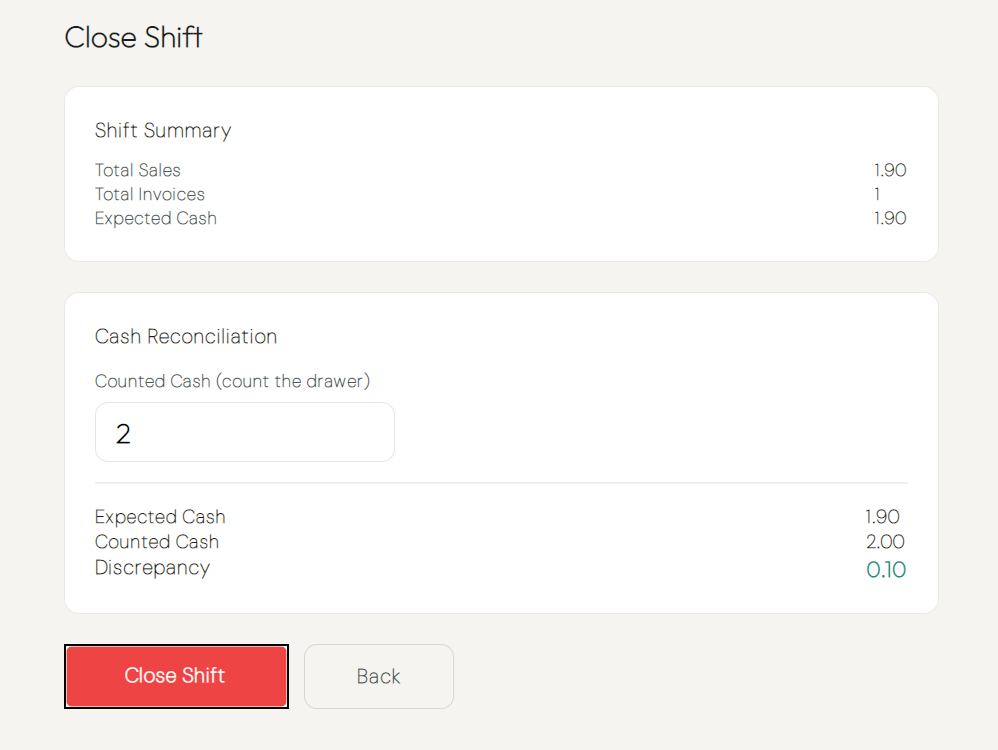
- Count the physical cash in the drawer and enter the counted cash amount
- The system displays:
- Expected cash — calculated from the shift summary
- Counted cash — the amount you entered
- Discrepancy — the difference (positive = surplus; negative = shortage)
- Optionally add notes to explain any discrepancy
- Confirm to close the shift
The shift is now closed. The daily fiscal totals are locked and the drawer is ready for the next shift.
Tip: Investigate any discrepancy before confirming the close — the discrepancy cannot be edited after the shift is closed.
Shift History
Past shifts are listed under Shift History. Select any completed shift to review its full summary, cash reconciliation, and discrepancy notes.
Next Steps
- Reports — Invoice counts per type, sale and refund totals, and totals per payment type for any date range
- Invoice history — Search and view individual fiscal invoices
- Fiscal compliance — How Desktop POS ensures fiscal integrity