
Fiscal Compliance
Desktop POS ensures fiscal compliance by routing every sale through the tax authority's signing system, which signs each invoice with a cryptographic signature before it is issued. This page explains the two signing modes, the signing process, and the regulatory constraints built into the application.
Signing Modes
Each terminal signs invoices in one of two modes, chosen under Settings → Connection (see Choosing a signing mode):
| Mode | Signed by | Connection |
|---|---|---|
| Local fiscal device (SDC) | A local E-SDC with a smart card and PIN | HTTP to the SDC at a configured host and port on this PC or the local network |
| Cloud signing (V-SDC) | The tax authority's V-SDC cloud service | HTTPS over the internet, authenticated with the POS certificate issued by the tax authority and its PAC |
The rules on this page — signing every sale, never modifying the signed result, and never editing or deleting fiscal records — apply identically in both modes. The status indicator in the header shows the active mode (SDC or CLOUD) and its state.
The SDC Connection
In SDC mode, Desktop POS connects to a local E-SDC at a configured host and port (default: localhost:8888). The connection status is shown in a status indicator on the main screen.
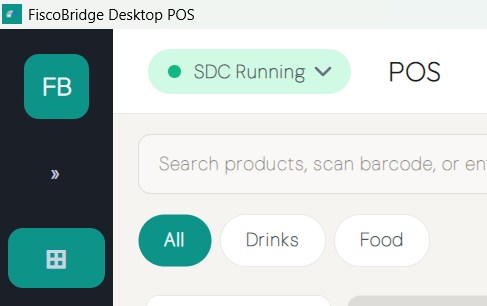
The status indicator reflects the following states:
| State | Meaning |
|---|---|
| Reachable | The SDC host responds at the configured address |
| Card Present | A smart card is inserted in the SDC card reader |
| PIN Verified | The smart card PIN has been successfully entered and verified |
| Initialized | The SDC is fully initialized and ready to sign invoices |
| Audit Required | The SDC requires an audit action before normal operation can resume |
| Certificate Expiry | The smart card certificate is approaching or has passed its expiry date |
For full technical details — serial number, software version, and last invoice number — tap the status indicator to open the SDC details panel.
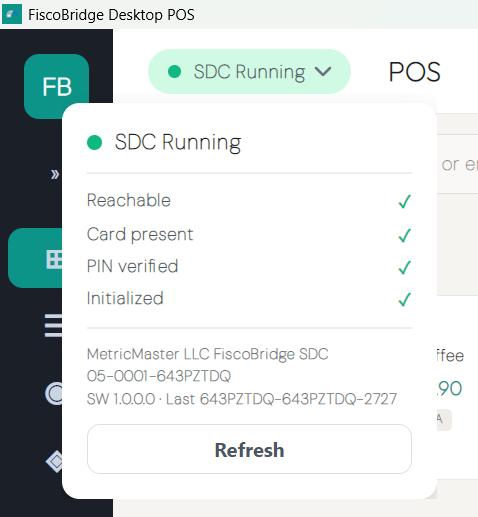
Note: If the SDC isn't running, the card is absent, or the PIN is not verified, sales cannot be fiscalized.
SDC Authentication
In SDC mode, when Desktop POS starts an operation, the POS and the E-SDC are mutually authenticated before any invoice can be issued:
- The POS opens a session with the SDC at the configured host and port
- The smart card must be present in the SDC and its PIN verified — this proves the SDC holds a valid, authority-issued certificate
- The SDC returns its configuration (tax labels and environment parameters); only after successful mutual authentication does the status reach Initialized and the Fiscalize action become available
This ensures that only an authorized POS paired with a valid, initialized SDC can issue fiscal invoices.
V-SDC Connection and Authentication
In cloud signing mode, Desktop POS connects directly to the tax authority's V-SDC over HTTPS. No local SDC, card reader, or smart card is involved.
- The POS presents the POS certificate (
.pfx/.p12) issued by the tax authority as a TLS client certificate, together with the certificate's PAC code. Developer authentication certificates are rejected. - The V-SDC address is read from the certificate itself — it cannot be typed in or redirected.
- V-SDC verifies the certificate and PAC and returns its configuration, including the current tax rates. Only then does the status reach Ready and the Fiscalize action become available.
The certificate and PAC are verified live against V-SDC before they are saved. The certificate password and PAC are stored encrypted on the device and are never displayed after saving. The status checklist in cloud mode shows Internet reachable, Certificate valid, PAC accepted, and Tax rates loaded. Desktop POS warns 30 days before the certificate expires and stops fiscalizing once it has expired. For setup and every status state, see Connecting to cloud signing (V-SDC).
Communication Protocol
Desktop POS uses the POS-to-SDC protocol documented in the Technical Instructions for EFD Suppliers in both modes:
- SDC mode — the HTTP protocol with the local E-SDC.
- Cloud mode — HTTPS with the V-SDC, using client-certificate authentication and the PAC. The protocol version (v3 or v4) is selected automatically from the certificate's environment.
Signing a Sale
Every invoice issued by Desktop POS is signed by the SDC or V-SDC before it is presented to the customer. The signing process:
- Desktop POS sends the invoice request (items, quantities, tax labels, payment method, cashier, and buyer TIN where applicable) to the SDC or V-SDC
- The SDC or V-SDC validates, signs, and returns the fiscal result — invoice number, timestamp, invoice counter, tax breakdown, verification URL, QR code, and digital signature
- Desktop POS displays and prints the result exactly as received, without modification
In cloud mode, every request carries a unique request ID. If the connection drops after an invoice was sent, Desktop POS asks V-SDC for the result of that request before reporting a failure, so a sale is never fiscalized twice.
The POS cannot issue an invoice without a ready signing connection. The fiscalize action is only available when the status indicator shows Initialized (SDC mode) or Ready (cloud mode).
Training Mode
Desktop POS includes a training mode for staff onboarding and system testing. When training mode is active, a TRAINING MODE banner is shown across the sales screen. Invoices issued in training mode are clearly marked TRAINING, are not valid fiscal invoices, and are not reported to the tax authority. Use training mode to practice or train staff without affecting your fiscal records.
Training mode is enabled and disabled from Settings → System & Training.
Electronic Journal
An electronic journal is retained for every issued invoice. From Invoice History, you can:
- View every invoice with filtering by date, type, status, and cashier
- Open the full details of any invoice, including its verification URL and QR code
- Retrieve the journal text issued by the SDC or V-SDC for any transaction
This provides a complete, searchable record of every fiscal transaction processed on the device.
Prohibited Functions
Desktop POS enforces the following restrictions as required by fiscal regulation:
Fiscal Records Are Never Edited or Deleted
Issued fiscal invoices cannot be modified or removed from the system. When a transaction must be reversed or corrected:
- Refunds create a new linked refund invoice referencing the original
- Cancellations create a new linked cancellation document referencing the original
Both the original and the linked document are reported and visible in Invoice History. Nothing is erased.
No Sales Without Signing
It is not possible to register a sales amount without issuing a fiscal invoice. There is no offline or unrecorded sales mode for fiscal invoices — in SDC mode the SDC must be ready, and in cloud mode V-SDC must be reachable.
No Modification of SDC Responses
Desktop POS does not omit, edit, or recalculate any data returned by the SDC or V-SDC. Tax breakdowns, invoice numbers, timestamps, and QR codes are displayed and printed exactly as received.
Invoice Header Must Include All Issuer Data
Header of fiscal invoice (identification of issuer) must not omit any data returned by the SDC or V-SDC.
Audit Log
All administrative and POS actions — including shift opens and closes, cash movements, refunds, cancellations, settings changes, and PIN entries — are written to an audit log. The audit log can be reviewed from Settings and is also pushed to the Backoffice if the device is connected. See Settings for details.
Setting Up Signing
- SDC mode — the SDC must be installed, initialized, and have a smart card inserted before Desktop POS can issue fiscal invoices. For SDC installation, smart card registration, and PIN initialization, see the SDC documentation. For a step-by-step guide to pointing Desktop POS at the SDC and reading the connection status, see Connecting to the SDC.
- Cloud mode — you need the POS certificate issued by your tax authority, its password, and its PAC. See Connecting to cloud signing (V-SDC).
Next Steps
- Choosing a signing mode — Compare the SDC and cloud signing
- Tax rates — How tax labels are sourced from the SDC or V-SDC and applied to sales
- Daily report — Shift workflow and Z-report generation
- Reports — Fiscal reports and sales analytics for any date range
- SDC documentation — Installing and initializing the SDC