
Installing Desktop POS
Desktop POS is a cross-platform desktop application for Windows, macOS, and Linux. This page covers how to download, install, and keep it up to date.
System Requirements
| Operating System | Supported Versions | Minimum RAM | Minimum Disk |
|---|---|---|---|
| Windows | Windows 10 / 11 (64-bit) | 4 GB | 500 MB |
| macOS | macOS 12 Monterey or later | 4 GB | 500 MB |
| Linux | Ubuntu 20.04+ / Debian 11+ / most 64-bit distros | 4 GB | 500 MB |
For fiscal operation you need one of the following (see Choosing a signing mode):
- A local or networked SDC with a smart card, or
- A POS certificate (
.pfx/.p12) issued by your tax authority, with its password and PAC, and a constant internet connection, for cloud signing through V-SDC (Windows only)
Download
Download the latest release from the FiscoBridge customer portal or via the link provided by your reseller. Choose the build that matches your operating system:
| Platform | File |
|---|---|
| Windows | POS_Installer.exe |
| macOS | FiscoBridgePOS-osx-arm64 or FiscoBridgePOS-osx-x64 |
| Linux | FiscoBridgePOS-linux-x64 |
Note: Desktop POS stores all data locally and works offline. Back up the data folder regularly — see Settings for the backup & restore options.
Install on Windows
- Download
POS_Installer.exe. - Double-click the installer and follow the setup wizard to install Desktop POS.
- If Windows SmartScreen shows a prompt, click More info → Run anyway.
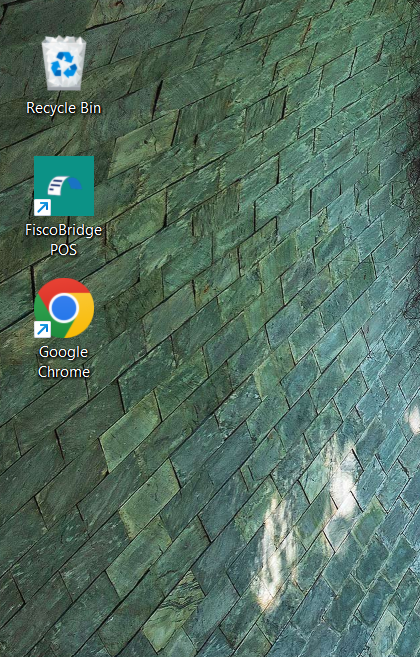
- Launch Desktop POS from the Start menu — on its first launch it opens the first-run setup wizard.
Data is stored in %APPDATA%\FiscoPOS\ on Windows. You can open this folder from Settings → About.
Install on macOS
- Download the macOS build and move it to your Applications folder (optional but recommended).
- On first launch, macOS Gatekeeper may block the app because it is downloaded from the internet.
- Open System Settings → Privacy & Security, scroll down to the blocked app entry, and click Open Anyway.
- Confirm the prompt — the app opens and you will not be prompted again.
Data is stored in ~/Library/Application Support/FiscoPOS/ on macOS.
Install on Linux
Download the Linux binary to your preferred location.
Open a terminal in that directory and make the file executable:
chmod +x FiscoBridgePOS-linux-x64Run the app:
./FiscoBridgePOS-linux-x64To run it from anywhere, move the binary to
/usr/local/bin/or create a.desktoplauncher.
Data is stored in ~/.config/FiscoPOS/ on Linux (follows the XDG base directory spec).
Updating
Desktop POS checks for updates automatically. When a new version is available, an Update available notification appears in the app header.
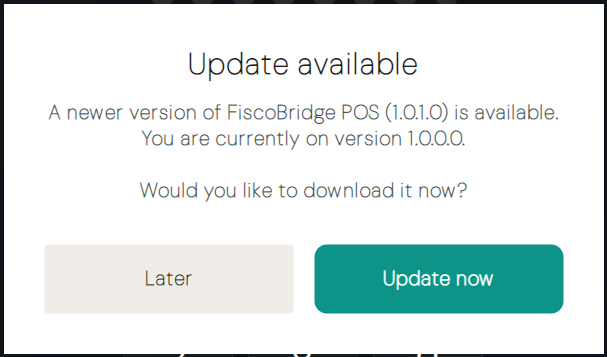
To apply an update:
- Click the Update available notification.
- The app downloads the new build in the background.
- When the download completes, click Restart and update — the app restarts at the new version.
Your data and settings are preserved across updates.
Data Location
| Platform | Path |
|---|---|
| Windows | %APPDATA%\FiscoPOS\ |
| macOS | ~/Library/Application Support/FiscoPOS/ |
| Linux | ~/.config/FiscoPOS/ |
Use Settings → Backup & Restore to export an encrypted backup of your local database before moving to a new machine or performing a system reinstall.
Next Steps
- First-run setup — Configure the SDC connection and create your first admin user
- Cashiers and roles — Add staff and assign roles