
Products & Inventory
Desktop POS keeps a local product catalog that drives the sales grid, and optionally tracks stock levels so you always know what is on hand and when to reorder.
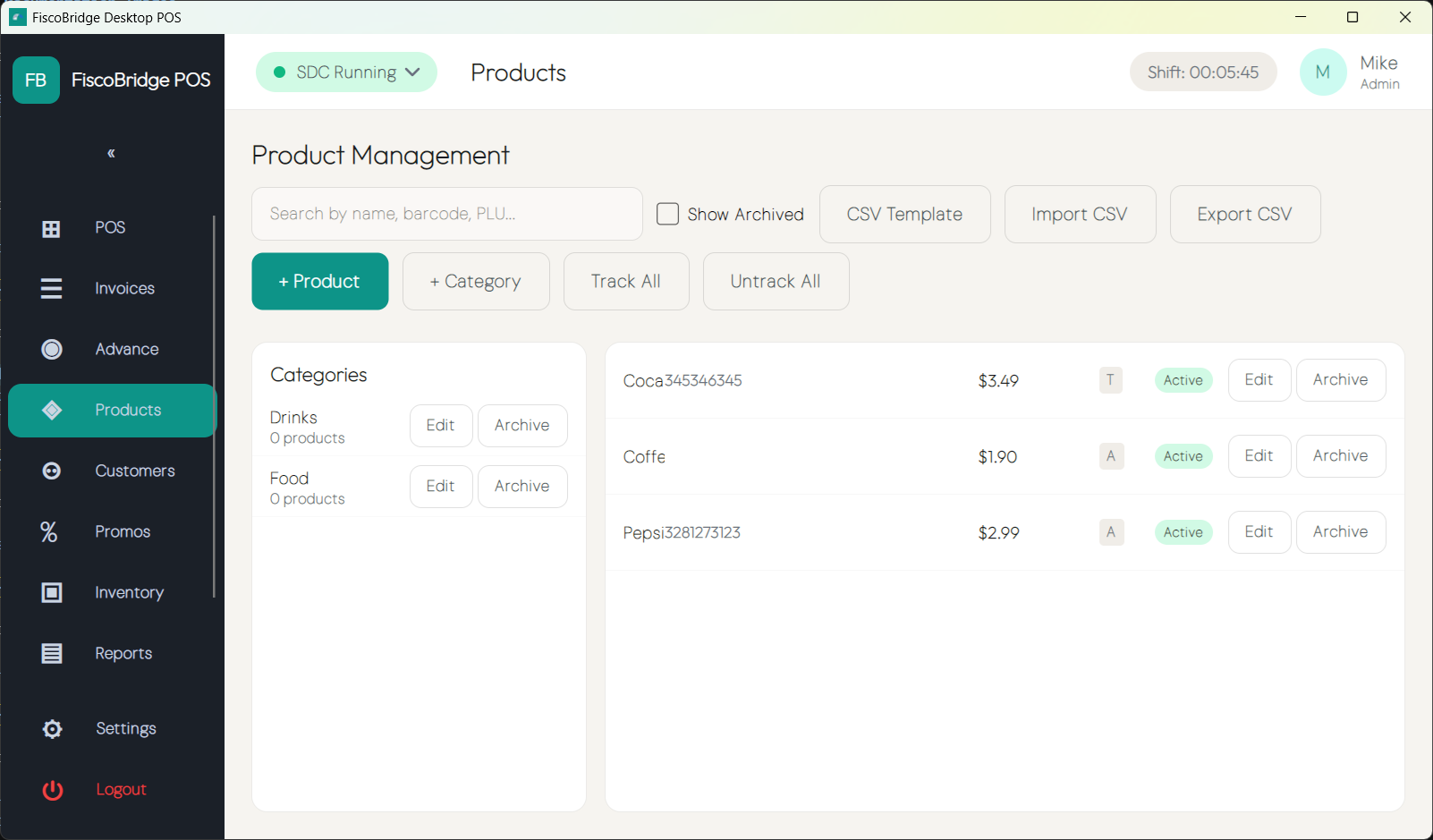
The Product Catalog
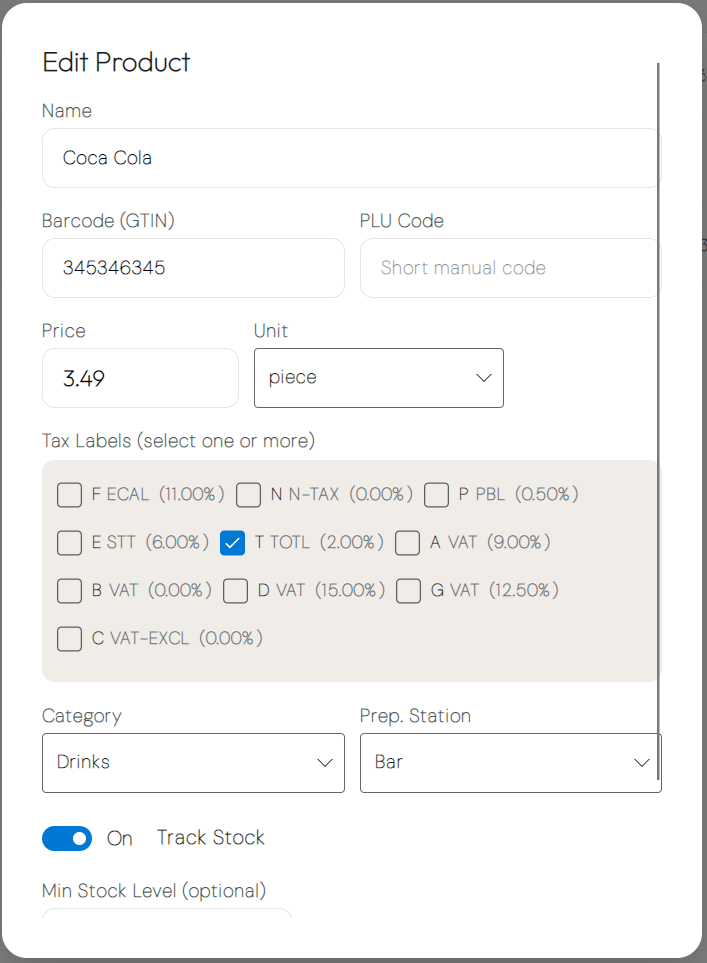
Each product can carry the following fields:
| Field | Description | Required |
|---|---|---|
| Name | Descriptive name shown on the grid and receipts | Yes |
| Barcode | EAN/UPC barcode scanned at the till | No |
| PLU / SKU | Internal code used for quick look-up | No |
| Unit price | Default selling price per unit | Yes |
| Tax label(s) | One or more tax codes applied at sale (e.g., A, B, E) | Yes |
| Category | Catalog category for grouping products on the grid | No |
| Unit of measure | e.g., Each, Kg, Litre | No |
| Station | Kitchen or bar station the item is routed to on print | No |
| Stock-tracked | Whether the system maintains a running stock count for this product | No |
| Minimum level | Quantity below which a low-stock alert is triggered | No |
Adding and Editing a Product
- Go to Catalog → Products
- Tap + New Product or select an existing product to edit
- Fill in the fields above
- Tap Save
Tip: Set a Barcode or PLU/SKU so cashiers can add the product by scanning or typing a short code rather than searching by name.
Price Handling and Rounding
Desktop POS follows the rounding rules defined in the Technical Instructions for EFD Suppliers:
- Prices are held and displayed to a minimum of two decimal places
- Rounding follows standard arithmetic rules: round down if the next digit is less than 5, round up if it is 5 or greater
- Each line total is calculated as quantity × unit price, rounded to two decimal places
- Tax is calculated by the SDC at fiscalization and returned as part of the signed result
Categories
Categories organize the product grid into logical groups. They are hierarchical — a category can contain sub-categories, and tapping a parent category on the sales screen shows only its children.
- Go to Catalog → Categories to add, rename, or reorder categories
- Categories that are no longer in use can be archived to hide them from the grid without deleting them or their products
- Archived categories can be restored at any time
Importing & Exporting
You can bulk-manage your catalog using CSV files:
| Action | How |
|---|---|
| Export | Go to Catalog → Products → Export — downloads a CSV of all products |
| Import | Go to Catalog → Products → Import — upload a CSV; the importer creates new products and updates matching ones by name or barcode |
Note: Download the export first to use it as an import template — the column order must match the expected format.
Stock Tracking
To enable stock management for a product, turn on Stock-tracked in the product editor. Once tracked:
- The current stock quantity is shown on the product grid and in the product list
- When a sale is completed, the sold quantity is automatically deducted from stock
- If the stock level falls below the product's Minimum level, a low-stock alert is displayed during the sale so the cashier is aware
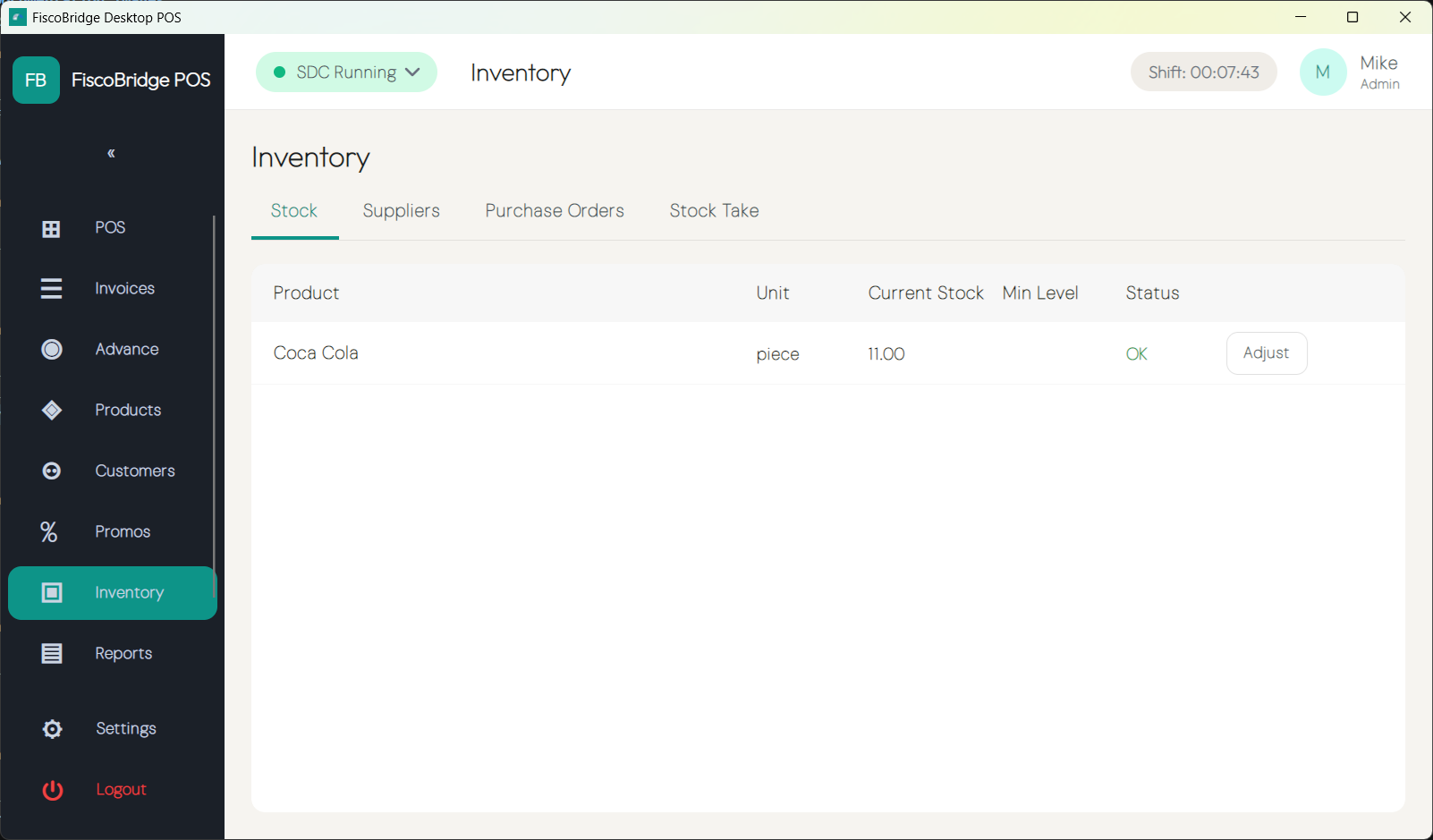
Stock Adjustments
When physical stock differs from the system count — due to spoilage, theft, or receiving — you can make a manual adjustment:
- Go to Catalog → Stock → Adjust
- Search for the product
- Enter the adjustment quantity (positive to add, negative to remove)
- Select a Reason (e.g., Received, Spoilage, Theft, Correction)
- Tap Save
Each adjustment is recorded in the stock movement log with the reason and the user who made it.
Stock Take
A stock take lets you count physical stock and reconcile it with the system:
- Go to Catalog → Stock → Stock Take
- Tap Start Stock Take
- Count each product and enter the Counted quantity
- When finished, tap Finalize
- Review the Expected vs Counted comparison — products with discrepancies are highlighted
- Confirm to apply the adjustments
Tip: You can pause a stock take and return to it later — quantities already entered are saved.
When Syncing with the Backoffice
If this device is connected to the Backoffice, the catalog may be centrally managed. In this case, a banner reading "Catalog is managed in the back office" appears on the product list and individual product fields are read-only on the device.
To add or change products, log in to the Backoffice and make changes there — they will sync to this device automatically.
See Central catalog & inventory for more information on Backoffice-managed catalogs.
Next Steps
- Purchasing — manage suppliers and purchase orders to replenish stock
- Promotions — set up automatic discounts on products and categories
- Tax rates — understand the tax labels assigned to products