
Settings
Desktop POS organises all configuration into named sections in a single Settings screen. This page describes every section and the options it contains.
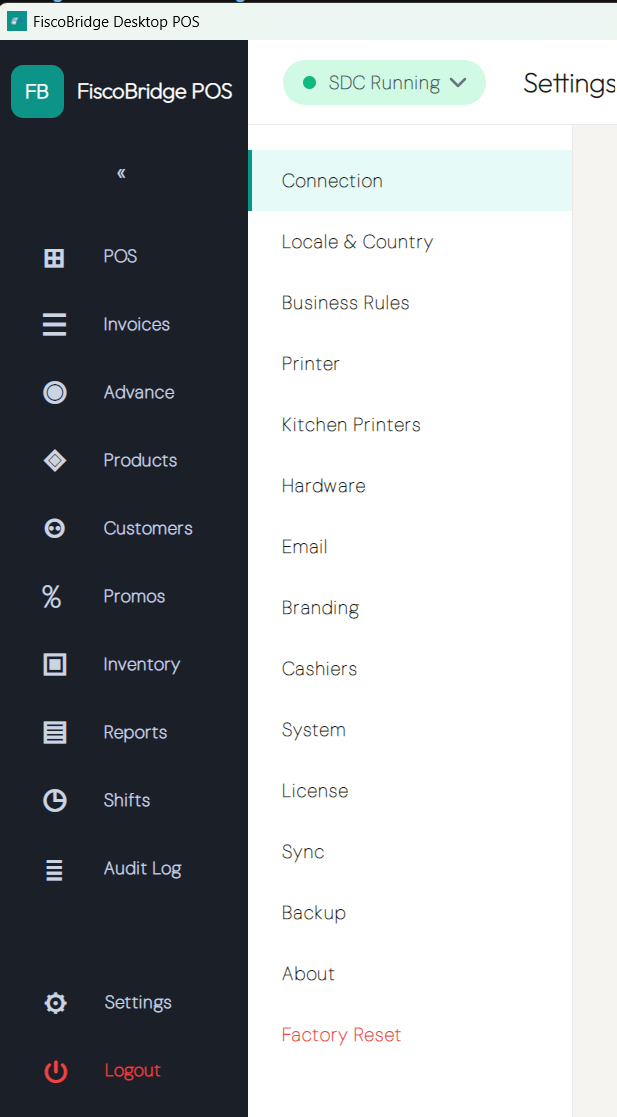
Connection
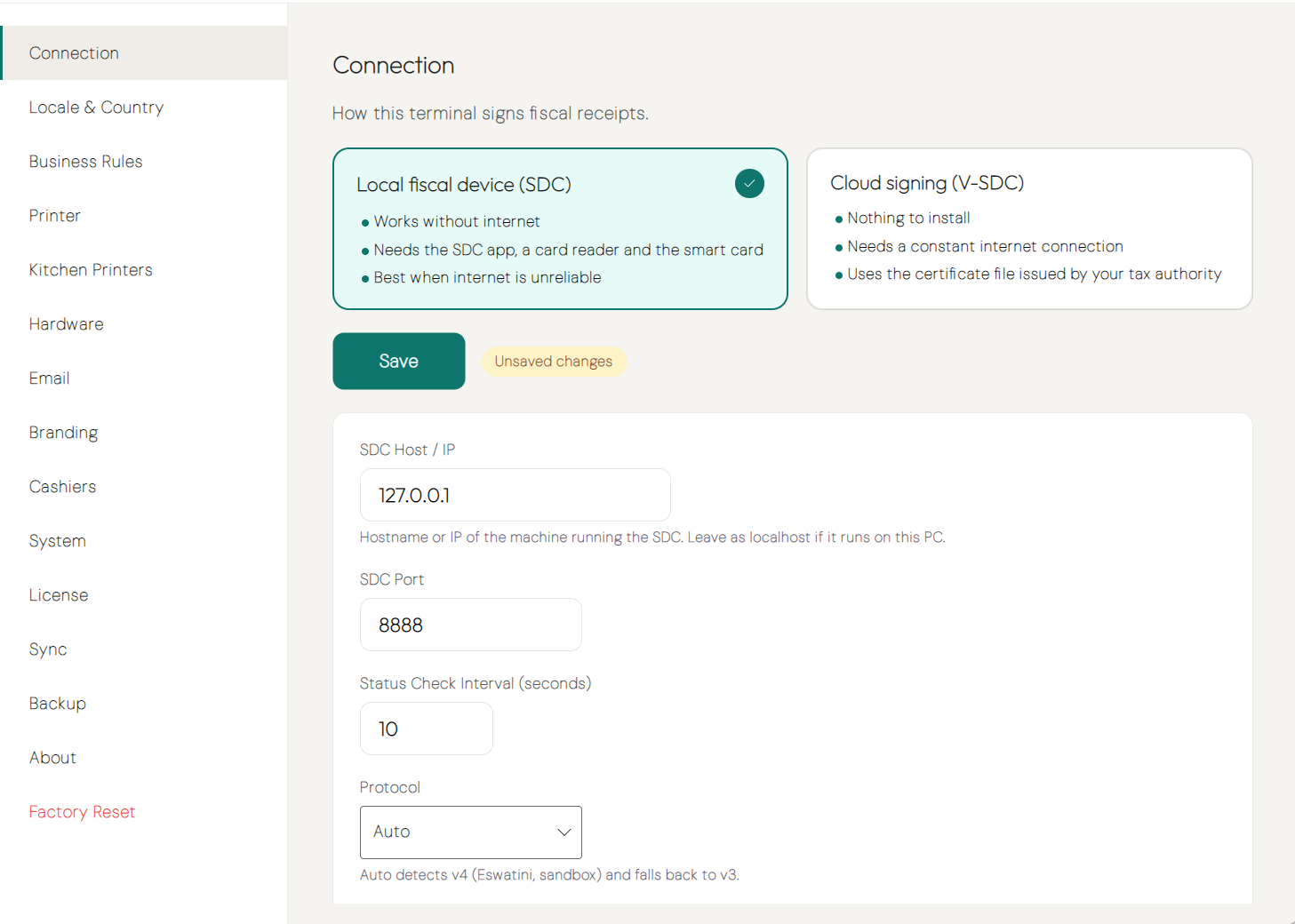
Choose how this terminal signs fiscal receipts. The section shows two cards:
- Local fiscal device (SDC) — works without internet; needs the SDC app, a card reader, and the smart card.
- Cloud signing (V-SDC) — nothing to install; needs a constant internet connection and the certificate file issued by your tax authority. Available on Windows only.
Click a card to see and edit its settings in the panel below. To change the active mode, select the card and click Save under the cards — an amber Unsaved changes badge is shown until you do. Cloud signing can only be saved as the active mode once a certificate has been verified. Switching modes keeps the other mode's settings. See Choosing a signing mode.
Local Fiscal Device (SDC)
| Field | Description |
|---|---|
| SDC Host / IP | Hostname or IP address of the machine running the SDC — leave as localhost if it runs on this PC |
| SDC Port | Port the SDC listens on (default 8888) |
| Status Check Interval (seconds) | How often the POS polls the SDC for its status |
| Protocol | SDC protocol version — Auto detects v4 and falls back to v3 |
Click Save to store the SDC settings and Test Connection to confirm the POS can reach the SDC at the entered host and port. See Connecting to the SDC.
Cloud Signing (V-SDC)
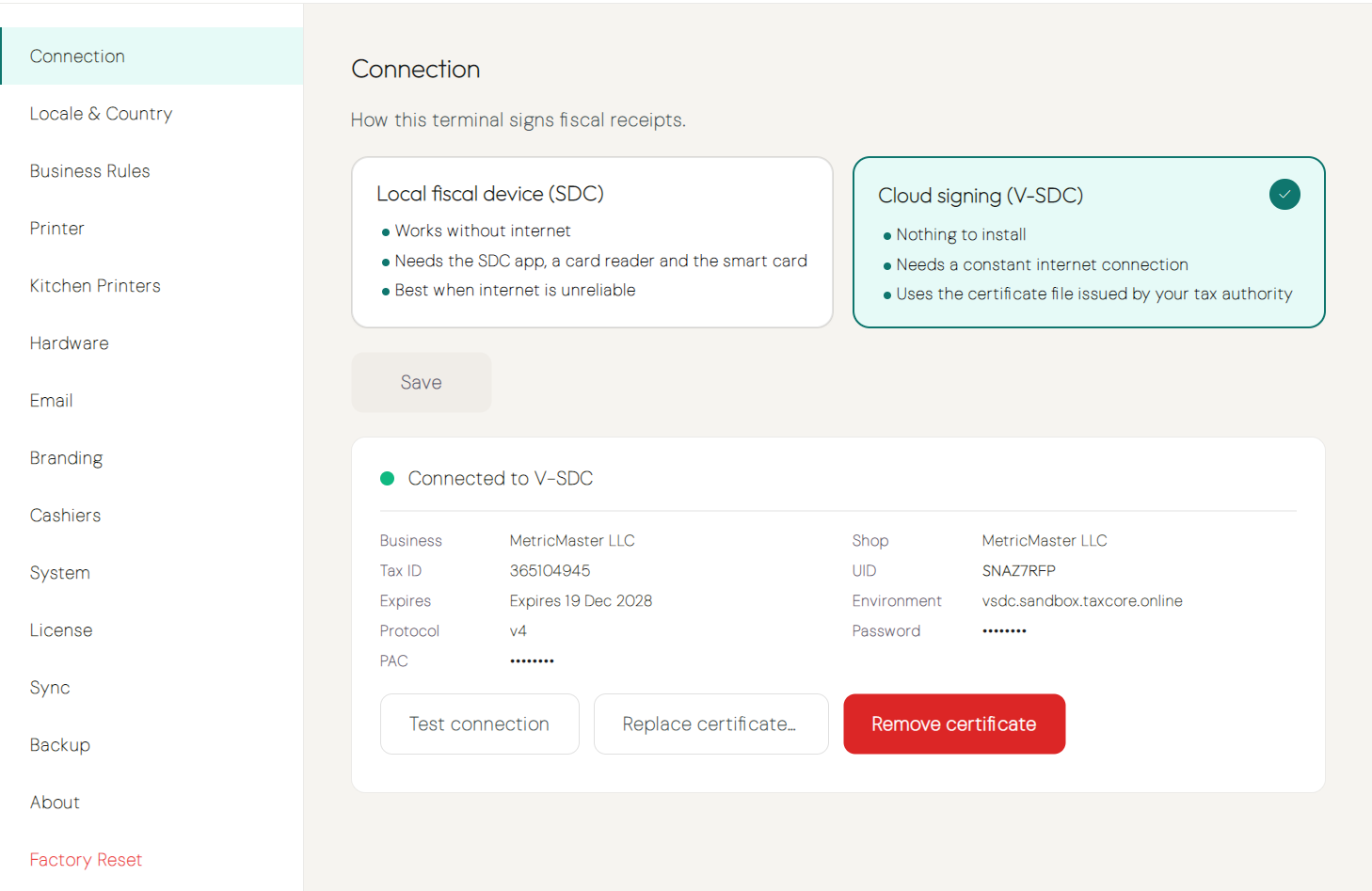
Until a certificate is added, the panel shows a three-step form: Certificate file (.pfx, .p12, or a .zip containing it), Certificate password, and PAC code, followed by Verify and save certificate. Once a certificate is saved, the panel shows its status (Connected to V-SDC when working), the Business, Shop, Tax ID, UID, expiry date, Environment, and Protocol, with Test connection, Replace certificate…, and Remove certificate actions. The password and PAC are never shown again after saving.
The cloud status is checked every 30 seconds. See Connecting to cloud signing (V-SDC) for the full walkthrough.
Locale & Country
Configure the region-specific settings for your till.
| Setting | Description |
|---|---|
| Country | Sets the region — Fiji, Samoa, or Vanuatu |
| Currency Code | ISO currency code (e.g. FJD) |
| Currency Symbol | Symbol displayed on screen and receipts (e.g. $) |
| Decimal Places | Number of decimal places for prices and totals |
| Tax ID Label | Label used for the customer TIN field (e.g. "VAT Number") |
| Business ID Label | Label used for the business registration field |
| Date Format | How dates are displayed throughout the app |
| Cash Denominations | List of denominations used for the cash change calculator |
Business Rules
Controls over discounting and protected operations.
| Setting | Description |
|---|---|
| Discount Stacking | Whether manual discounts and promotion discounts can apply together on the same sale |
| Manager PIN Required For | Actions that require a manager to authenticate — discounts, cash in/out, refunds, cancellations, shift close, and layout edits |
Tip: Disabling discount stacking prevents cashiers from stacking a manual discount on top of an already-discounted promotion price.
Printer
Set up the receipt and invoice printer.
- Select the Printer from the list of printers detected on this device
- Choose Paper Size — 58 mm, 80 mm, or A4
- Optionally upload a Logo to print at the top of every receipt
- Click Test Print to send a test page
See Printing for full details on output formats and reprints.
Kitchen Printers
Assign printers to preparation stations so items automatically print to the correct area (e.g. kitchen, bar, cold section).
Each station has its own Printer and Paper Size setting. Items route to a station based on the station assigned to the product in the catalog.
Hardware
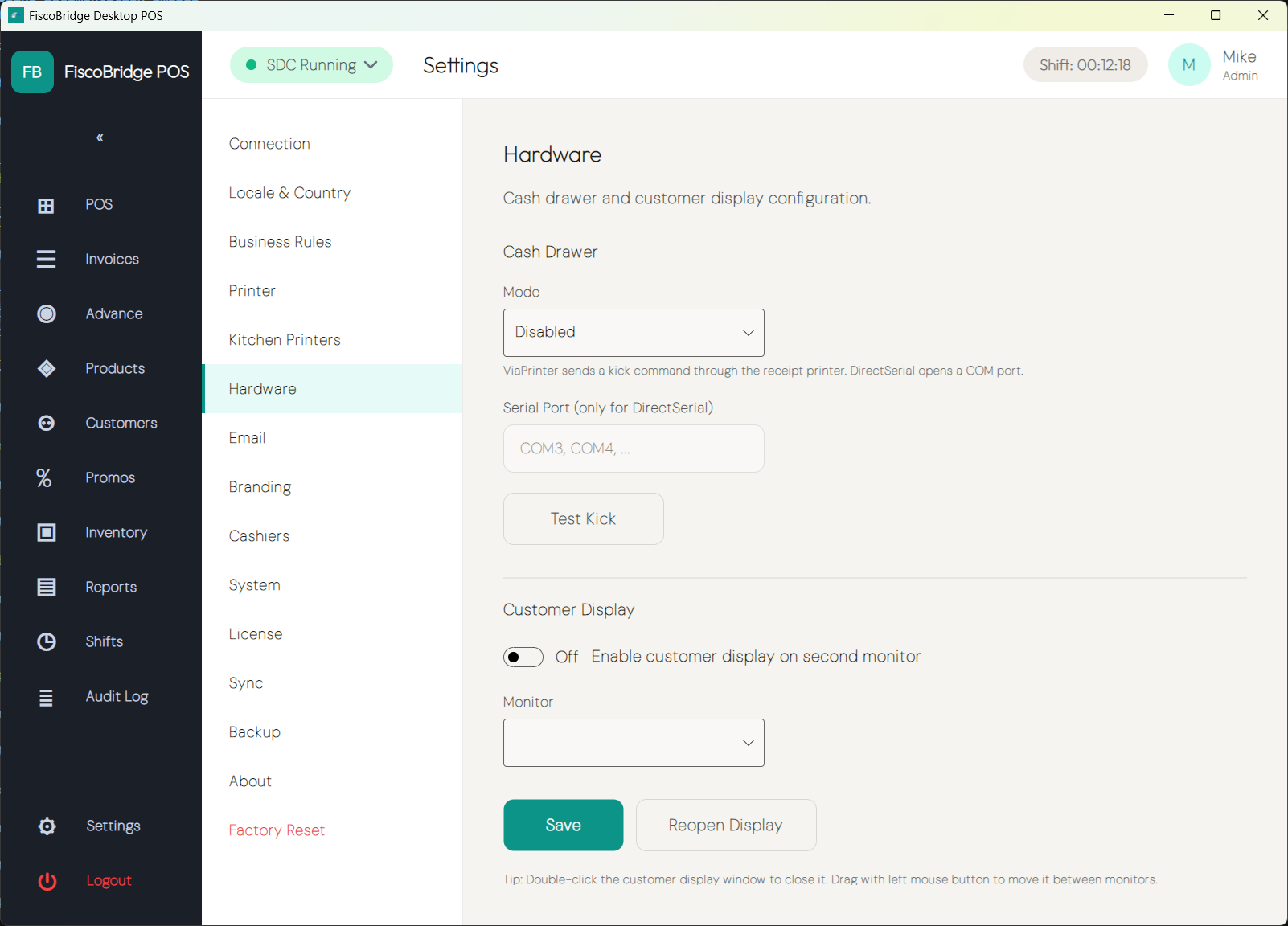
Configure peripherals connected to this device.
| Device | Setting | Description |
|---|---|---|
| Cash Drawer | Port / trigger | Serial or USB port; kick command and duration |
| Customer Display | Port / type | Pole or LCD display shown to the customer during a sale |
| Card Terminal | Integration | Paired card payment terminal; model and connection details |
Use Test buttons for each device to verify the connection without making a sale.
Configure SMTP to allow Desktop POS to email receipts directly to customers.
| Field | Description |
|---|---|
| SMTP Host | Outgoing mail server hostname |
| SMTP Port | Port (typically 587 for STARTTLS or 465 for SSL) |
| Username | SMTP authentication username |
| Password | SMTP authentication password |
| From Address | Address that appears in the From field of emailed receipts |
| From Name | Display name shown alongside the from address |
Click Send Test Email to confirm the settings.
Branding
Information that appears on printed and emailed receipts.
| Field | Description |
|---|---|
| Business Name | Trading name printed at the top of every receipt |
| Address | Business address printed on receipts |
| TIN | Your Tax Identification Number, printed on receipts as required by law |
| Logo | Image file (PNG/JPG) printed at the receipt header |
Cashiers
Manage cashier accounts and role assignments from this section. See Cashiers and roles for full details on creating accounts, assigning roles, and the manager-PIN flow.
System & Training
| Setting | Description |
|---|---|
| Training Mode | When enabled, invoices issued are clearly marked TRAINING, are not valid fiscal invoices, and are not reported to the tax authority. Use training mode to practice or train staff without affecting your fiscal records. |
| Device Blocking | Block this device from making sales; useful when decommissioning or handing over a till |
License
View and manage your Desktop POS license from this section. See Licensing for activation steps and a description of available modules.
Sync
Connect this device to a Backoffice for multi-device management.
| Field / Action | Description |
|---|---|
| Backoffice URL | The API URL of your Backoffice installation |
| Registration | One-time registration code issued by the Backoffice when provisioning this device |
| Sync Status | Last successful sync time and any pending items |
| Reconnect | Force an immediate sync attempt |
See Backoffice overview for information on setting up and connecting to the Backoffice.
Backup & Restore
Export and restore an encrypted backup of all local data on this device.
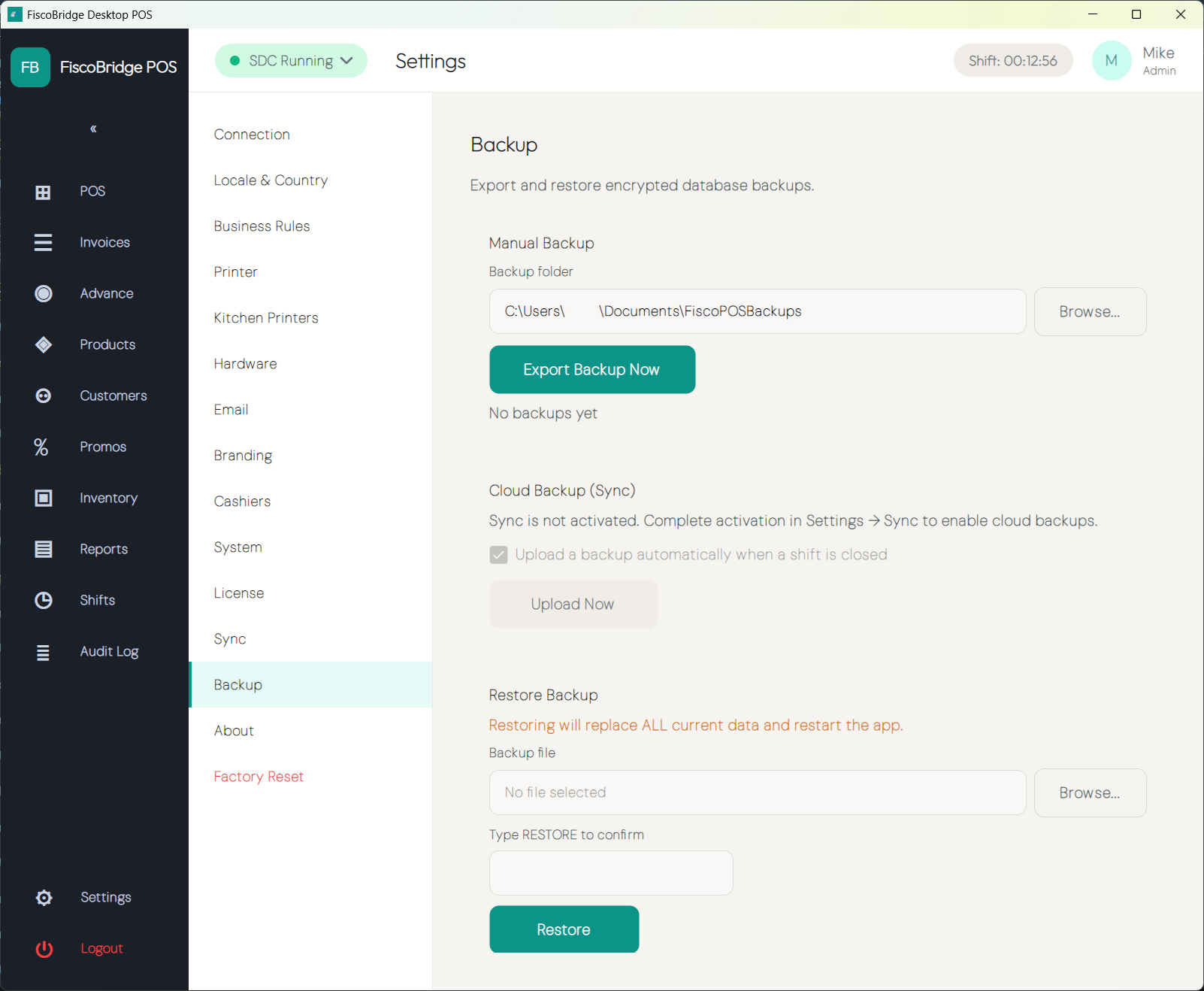
| Action | Description |
|---|---|
| Export Backup | Creates an encrypted backup file at the configured Backup Path |
| Restore Backup | Restores data from a previously exported backup file |
| Backup Path | Directory where backup files are written; defaults to a folder in the application data directory |
Tip: Schedule regular exports and store backups on a separate drive or network location.
About
Displays product information and checks for updates.
| Field | Value |
|---|---|
| Manufacturer | MetricMaster LLC |
| Product | Fisco POS |
| Version | 1.0.1 |
The Check for Updates button queries for a newer version and prompts you to install it if one is available.
Factory Reset
Wipes all local data on this device and returns Desktop POS to its initial state. This action requires a manager PIN.
Note: Factory reset permanently erases all local data on this device — invoices, products, cashiers, settings, and shift history are all removed and cannot be recovered. Export a backup before proceeding.
Next Steps
- Cashiers and roles — Manage staff accounts and role permissions
- Licensing — Activate a license and understand tier features
- Backoffice overview — Connect this device to a central Backoffice