
Invoice History
The Invoice History screen is your central view of every past transaction — find any sale, refund, or cancellation in seconds, inspect its full fiscal details, and reprint documents without re-fiscalizing.
Searching & Filtering
Use the search bar and filter controls at the top of the history screen to narrow the list.
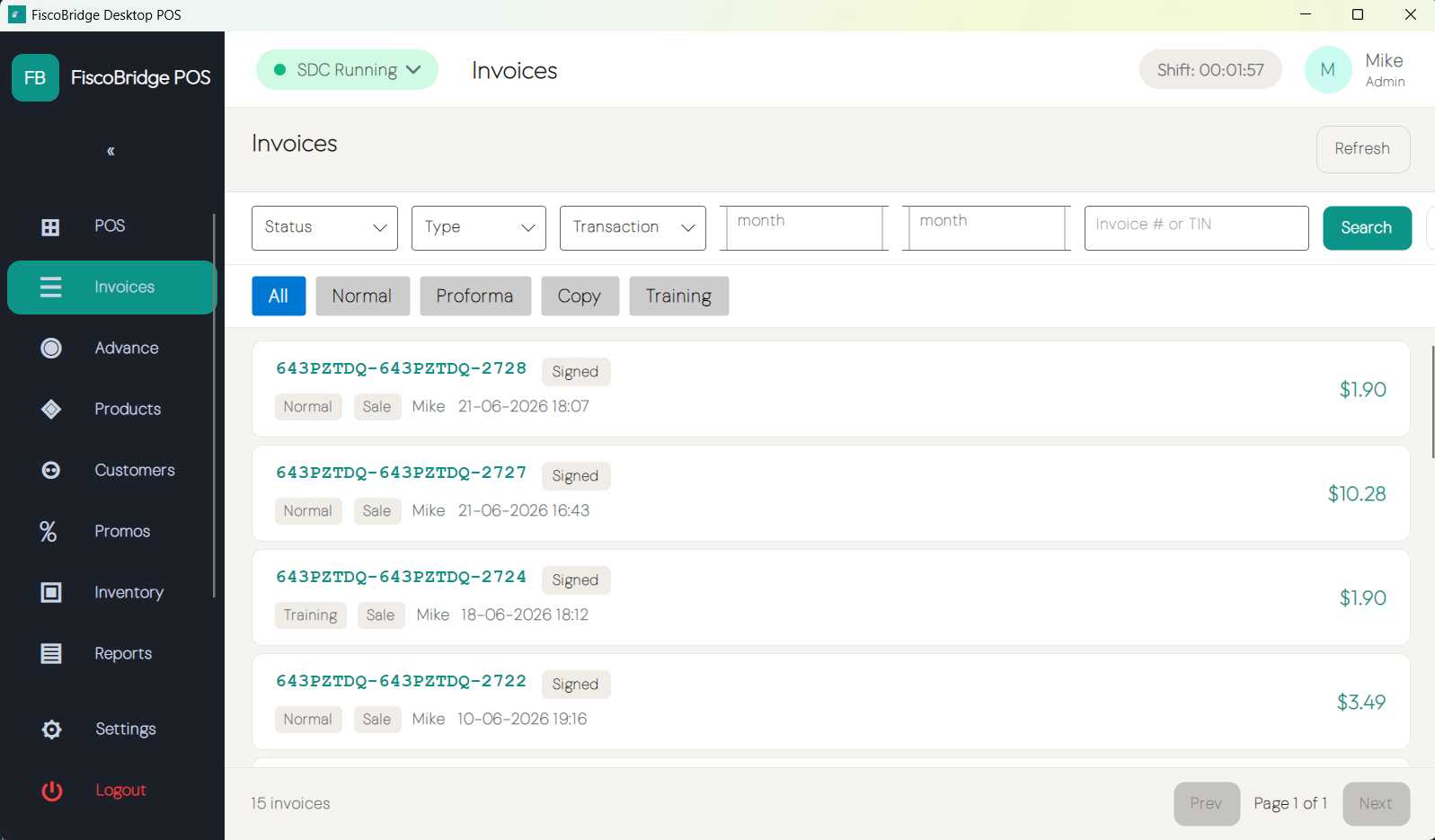
| Filter | Options |
|---|---|
| Search | Invoice number, customer name, or TIN |
| Status | Signed, Cancelled, Refunded |
| Invoice type | Normal, Advance, Copy, Training, Proforma |
| Transaction type | Sale, Refund |
| Date range | From and To date pickers |
Results are paginated — use the page controls at the bottom to move through large result sets.
Tip: Search by TIN to quickly pull up all transactions for a specific business.
Viewing Invoice Details
- Locate the invoice in the history list
- Tap the actions menu (three dots) on the row
- Select View Details
The details view shows the full invoice record:
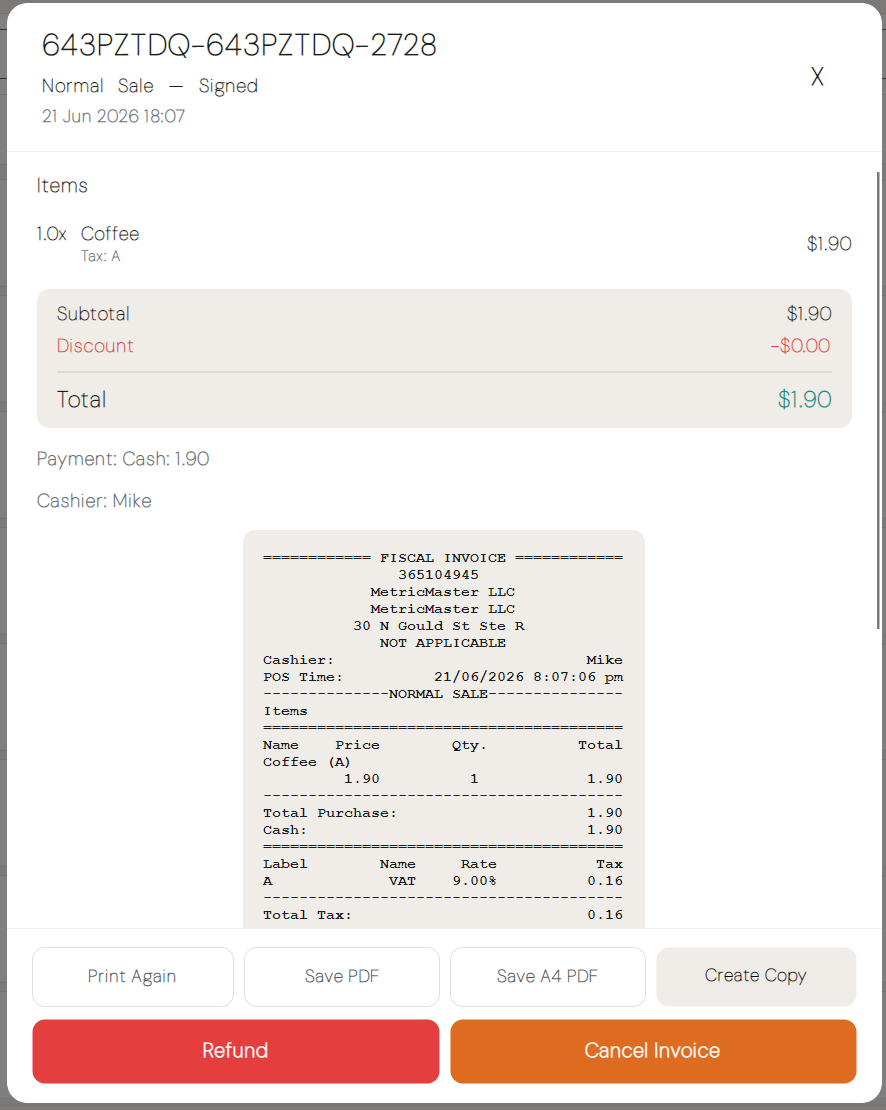
| Section | Contents |
|---|---|
| Header | Invoice number, type, date, status |
| Customer | Name and TIN (if assigned) |
| Line items | Product, quantity, unit price, discounts, line total |
| Totals | Subtotal, discounts, tax breakdown by label, grand total |
| Payments | Method and amount for each payment |
| Fiscal info | SDC serial number, signature, verification URL, QR code |
Reprinting
You can reprint any past invoice without re-fiscalizing it — the SDC signature is not re-issued; the existing fiscal document is printed again.
- Tap the actions menu on the invoice
- Select Reprint and choose the format:
- Receipt — thermal-format receipt
- Slip — PDF thermal slip
- Invoice — A4 PDF invoice
For printer configuration and paper size settings, see Printing.
Note: Reprinting produces a copy of the existing signed document. It does not create a new fiscal record.
Next Steps
- Refunds, copies & cancellations — Perform post-sale operations
- Daily report — Close a shift and review fiscal totals