
Advance Invoices
Advance invoices let you collect deposits or staged payments against an open tab — the advance collection — and then finalize it into a regular fiscal invoice when the full amount has been settled.
Opening an Advance Collection
An advance collection is a running tab that groups one or more advance payments together before the final invoice is issued.
- From the sales screen, tap Advance (or navigate to Invoice History → Advance Collections)
- Select New Advance Collection
- Assign a customer (required — the collection must be linked to a name and TIN for the final invoice)
- Add a description or reference if needed
- Confirm to open the collection
The collection appears in the Open Collections list with status Open.
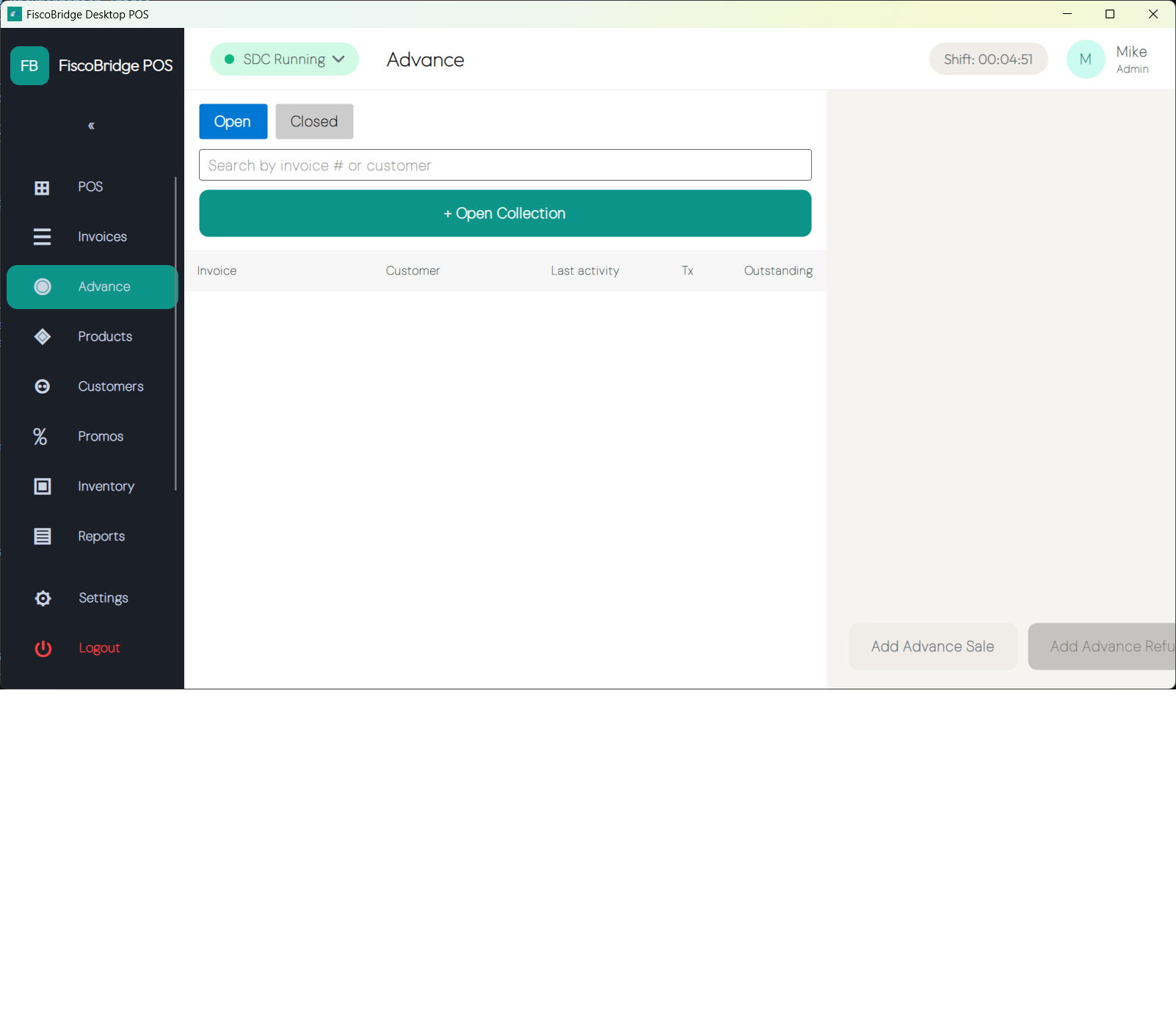
Adding Advance Sales and Refunds
Once a collection is open, you can record multiple advance payments against it over time.
To add an advance sale:
- Open the collection from Open Collections
- Tap Add Advance Sale
- Enter the amount and select the payment method
- Confirm — the payment is fiscalized as an Advance invoice and recorded against the collection
To refund an advance:
- Open the collection
- Tap Refund Advance next to the advance entry you want to reverse
- Confirm the refund amount and payment method
- Confirm — a linked advance refund invoice is created
Each advance sale and refund is fiscalized individually and appears in the Invoice History.
Note: Each advance payment is fiscalized at the time it is collected. The final invoice does not re-fiscalize the advance amounts — it records the settlement.
Finalizing a Collection
When all advance payments have been collected and the goods or services are being delivered, finalize the collection to issue the closing fiscal invoice.
- Open the collection from Open Collections
- Review the total advances collected and the balance due
- Tap Finalize
- Add any remaining line items or adjust the total if needed
- Record any remaining payment
- Confirm to fiscalize the final invoice
After finalization:
- The advance collection status changes to Closed
- A final Normal fiscal invoice is issued and references the collection
- The collection moves from Open Collections to the regular invoice history
Tip: You can finalize a collection with a zero balance if all amounts were collected as advances.
Viewing Open Collections
- Navigate to Invoice History → Advance Collections (or tap Advance from the sales screen)
- The Open Collections list shows all active tabs with the customer, creation date, total advanced, and balance remaining
- Tap a collection to view its advance entries or to finalize it
Note: A collection must be finalized before the shift can be closed.
Next Steps
- Invoice types — Understand advance and other invoice types
- Make a sale — Standard sale flow without advances