
Reports & Dashboard
Get a consolidated view of sales performance across all your stores and devices, with live status tiles and a full suite of report tabs.
Dashboard
The Backoffice Dashboard shows a live snapshot of your organization at a glance:
- Device tiles — the online/offline status and last-seen time for each connected POS device.
- Latest shifts — the most recently closed shifts across all stores with totals at a glance.
- Low-stock alerts — products that have fallen below their configured minimum stock level.
- Invoice ticker — a live feed of the most recent fiscal invoices issued across your organization.

Report Tabs
Navigate to Reports to access the following tabs:
| Report | What it shows |
|---|---|
| Sales Summary | Totals for sales, refunds, tax collected, and net revenue for the selected period |
| Sales Over Time | A time-series chart of daily or hourly sales volume |
| Top Sellers | Products ranked by quantity sold or revenue generated |
| Sales by Category | Revenue and unit counts broken down by product category |
| Sales by Payment Method | Split of totals across Cash, Card, Voucher, and other methods |
| Sales by Tax Rate | Tax collected per tax label for VAT / GST reporting |
| Discounts & Refunds | Discount amounts, refund counts, and refund reasons |
| Hourly Heatmap | Average transaction volume by hour of the day and day of the week |
| Cashier Performance | Sales, refunds, and discount totals per cashier |
| Comparison | Side-by-side comparison of two selected periods |
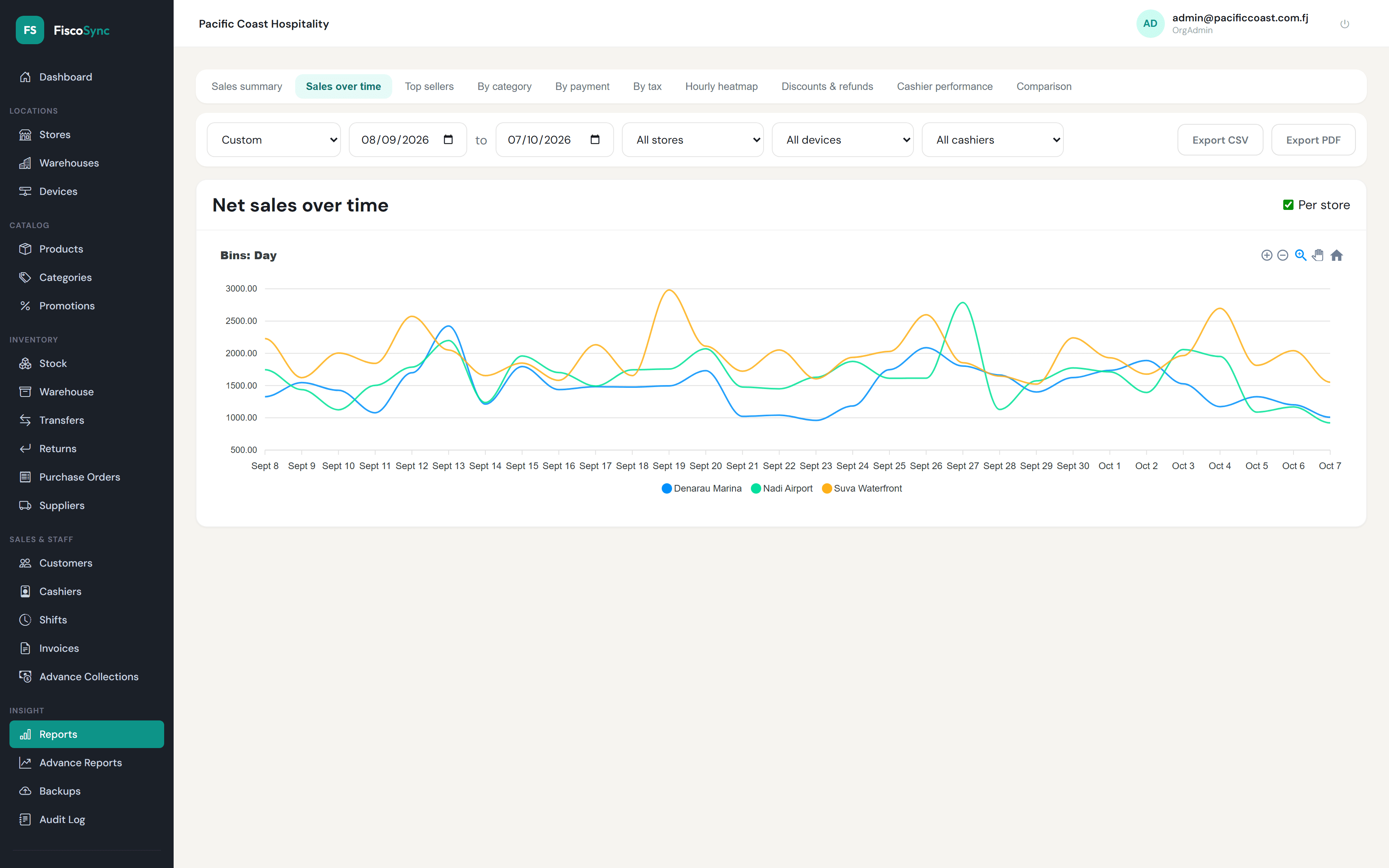
On Sales Over Time, tick Per store to draw one line per store so you can compare locations on the same chart. Use the zoom and pan controls in the chart's top-right corner to focus on a shorter period.
Filters
Every report tab shares the same filter bar. Apply any combination of:
| Filter | Options |
|---|---|
| Date preset | Today, Yesterday, This week, Last week, This month, Last month, custom range |
| Store | All stores, or one specific store |
| Device | All devices, or one specific device within the selected store |
| Cashier | All cashiers, or one specific cashier |
Tip: Lock a store filter first, then select a device — the device list refreshes to show only devices belonging to that store.
Exporting
Export any report to your preferred format using the Export button in the top-right corner of each tab:
- CSV — raw row data suitable for spreadsheets or further analysis.
- PDF — a formatted summary report ready for printing or sharing.
Note: Exports respect the active filters. Set your date range, store, and cashier before exporting to get exactly the data you need.