
Customers
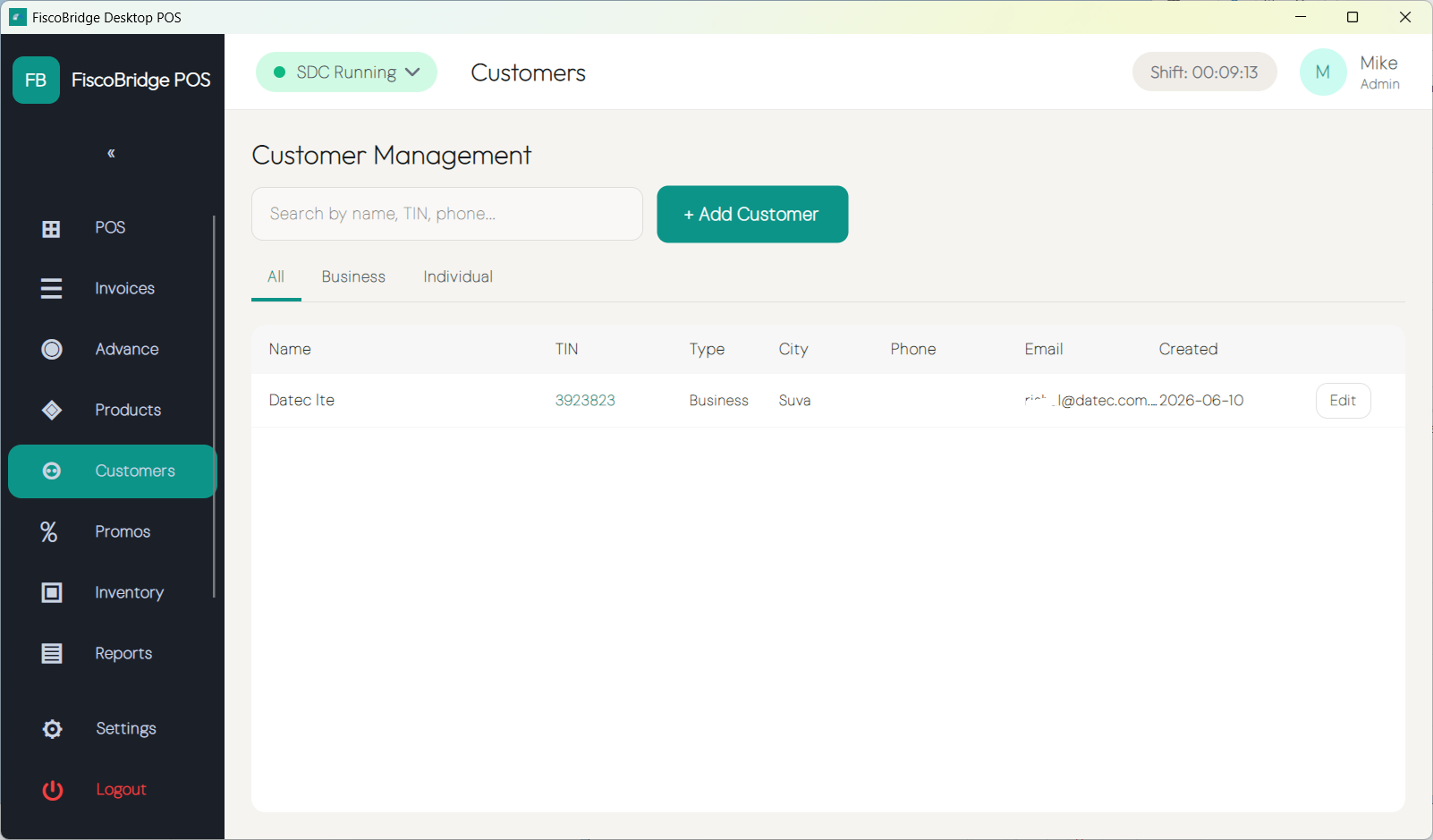
Desktop POS maintains a customer directory so you can attach a customer to a sale, print their details on receipts, and meet B2B invoicing requirements.
Customer Types
Desktop POS supports two customer types:
| Type | Tax ID | Use when |
|---|---|---|
| Business | Required | Selling to a company or registered business — a TIN is mandatory for B2B fiscal invoices |
| Individual | Optional | Selling to a private person — a TIN can be recorded but is not required |
The customer type is set when creating or editing a customer and determines how the customer appears on fiscal invoices.
Fields
| Field | Description |
|---|---|
| Name | Customer's full name or trading name |
| Tax ID (TIN) | Taxpayer Identification Number — required for Business customers |
| Business ID | Company registration number (optional) |
| Address | Street address |
| City | Town or city |
| Contact email address | |
| Phone | Contact phone number |
| Notes | Free-text notes visible only in the directory |
Finding & Filtering
The customer directory supports several ways to narrow the list:
- Go to Catalog → Customers
- Use the tabs at the top to filter by type:
- All — shows every customer
- Business — shows only Business customers
- Individual — shows only Individual customers
- Use the Search field to find a customer by name or Tax ID (TIN)
Tap any customer to view their full details or edit them.
Tip: Searching by TIN is the fastest way to find a business customer when you have their tax number to hand.
Quick Create at the Till
During a sale you can attach a customer without leaving the sales screen:
- In the cart, tap Customer → Search / Add
- Type a name or TIN to search the directory
- If no match is found, tap Quick Create
- Enter the customer's Name and TIN (the minimum needed to issue a B2B invoice)
- Tap Save — the customer is added to the directory and immediately attached to the current sale
The full customer record can be completed later from Catalog → Customers.
Note: Quick create requires at least a Name. For Business customers a TIN is also required — the sale cannot be fiscalized as a B2B invoice without it.
Next Steps
- Make a sale — attach a customer to a sale at the till
- Invoice history — filter past invoices by customer