
Printing
Desktop POS prints receipts and invoices directly to connected printers — no browser print dialog required. This page covers available output formats, printer configuration, reprints, and peripheral setup.
Note: Desktop POS prints directly to connected thermal and A4 printers — no browser print dialog.
Receipt Outputs
Desktop POS supports four output formats depending on your printer hardware and the recipient's needs.
| Output | Format | Typical Use |
|---|---|---|
| Thermal | ESC/POS commands, 58 mm or 80 mm paper roll | Standard till receipt on a thermal receipt printer |
| Slip | PDF rendered in a thermal receipt layout | Digital receipt that looks like a printed slip — suitable for email or archiving |
| Invoice | A4 PDF | Formal invoice for B2B customers or when A4 paper is required |
| Sends the Slip or Invoice PDF directly to the customer | Paperless distribution; requires SMTP configured in Settings → Email |
Note: Small thermal paper rolls are labeled as either 57 mm or 58 mm depending on the manufacturer — these refer to the same roll size, and both are compatible with the 58 mm paper size setting.
Configuring a Printer
Set up your receipt printer under Settings → Printer.
- Open Settings from the main menu
- Go to the Printer section
- Select the Printer from the list of printers detected on this device
- Choose Paper Size — 58 mm, 80 mm, or A4
- Optionally upload a Logo to appear at the top of every receipt
- Click Test Print to send a test page and confirm the connection
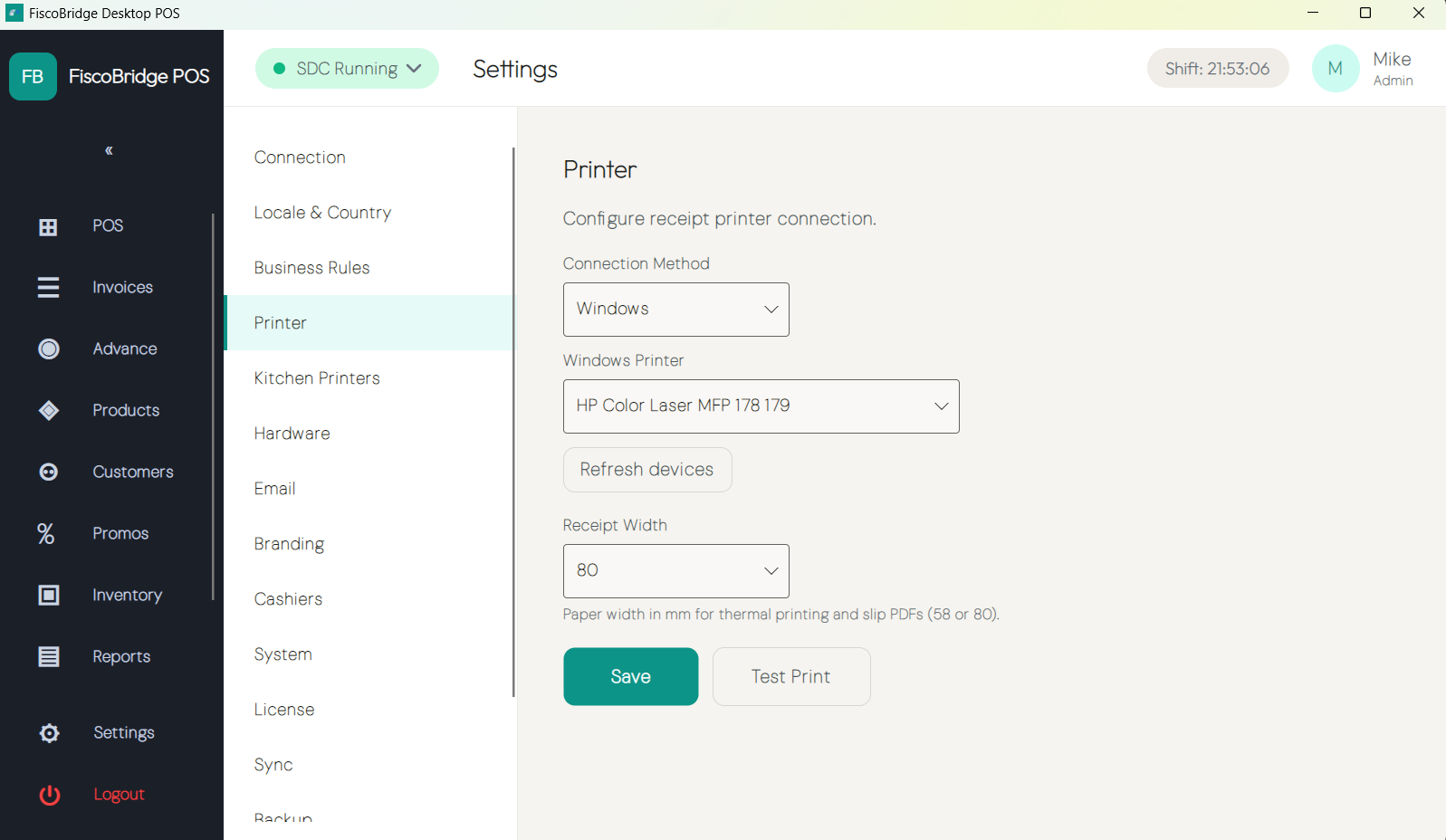
Tip: Run a test print after changing any printer setting to catch paper-size or connectivity issues before the next sale.
Logo and Branding
You can configure the business name, address, TIN, and a logo that appears in the receipt header. These are set globally under Settings → Branding and apply to all output formats.
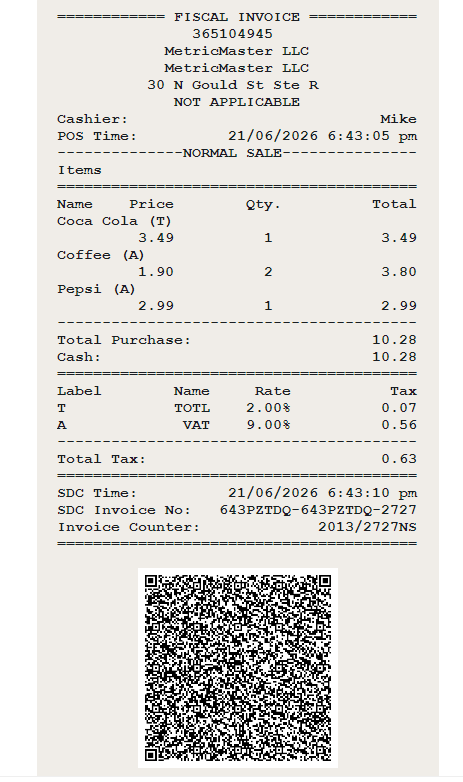
Sample Fiscal Receipt
A properly configured receipt includes the business header, line items with tax labels, a tax breakdown by label, totals, payment method, the SDC-issued invoice number, and a QR code for verification.
Reprinting
To reprint a receipt for any past invoice:
- Open Invoice History from the main menu
- Find the invoice using search or filters
- Open the invoice details
- Choose the output format — Thermal, Slip, or Invoice
- Click Print or Send by Email
Reprinting does not re-fiscalize the invoice. The original SDC signature and invoice number are used as-is.
Cash Drawer
If a cash drawer is connected, it opens automatically after each successful fiscalization. You can test the kick signal at any time from Settings → Hardware without processing a sale.
Note: The cash drawer is only triggered after the SDC signs the invoice — it will not open if fiscalization fails.
Kitchen Printers
Desktop POS supports routing specific products or categories to station printers (e.g., kitchen, bar, bakery). Kitchen printers are configured separately under Settings → Kitchen Printers. See Settings for setup details.
Next Steps
- Make a sale — Choose an output format after fiscalization
- Invoice history — Reprint past receipts
- Settings — Configure printers, kitchen stations, and hardware