
Tax Rates
Desktop POS reads tax rate information directly from the connected SDC and uses these rates exclusively. You cannot manually enter or override tax rates — they are always provided by the tax authority through the SDC.
Note: On this page, SDC means whichever signing service the terminal uses — the local SDC in Local fiscal device (SDC) mode, or the tax authority's V-SDC in Cloud signing (V-SDC) mode. Tax rates work the same way in both modes. See Choosing a signing mode.
Where Tax Rates Come From
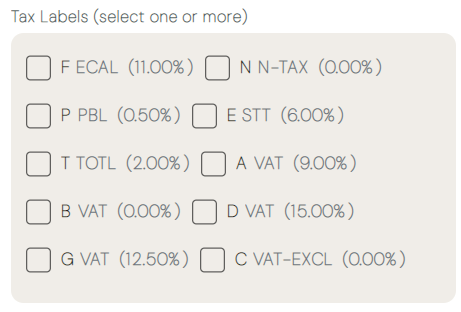
Tax labels are sourced from the connected SDC when Desktop POS initializes its connection. Each label consists of:
- Code — a single-letter identifier (A, B, C, …)
- Name — a descriptive name for the category (e.g., VAT Standard, Exempt, Tourism Levy)
- Rate — the percentage applied to taxable amounts (e.g., A = 15%, C = 0%)
These are the only tax rates available at the point of sale. If the tax authority updates rates, the changes are automatically reflected the next time Desktop POS connects to the SDC.
Tax Labels on Products
Tax labels are assigned to products in the catalog. When you add or edit a product, select the appropriate label from the list of codes provided by the SDC. At the point of sale, the assigned label is applied automatically when the product is added to the cart.
For step-by-step instructions on assigning labels during catalog setup, see Products & inventory.
Tax on Open-Price Items
Open-price items do not have a pre-configured catalog entry. When adding an open-price item to a cart, you enter a custom name and price, then select one or more tax labels to apply. The SDC calculates the tax breakdown during fiscalization based on the labels you choose.
Tip: If an open-price item spans multiple tax categories — for example, a mixed supply — you can select more than one label and enter the portion of the price that applies to each.
Tax on Receipts
Every fiscal receipt includes a tax breakdown section listing each label that appears on the sale, along with the taxable amount, tax rate, and tax amount calculated by the SDC. The POS displays this breakdown exactly as returned by the SDC, without modification.
| Label | Tax Name | Rate | Taxable | Tax Amount |
|---|---|---|---|---|
| A | VAT Standard | 15% | 86.96 | 13.04 |
| C | Exempt | 0% | 10.00 | 0.00 |
Tax Calculation and Rounding
- Tax amounts are calculated by the SDC during fiscalization — the POS never computes, overrides, or recalculates them
- Tax values are rounded to a minimum of two decimal places
- Rounding follows standard arithmetic rules: round down if the next digit is less than 5, round up if it is 5 or greater
The POS displays the tax breakdown exactly as returned by the SDC.
Zero-Rated and Exempt Items
If the SDC defines a zero-rate label (e.g., a label with a 0% rate), assign it to goods and services that are tax-exempt. The label still appears on the receipt and in the SDC's tax breakdown, ensuring that exempt items are reported correctly and are not silently omitted from the fiscal record.
Note: Desktop POS never omits a tax label from the receipt breakdown, even when the rate is zero.
Viewing Tax Rates
The active tax labels — code, name, and rate — are available to view on demand at any time. The label list (shown above) reflects exactly what the connected SDC currently provides, so you can confirm the rates in force whenever you need to. Because the labels are read live from the SDC, the list always shows the current rates — there is nothing to enter or update manually.
Tax Label Capacity
Tax labels use single-character identifiers (A through Z), providing capacity for up to 26 distinct tax categories. This is more than enough for current market needs and leaves ample room for future additions — if the tax authority introduces new categories, they appear automatically the next time Desktop POS connects to the SDC.
Tax Rates Are Never Overridden
Desktop POS never uses any tax rate other than those received from the E-SDC or V-SDC. Rates cannot be typed in, edited, or overridden anywhere in the application — they are sourced exclusively from the SDC as part of the configuration parameters.
Next Steps
- Make a sale — Apply tax labels at the point of sale
- Products & inventory — Assign labels to catalog products
- Fiscal compliance — How tax rates are enforced by the SDC