
Payment Types
Desktop POS supports all payment types required by the fiscal regulations for EFD systems. This page covers each method, how to select it at the till, and how split payments work when a customer pays with more than one method.
Supported Payment Types
| Payment Type | Description |
|---|---|
| Cash | Physical currency payment; change is calculated automatically |
| Card | Debit or credit card payment via a connected card terminal |
| Check | Payment by written check |
| Wire Transfer | Bank transfer or electronic funds transfer |
| Voucher | Payment by voucher, gift card, or similar instrument |
| Mobile Money | Payment via mobile money platforms (e.g., M-PAiSA, MyCash) |
| Other | Any payment method not covered by the types above |
Selecting a Payment Type
After tapping Charge Cart, the payment dialog opens:
- Tap the payment method button or select from the dropdown for the method the customer is using
- The total is pre-filled — adjust if the customer is tendering a different amount (Cash only)
- Proceed to Fiscalize
The selected payment type is included in the fiscal data sent to the SDC and appears on the printed receipt.
Split Payments
When a customer pays with more than one method — for example, part Cash and part Card, or a Voucher combined with Mobile Money — use a split payment.
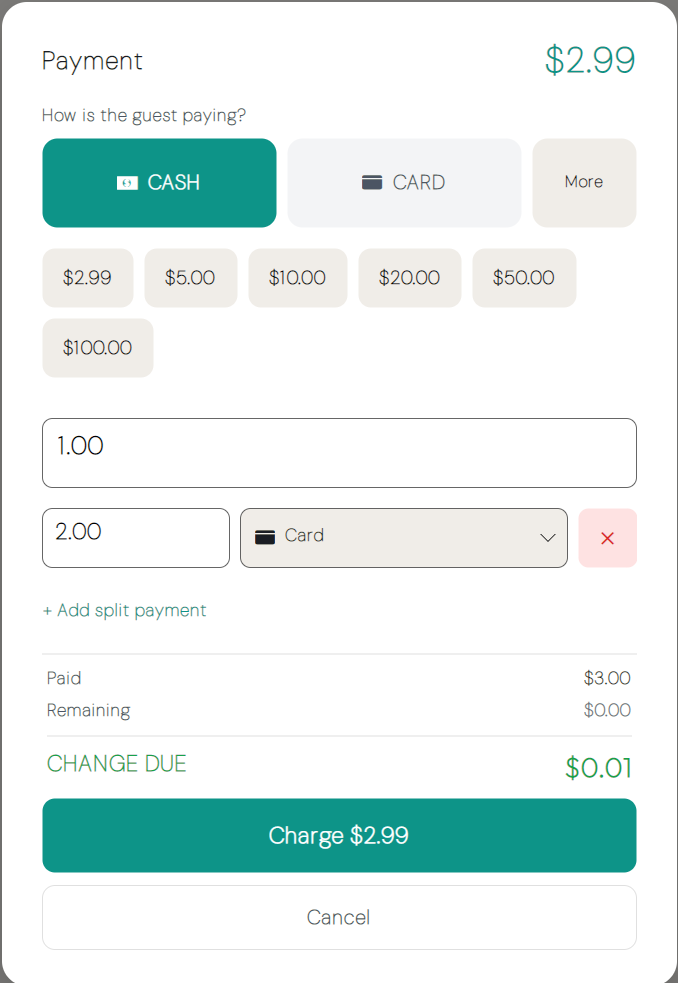
How to set up a split payment
- In the payment dialog, tap Add Payment Method to add a second row
- For each row, select the payment method and enter the amount allocated to it
- The Remaining value shows how much is still unallocated — it must reach
0.00 - Add as many rows as needed — one per payment method the customer is using
- When Remaining shows
0.00(green), tap Fiscalize
Rules for split payments
- Every row must have an amount greater than zero
- The same payment type may appear more than once (for example, two separate card transactions)
- The sum of all allocated amounts must exactly equal the invoice total — the Fiscalize button stays disabled until Remaining is
0.00 - Each payment method in the split is reported to the SDC individually and printed as a separate line on the receipt
Change
Change is only produced for Cash payments.
- In the payment dialog, enter the amount the customer hands over (the tendered amount)
- The change is calculated and displayed immediately
- Use the denomination quick-buttons to fill in common tendered amounts (e.g., the nearest bill denomination) without typing
Change due to the customer is printed on the receipt and shown on the post-sale screen.
Note: Change is never calculated for non-cash payment methods. If a split payment includes Cash, change is calculated only on the Cash component.
Rules
- A payment method must be selected before you can fiscalize
- For split payments, the allocated total must equal the invoice total — a split that doesn't balance blocks fiscalization
- Only the payment types listed above are available — no custom types can be added
- The payment type (or types, for splits) is part of the fiscal invoice data and cannot be changed after fiscalization
Next Steps
- Make a sale — End-to-end guide to ringing up a sale
- Fiscal compliance — How the SDC signs fiscal invoices