
Promotions
Promotions are rule-based discounts that Desktop POS evaluates automatically every time a sale is in progress — no cashier action required.
How Promotions Work
When a cashier adds products to the cart, Desktop POS checks all active promotions against the current cart contents. Any promotions whose conditions are met are applied automatically and shown as discount lines on the cart, clearly labelled with the promotion name. The customer sees the saving before payment is taken.
Promotions are evaluated in real time — adding or removing a product immediately updates which promotions apply.
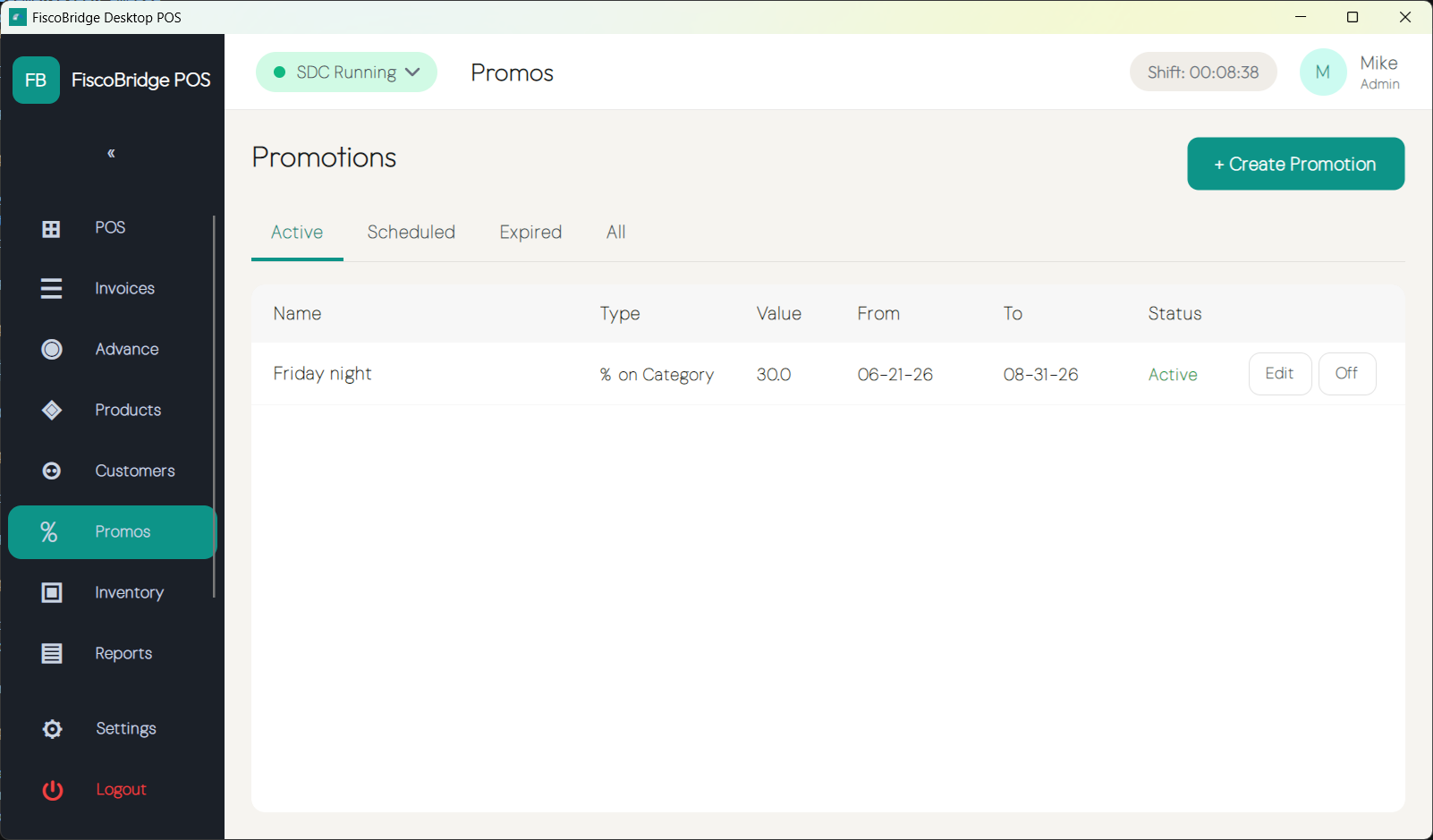
Creating a Promotion
- Go to Catalog → Promotions
- Tap + New Promotion
- Configure the promotion rules:
| Setting | Description |
|---|---|
| Name | Label shown on the cart and receipt |
| Discount type | Percentage off, fixed amount off, or fixed price |
| Valid from | Date the promotion becomes active |
| Valid until | Date the promotion expires (leave blank for no expiry) |
| Applies to | Specific products, one or more categories, or the entire cart |
| Minimum quantity | Optional — promotion triggers only when enough units are in the cart |
| Minimum spend | Optional — promotion triggers only when the cart reaches a threshold |
- Tap Save
The promotion becomes active on its Valid from date and stops automatically on Valid until.
Tip: Use Applies to: Category to create a blanket promotion across a product range (e.g., 10 % off all Beverages) without listing every product individually.
Stacking
Stacking controls whether a promotion can combine with a manual discount that a cashier applies at the till:
- Stacking allowed — the automatic promotion and any cashier-entered discount both apply; the customer receives both savings
- Stacking disallowed — if a manual discount is entered, the automatic promotion is suspended for that cart; only the manually entered discount applies
Configure stacking on each promotion using the Allow stacking with manual discounts toggle.
Note: Two automatic promotions can always stack with each other. The stacking setting only controls the interaction between an automatic promotion and a cashier-entered manual discount.
Next Steps
- Make a sale — see how promotions appear on the cart during a sale
- Products & inventory — set up the products and categories that promotions apply to