
Desktop POS Overview
Desktop POS is a native point-of-sale application for Windows, macOS, and Linux that issues fiscally signed receipts through a local SDC or the tax authority's V-SDC cloud service — a full-featured till for businesses that want an installed app rather than a browser.
What is Desktop POS?
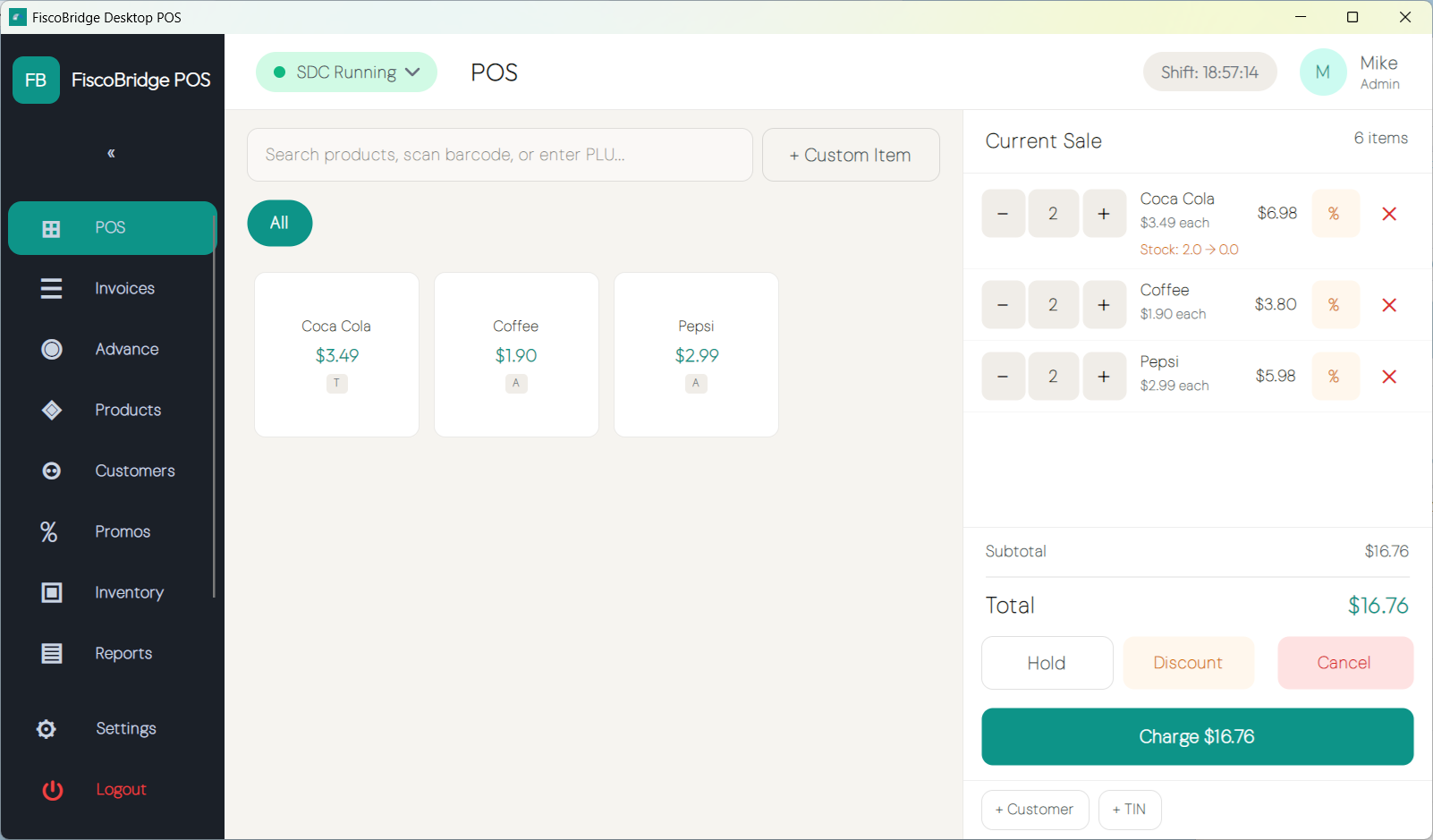
Desktop POS is an installed desktop application that handles the complete till workflow: sell, fiscalize, print, and report — all from a local database that keeps working whether or not you have an internet connection. When you run multiple devices across one or more locations, the optional Backoffice web application keeps everything in sync.
Key Features
- Native app — runs on Windows, macOS, and Linux; no browser required
- Two signing modes — sign through a local SDC with a smart card, or in the cloud through V-SDC with your tax authority certificate; see Choosing a signing mode
- Offline-first — a local database, together with a local SDC, means the till keeps selling even without an internet connection
- Direct hardware control — barcode scanner, thermal and A4 printer, cash drawer, customer display, and card terminal are all managed directly by the application
- Shifts & cash management — open/close shifts, record cash in/out, and reconcile at end of day
- Products, inventory & purchasing — manage the catalog, track stock, and create purchase orders
- Promotions — rule-based discounts that apply automatically at the till
- Restaurant and hotel modules — available where licensed (covered in separate guides)
- Multi-device sync — connect several tills to the Backoffice for a central catalog, consolidated reports, and device management
Desktop POS vs. Web Invoicing
| Desktop POS | Web Invoicing | |
|---|---|---|
| Delivery | Installed native app | Browser-based cloud service |
| Devices | Windows, macOS, Linux desktop | Any device with a modern browser |
| SDC | Local/networked SDC with smart card + PIN, or V-SDC using a digital certificate (PFX file) | V-SDC using a digital certificate (PFX file) |
| Peripherals | Direct — the app controls printers, cash drawer, scanner, and terminal | OS-mediated — peripherals interact via the operating system |
| Offline | Full local database; sells without internet when signing through a local SDC (cloud signing needs internet) | Requires connectivity to the V-SDC and cloud |
| Multi-device | Backoffice sync — central catalog, reports, and device management | Centralized cloud — all devices share the same portal |
Who Is It For?
Desktop POS is a good fit if you:
- Want a fully installed till rather than a browser tab
- Need offline resilience — with a local SDC, the database and signing are both local and the till never stops because of a network outage
- Want to sign in the cloud with your tax authority certificate, without an SDC, card reader, or smart card
- Require direct control of hardware peripherals (thermal printer, cash drawer, customer display, card terminal)
- Run more than one till and want central management through the Backoffice
Technical Specifications
POS Type
Desktop POS is a computerized Point of Sale system (POS) delivered as a native desktop application. It is not a cloud or browser-based product — it is software installed and run locally on each device.
Installation
Desktop POS is downloaded and installed locally on each device. There is no browser or internet connection required to run the till once installed.
Supported Operating Systems
| Operating System | Supported |
|---|---|
| Windows | Yes |
| macOS | Yes |
| Linux | Yes |
| Android | No |
| iOS | No |
Supported SDC Types
Desktop POS supports two signing modes. Each terminal uses one of them, chosen under Settings → Connection.
| SDC Type | Supported |
|---|---|
| Local/networked SDC (E-SDC) with smart card + PIN | Yes |
| V-SDC (cloud) using a digital certificate (PFX file) + PAC | Yes (Windows) |
Connection to SDC
- Local SDC — Desktop POS connects to the SDC over the local network using the SDC host and port configured in Settings → Connection. The default address is
localhost:8888. Communication uses the HTTP protocol with the E-SDC. - V-SDC — Desktop POS connects to the tax authority's V-SDC over the internet using HTTPS, authenticated with the POS certificate and its PAC. The V-SDC address is read from the certificate.
Note: Sales cannot be fiscalized if the SDC isn't running, the smart card is absent, or the PIN has not been verified (SDC mode), or if V-SDC cannot be reached or rejects the certificate or PAC (cloud mode).
Peripheral Devices
Desktop POS directly interfaces with the following peripheral hardware:
- Barcode scanner — scans products at the till
- Thermal printer — 58 mm or 80 mm ESC/POS receipt printing
- A4 printer — full-page invoice printing
- Cash drawer — kicks automatically after a fiscalized sale
- Customer display — shows line totals to the customer
- Card terminal — integrated card payment
All peripheral devices are configured in Settings → Hardware. These peripherals assist the operator but do not interfere with the standard fiscal POS operations — selling, fiscal signing, SDC communication, and reporting continue to function exactly as documented regardless of which peripherals are attached to the device.
Product Information
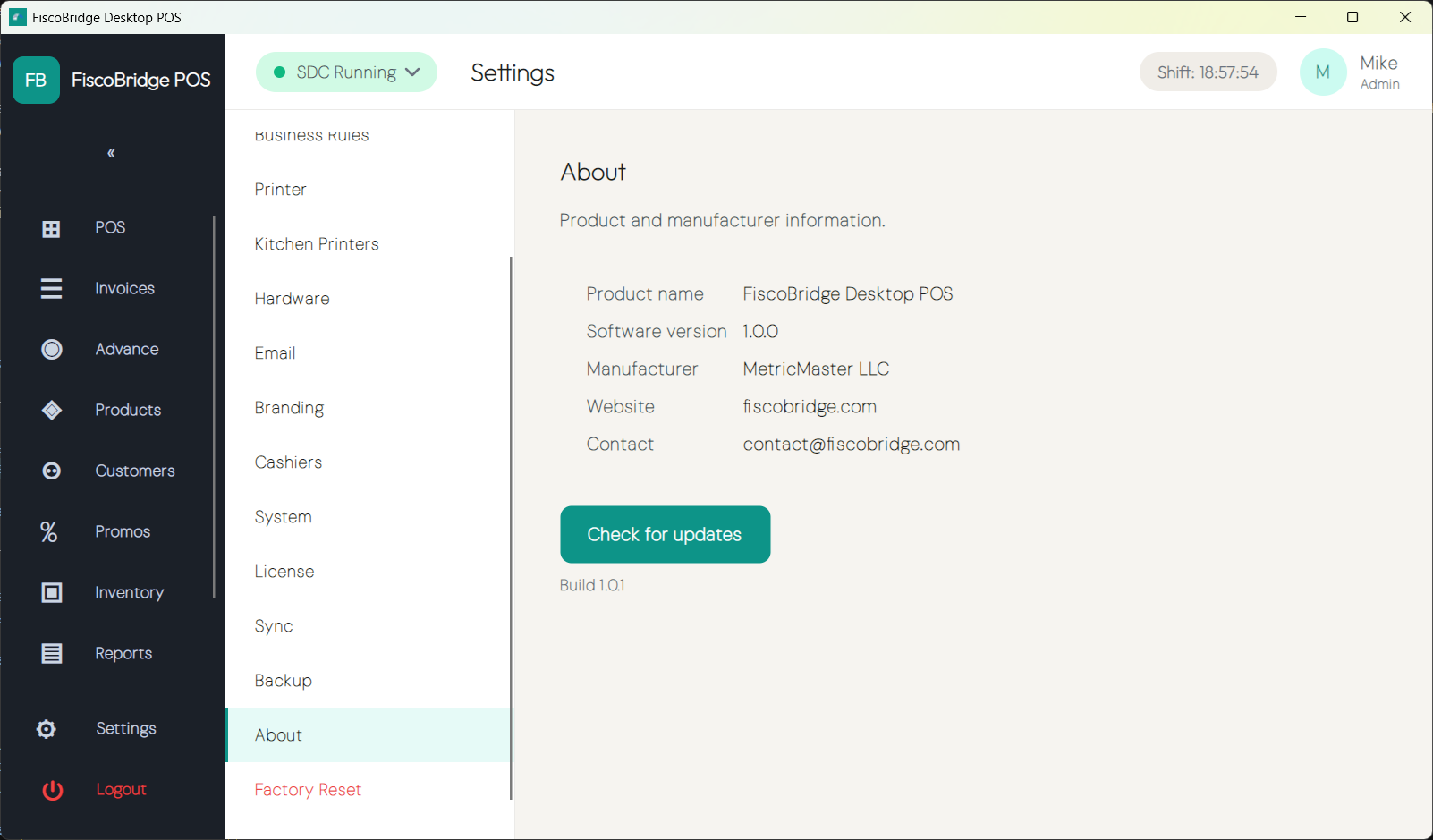
| Field | Value |
|---|---|
| Manufacturer | MetricMaster LLC |
| Product Name | Fisco POS |
| Software Version | 1.0.1 |
This information is also accessible inside the application. Go to Settings → About to view the manufacturer, product name, and current software version at any time. Each installation is uniquely identified by its license key, which serves as the device serial number and is shown under Settings → License (see Licensing).
Supported Regions
Desktop POS is certified for use in:
- Fiji
- Samoa
- Vanuatu
Next Steps
- Install Desktop POS — download and install on Windows, macOS, or Linux
- First-run setup — choose your signing mode and create your first cashier
- Make a sale — ring up and fiscalize your first transaction
- Fiscal compliance — understand how every sale is signed