
Licensing
Desktop POS requires an active license to operate. Your license determines which feature modules are available on this device.
Activating a License
- Open Settings from the main menu
- Navigate to the License section
- Enter your license key in the License Key field
- Click Activate
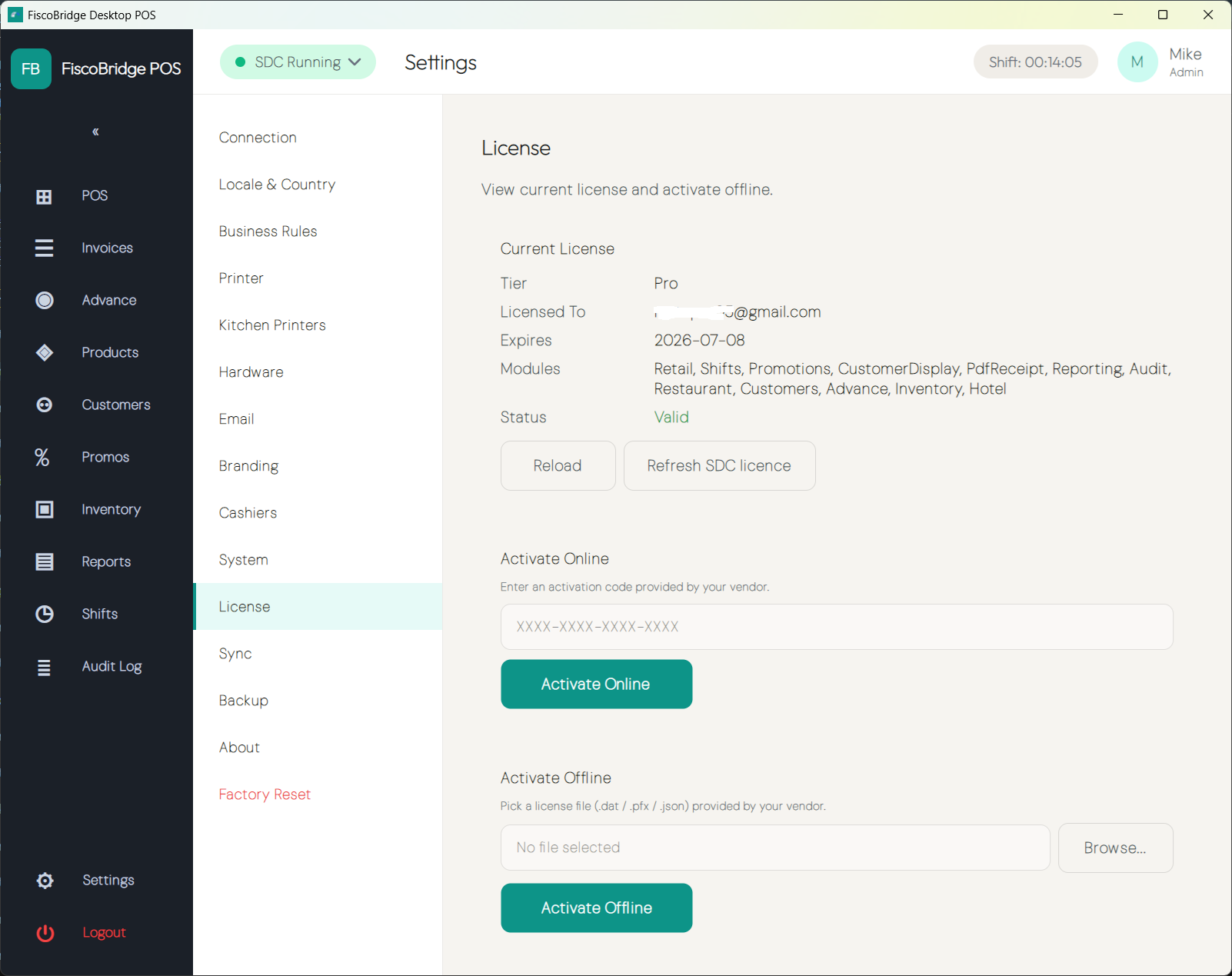
The License Status indicator updates immediately after activation and shows:
- Status — Active, Expired, or Invalid
- Expiry date — when the license needs to be renewed
If the device is connected to a Backoffice, the license may be issued and managed centrally rather than entered manually on each device.
License Modules
Your license determines which optional feature modules are available — for example Inventory, Purchasing, Restaurant table service, Hotel room management, and advanced Backoffice capabilities. The exact tiers, the modules each includes, and pricing depend on your license agreement. Contact MetricMaster LLC or your reseller for the tiers available to you.
Feature Gates
Modules you are not licensed for are hidden or disabled in the interface — no partial functionality is shown. Once your license includes a module it appears automatically. If a feature you expect to see is missing, check the License section in Settings to confirm your activation status.