
Choosing a Signing Mode
Every fiscal invoice issued by Desktop POS must be signed by the tax authority's system before it is handed to the customer. Desktop POS supports two ways of signing, and each terminal chooses one of them:
- Local fiscal device (SDC) — invoices are signed by the FiscoBridge SDC running on this PC or on your local network, using a smart card and PIN.
- Cloud signing (V-SDC) — invoices are signed over the internet by the tax authority's V-SDC cloud service, using the digital certificate (
.pfx/.p12file) issued to your business.
Both modes produce the same fiscal invoice: the same invoice number format, QR code, verification URL, tax breakdown, and journal. Selling, refunds, cancellations, copies, printing, and reports work identically in either mode.
Which Mode Should I Use?
| Local fiscal device (SDC) | Cloud signing (V-SDC) | |
|---|---|---|
| Internet | Works without internet — the SDC keeps signing offline | Needs a constant internet connection |
| What you install | The SDC app, a smart card reader, and the smart card | Nothing — only the certificate file |
| Credentials | Smart card PIN | Certificate file, its password, and the PAC code |
| Best for | Shops where the internet is unreliable | Shops with a stable internet connection that don't want extra hardware |
| Platforms | Windows and macOS | Windows |
Note: V-SDC has no offline mode. In cloud mode, if the internet connection drops, the terminal cannot fiscalize until the connection is back — exactly as an SDC terminal cannot fiscalize while its SDC is unreachable.
Where the Mode Is Chosen
The mode is chosen in two places, both showing the same two cards — Local fiscal device (SDC) and Cloud signing (V-SDC):
- In the Fiscal signing step of the first-run setup wizard
- At any time under Settings → Connection (see Settings)
The panel below the cards shows the configuration of the card you have selected, so you can prepare cloud signing while the terminal is still signing through the SDC, and switch only once everything is ready.
Switching Between Modes
Open Settings → Connection.
Click the card for the mode you want. An amber Unsaved changes badge appears while the selection differs from the active mode.
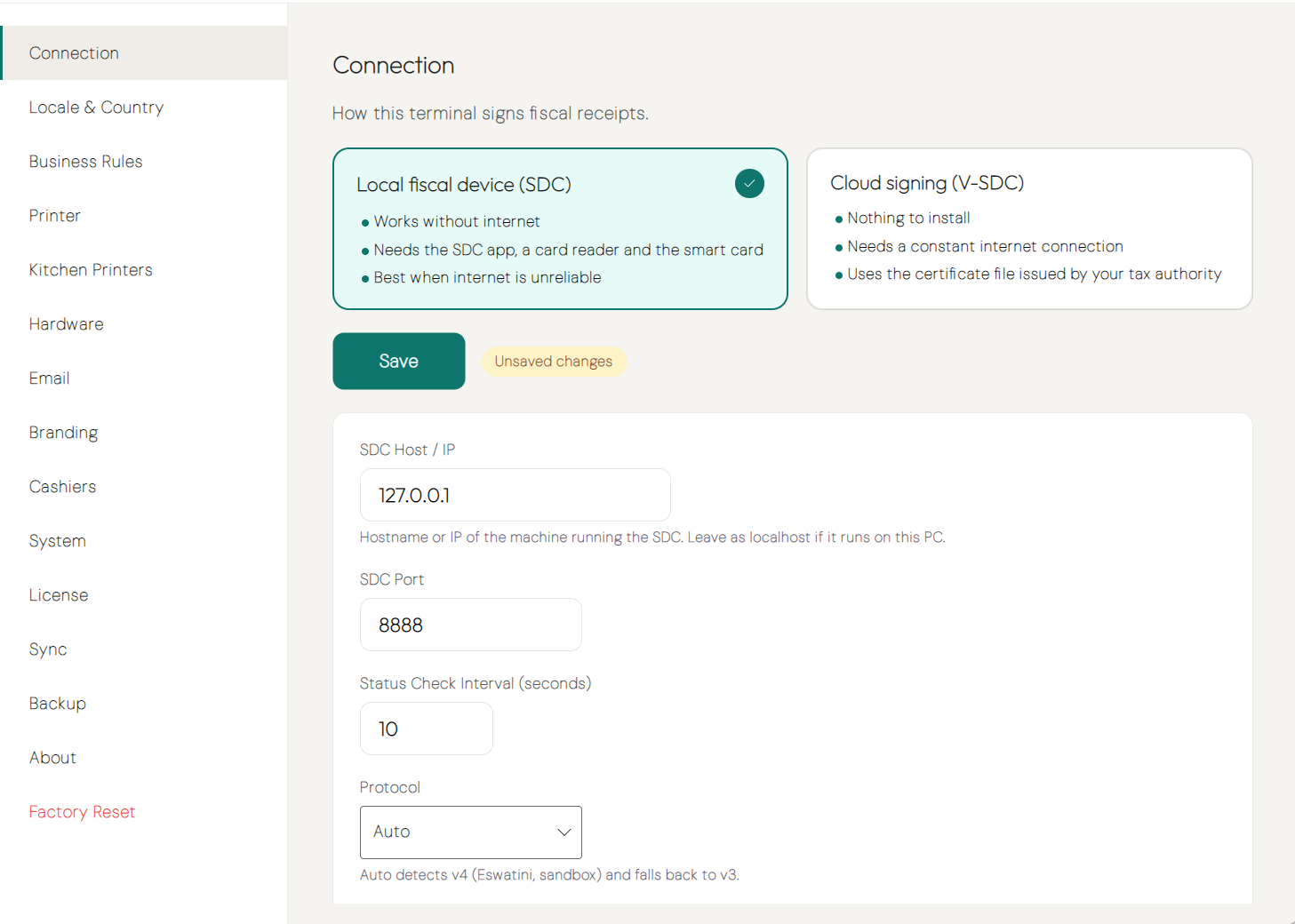
Complete the configuration for that mode in the panel below the cards:
- SDC — enter the SDC host and port. See Connecting to the SDC.
- Cloud — add and verify your certificate. See Connecting to cloud signing (V-SDC).
Click Save under the cards. The new mode takes effect immediately — there is no need to restart Desktop POS.
You cannot save Cloud signing (V-SDC) as the active mode until a certificate has been verified and saved; until then Save is disabled with the hint Set up the certificate below first.
Switching modes never deletes the other mode's settings. Your SDC host and port and your saved certificate are both kept, so you can switch back and forth without re-entering anything.
Checking the Active Mode
The status indicator in the header of the main screen always shows which mode is active and its current state — for example SDC · Ready or CLOUD · Ready. Click it to open the status panel with the full checklist and a Connection settings… link that takes you straight to Settings → Connection.
Next Steps
- Connecting to the SDC — Set up signing through a local fiscal device
- Connecting to cloud signing (V-SDC) — Set up signing with your certificate
- Fiscal compliance — How invoices are signed in each mode