
Connecting to Cloud Signing (V-SDC)
In cloud signing mode, Desktop POS signs every invoice directly with the tax authority's V-SDC cloud service over a secure internet connection. No SDC app, card reader, or smart card is needed — the terminal authenticates with the digital certificate issued to your business.
Cloud signing is one of two signing modes. If you are not sure which one fits your shop, see Choosing a signing mode.
Note: Cloud signing is currently available in the Windows version of Desktop POS. On macOS, only the Local fiscal device (SDC) mode is offered.
What You Need
| Item | Where it comes from |
|---|---|
| Certificate file | The .pfx or .p12 POS certificate issued by your tax authority. The .zip file you download from the tax authority's email can be used as-is — you don't need to unzip it. |
| Certificate password | The password you set when you requested the certificate |
| PAC code | The PAC you entered when you requested the certificate (usually 4–6 letters or digits) |
| Internet connection | A constant connection — V-SDC has no offline mode |
If you don't have a certificate yet, see Requesting a digital certificate.
Important: The certificate must be a POS certificate. Developer authentication certificates are rejected with the message This is not a POS certificate. Developer authentication certificates can't be used for fiscalization.
You don't need to enter a server address. The V-SDC address for your country's tax authority is embedded in the certificate and read automatically.
Adding the Certificate
Open Settings → Connection (or the Fiscal signing step of the first-run setup wizard).
Click the Cloud signing (V-SDC) card. The certificate form appears below the cards with three numbered steps.
Certificate file — click Browse… and choose your
.pfx,.p12, or.zipfile.Certificate password — type the certificate password. As soon as both the file and the password are entered, Desktop POS opens the certificate and shows a Detected from certificate summary:
Field Meaning Business The business the certificate was issued to Shop The shop (location) the certificate belongs to Tax ID Your Tax Identification Number UID The certificate's unique identifier Expires The certificate's expiry date Environment The tax authority's V-SDC address read from the certificate Check that these details match your business before continuing. If the password is wrong or the file is not a valid certificate, an error appears in red under the summary instead.
PAC code — enter the PAC delivered with the certificate.
Click Verify and save certificate. While Verifying with the tax authority… is shown, Desktop POS contacts V-SDC with the certificate and PAC. Nothing is saved unless the tax authority accepts both.
When verification succeeds, the form changes to the configured view showing the certificate details.
If cloud signing is not the active mode yet, the status reads Certificate verified with the hint Cloud signing is not the active mode yet. Select it above and press Save. Make sure the Cloud signing (V-SDC) card is selected and click Save under the cards to activate it. In the first-run wizard, Next does this for you.
The header status indicator changes to CLOUD · Ready once the tax rates have been received from the tax authority. You can now make a sale.
The Configured Certificate
Once a certificate is saved, Settings → Connection shows its status and details:
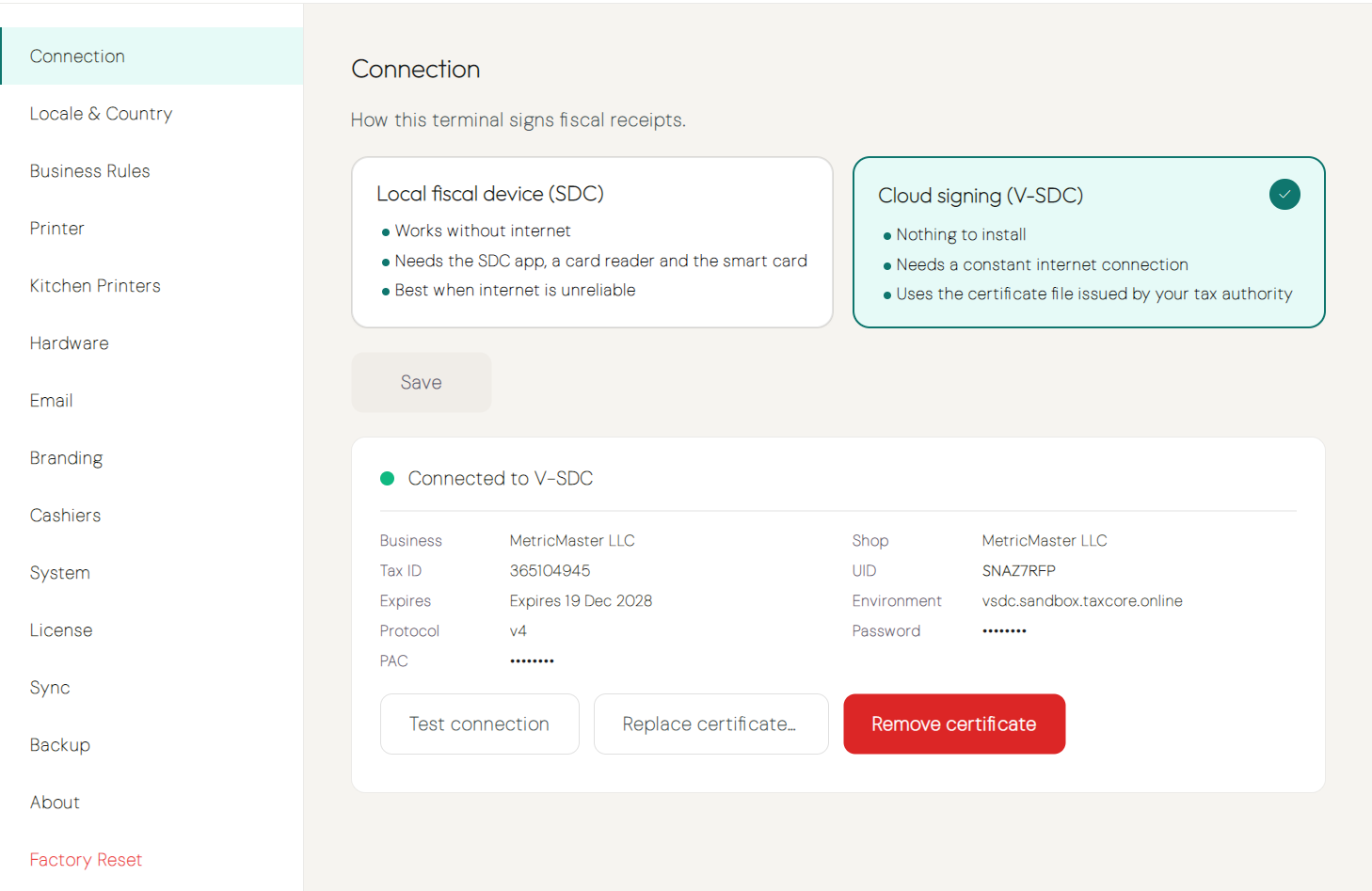
| Field | Description |
|---|---|
| Status | Connected to V-SDC when signing works, otherwise the current problem (see Cloud status) |
| Business, Shop, Tax ID, UID | Read from the certificate |
| Expires | The expiry date — shown as Expires in N days when 30 days or fewer remain, and as Expired once the date has passed |
| Environment | The tax authority's V-SDC address |
| Protocol | The protocol version used with V-SDC, chosen automatically from the certificate's environment |
| Password, PAC | Always shown masked (••••••••) — they are never displayed again after saving |
The following actions are available:
- Test connection — checks that Desktop POS can reach V-SDC and that the certificate and PAC are still accepted.
- Replace certificate… — opens an empty certificate form so you can add a new certificate, for example when the current one is about to expire. Cancel returns to the current certificate without changes.
- Remove certificate — deletes the certificate, password, and PAC from this terminal after you confirm with Yes, remove. The terminal can no longer sign in cloud mode until a certificate is added again. Your SDC settings are not affected.
How Your Certificate Is Stored
- The certificate file is stored on this PC only, as
vsdc.p12in the Desktop POS data folder (%APPDATA%\FiscoPOS\on Windows). - The certificate password and PAC are stored encrypted with a key that is unique to this installation (
fiscopos.keyin the same folder). - Neither the certificate nor the encryption key is included in Desktop POS backups.
Note: If you restore a backup on a different PC, the certificate is not available there. The Connection screen shows The certificate from the backup is not available on this machine. Add it again. Repeat the steps under Adding the certificate with your certificate file, password, and PAC.
Cloud Status
The header status indicator shows CLOUD followed by the current state. Click it to open the status panel, which shows a checklist — Internet reachable, Certificate valid, PAC accepted, Tax rates loaded — and the Business, Shop, UID, Environment, and Protocol of the active certificate.
Desktop POS checks the V-SDC status every 30 seconds, and immediately after any failed signing attempt.
| Status | Meaning | What to do |
|---|---|---|
| Ready (green) | Signing works — invoices are signed by the tax authority's cloud service | Nothing — you can trade |
| Ready · cert expires in N d (amber) | Signing works, but the certificate expires within 30 days | Request a new certificate from your tax authority and add it with Replace certificate… before it expires |
| Not set up (amber) | No certificate is saved, or the tax authority has not published tax rates for this certificate yet | Add a certificate under Settings → Connection; if one is already saved, try again in a few minutes |
| Check PAC (amber) | The tax authority did not accept the PAC code | Open Settings → Connection, choose Replace certificate…, and enter the correct PAC |
| Busy, retrying (amber) | The tax authority's service is temporarily busy | Wait — Desktop POS retries automatically |
| Certificate problem (red) | The certificate was rejected or blacklisted by the tax authority | Contact your administrator or the tax authority |
| Certificate expired (red) | The certificate's expiry date has passed | Request a new certificate and add it with Replace certificate… |
| No internet (red) | V-SDC cannot be reached | Check the PC's internet connection |
Note: Whenever the status is not Ready, the Fiscalize action is disabled and sales cannot be completed. You can still open the app, manage the catalog, and review history.
Lost Connections During a Sale
If the internet connection drops after an invoice has been sent for signing, Desktop POS asks V-SDC whether that invoice was already signed before reporting a failure. This prevents the same sale from being fiscalized twice when the reply is lost on an unstable connection.
Next Steps
- Choosing a signing mode — Compare cloud signing with the local SDC
- Requesting a digital certificate — Get your certificate, password, and PAC
- Fiscal compliance — How invoices are signed and authenticated
- Tax rates — How tax rates are received from V-SDC